Skip to content
LeagueBucket

Manual

How to use LeagueBucket

Following a league as a fan or a player, then setting up and running one. Updated 2026-10-13. The pictures show a made-up league; a numbered ring marks each thing the list under the picture names. Click a picture to open it full size.

Short answers to common questions are on Questions and answers.

Every word you type has to be in the topic, in any order.

Part 1: Using the site (fans and players)

Anybody can read a published league without an account. Players and fans can follow a league by email, add its schedule to a calendar, and ask to be linked to their player page.

Finding a league

leaguebucket.com → Browse public leagues

The league directory

The directory lists every published league under its sport. Inside a sport, leagues with at least one finished game come before leagues with none; within each of those, real leagues come before samples. Each row shows the league's size and the towns its venues are in.

The name of every sport is a link to that sport's page. Each sport's header fades in and its leagues then grow into place: as the page opens for the sports on screen, and as they are scrolled to for the rest. Nothing moves for a visitor whose device asks for reduced motion.

Searching for a league

The search box at the top finds leagues by name, sport, venue, town or state, and the list updates as you type. Every word has to match, so trivia louisville narrows to trivia leagues playing in Louisville. Show all leagues clears the search.

Sample leagues

Sample leagues (made-up data that shows how the product works) carry a Sample tag and are never in search engines or the sitemap.
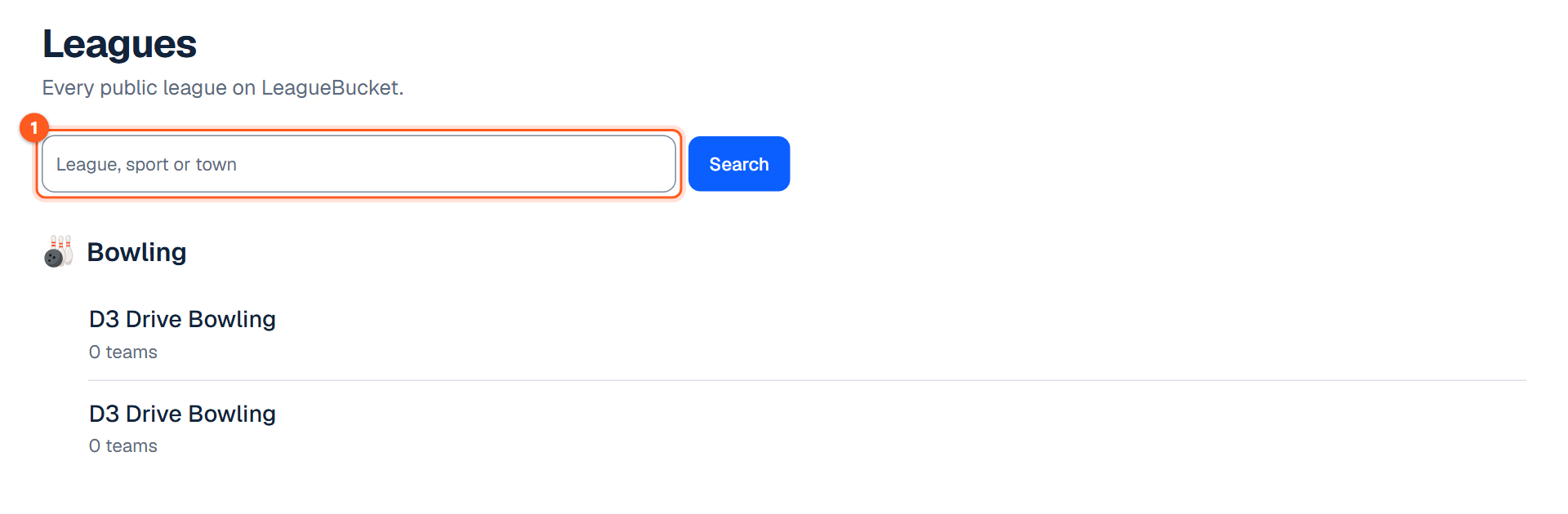
The Browse public leagues page with its search box
  1. 1. Type a name, sport, venue, town or state. The list narrows as you type.
Sport pages

/for/<sport>, linked from the home page and from each sport's name in the directory

What a sport page shows

Each of the twelve sports has its own page under /for/<sport>, saying what the product does for that kind of league and what it doesn't do yet.

Two phone screens of a league of that sport sit beside the headline on a wide screen and under the buttons on a phone: the league's standings, then the screen that is that sport's own (bowling's frames, a team's roster over a diagram of its positions, trivia's rounds, a tennis match set by set, a cornhole result). The screens follow the light or dark theme and never carry the Sample label. A photograph of the sport is faded into the band behind them.

Further down, each section sits in its own tinted box, the same box the league pages use. Each of the first two sections has a picture of the product beside its bullets on a wide screen and above them on a phone: one part of a league page of that sport (a game's result, the results list, the standings, a bowling night's games or the averages), in the light or dark theme. Each bullet has an icon for what it is about (a bell on reminders, a scale on tiebreakers, a calendar on the schedule) in place of a tick.

See one running

Each page has a See one running list of leagues of that sport: /for/trivia lists trivia leagues, /for/bowling bowling leagues, /for/kickball kickball leagues.

How the page animates

The hero arrives in order when the page opens: once the first phone screen has loaded, the phones slide in from the right edge of the page, the headline from the left edge, then the text and buttons under it fade in. It arrives all at once for a visitor whose device asks for reduced motion.

Each section's heading fades in as it is scrolled into view, and once it has, each bullet under it grows from a point as it is reached. What is already on screen when the page opens does not move.

The page for one sport, here trivia, at /for/trivia
  1. 1. Start a league of this sport.
  2. 2. See one running: opens a league of this sport.

Questions and answers (FAQ)

Where to find it

leaguebucket.com/faq, linked from the footer (Support) and from the questions on the pricing page.

The five question groups

One page of the questions people ask before starting a league, in five groups: Getting started, Sports and scoring, Players and fans, Plans and money, and Your data and getting help. Plans and money shows the same four answers as the pricing page.

This manual

leaguebucket.com/manual, linked from the footer (Support → Manual)

How to use the site as a fan or a player, and how to run a league, with pictures of the screens. Search the manual finds a topic by any words in it; the contents list jumps to a topic.

A league's public pages

/leagues/<league>

The league header

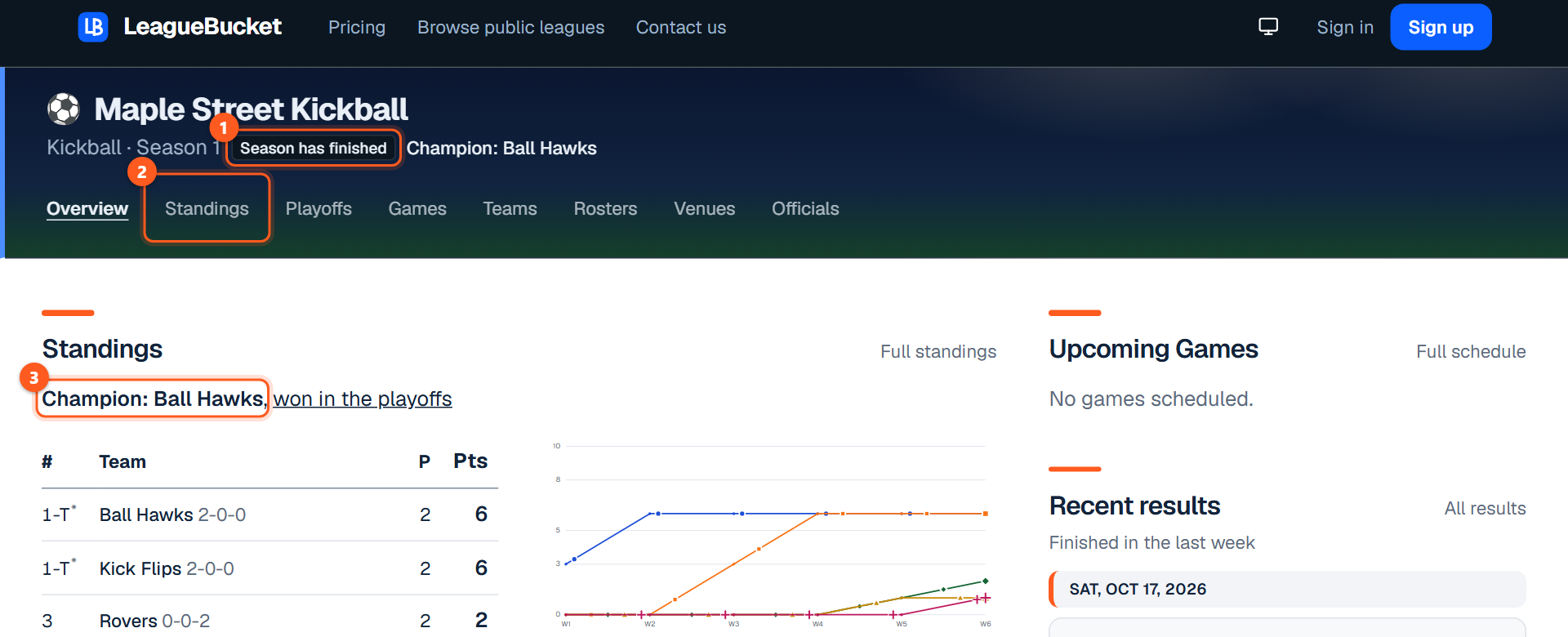
The header shows the league name, sport, the current season and a Season has finished tag once the season is over, with the champion's name beside it when the season was won in a bracket. Every sport has a photo behind the header. A league set to Other / not sport-specific has a plain header.

Overview

Overview is the league home: standings, upcoming games and recent results. On Overview the key under the standings is folded behind "What the columns mean"; a click opens it.

Standings

Reading the table

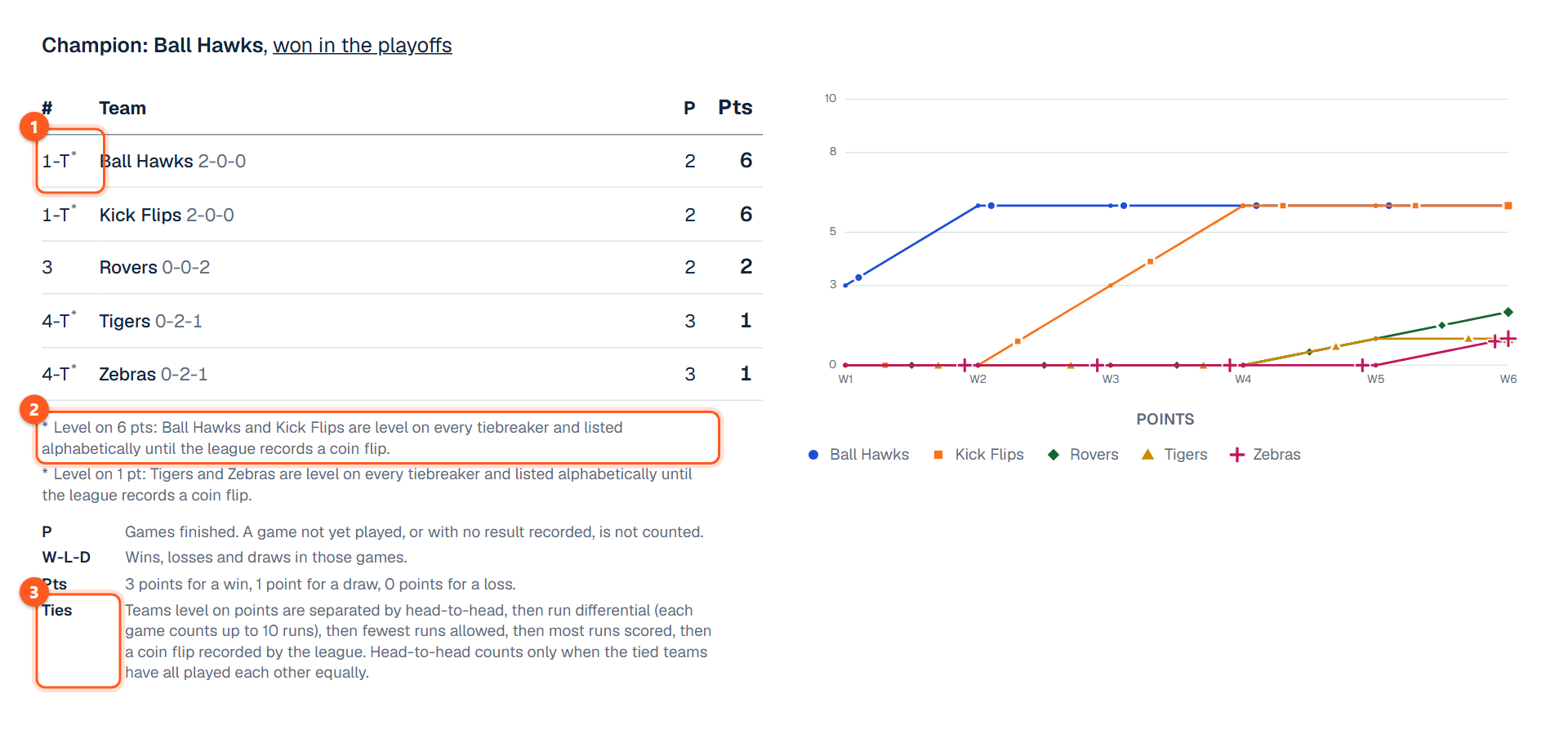
Standings is the full table, with the league's tiebreakers explained in the key under it, always open. A league of players (no teams) ranks its players. A season with divisions has one table per division.

Tied teams and tie markers (*, **, †, ‡)

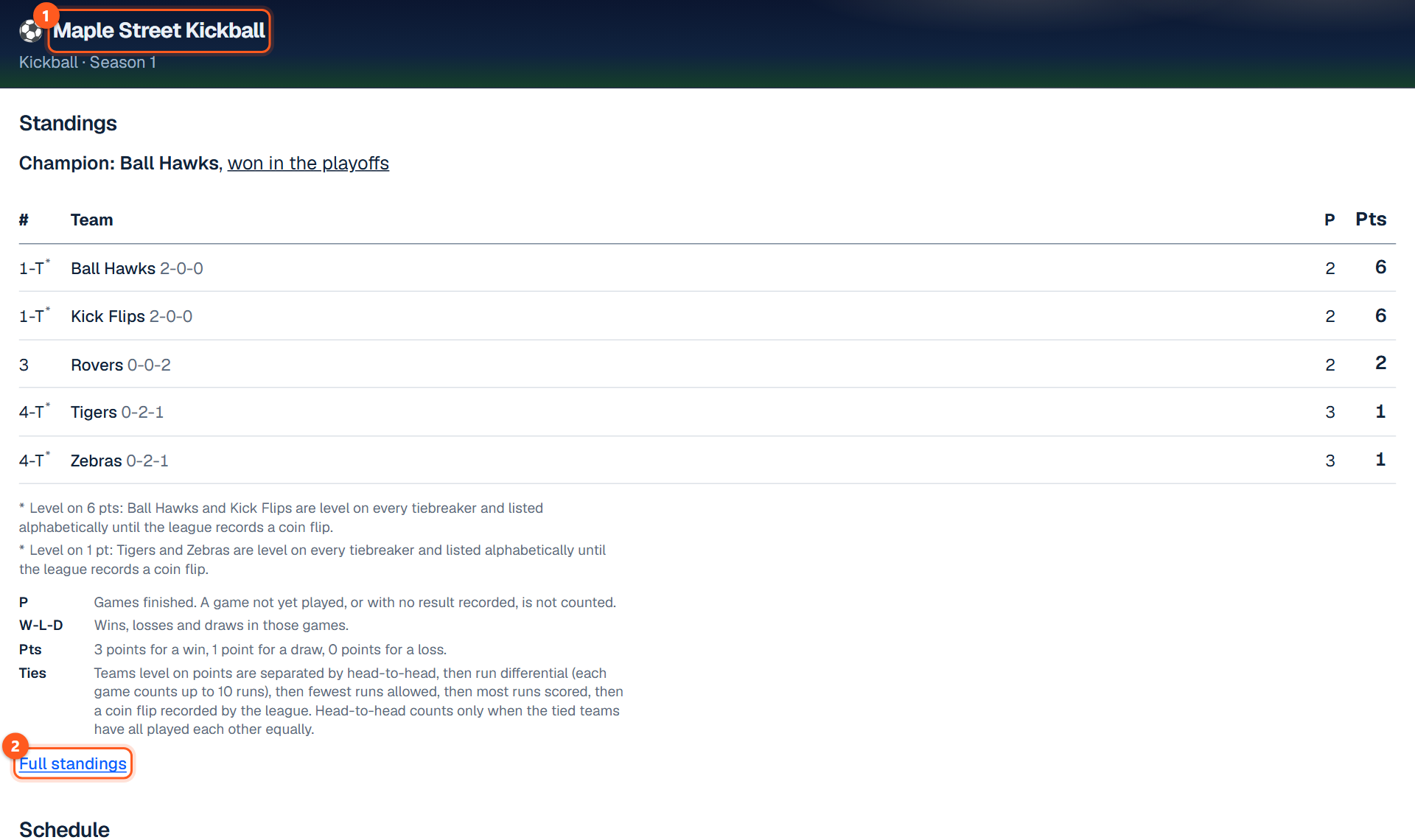
Teams level on points carry a marker beside their position that matches the note under the table saying what separated them: * for the first tied group, ** for the second, then † and ‡.

Points adjustments

The key lists any points adjustments the league has made, each with its reason. A season's admin overview has Points adjustments, where points are given to or taken from a team from a day, for a forfeit, a withdrawal or a penalty; they count in the table, the chart and playoff seeding. In a bowling league the same panel takes Pins (+ or −) as well as, or in place of, points: a ruling on a team's total pins with handicap. Pins change no score and no points; they are added to the total that separates teams level on points, so they can change the order of tied teams on the standings and in the position round's pairings. A pins adjustment is printed under the public standings with its reason, like a points one.

Champion badge and champion line

The table shows a Champion badge once the season is complete. A season with a bracket is won in the bracket, so its table gives nobody the badge; once the Final is decided a line above the table names the champion (Champion: the team, won in the playoffs) and links to Playoffs.

Games and game pages

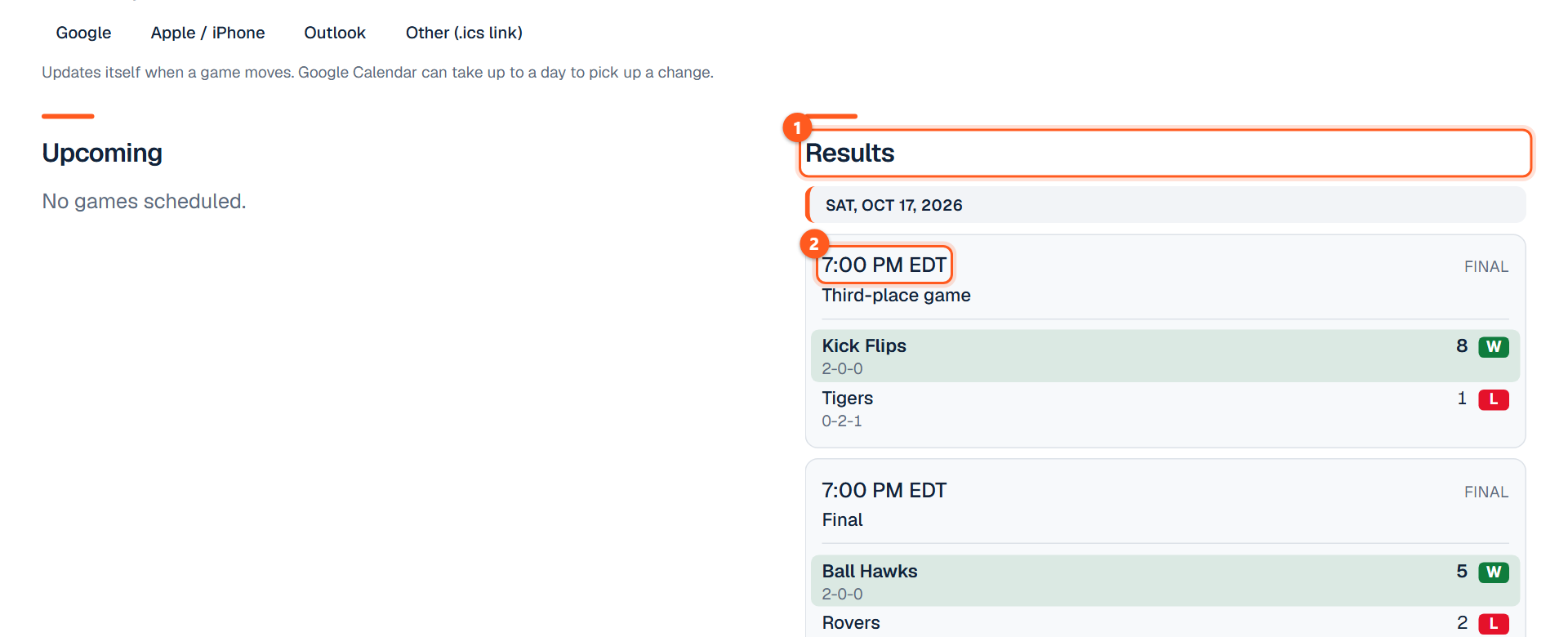
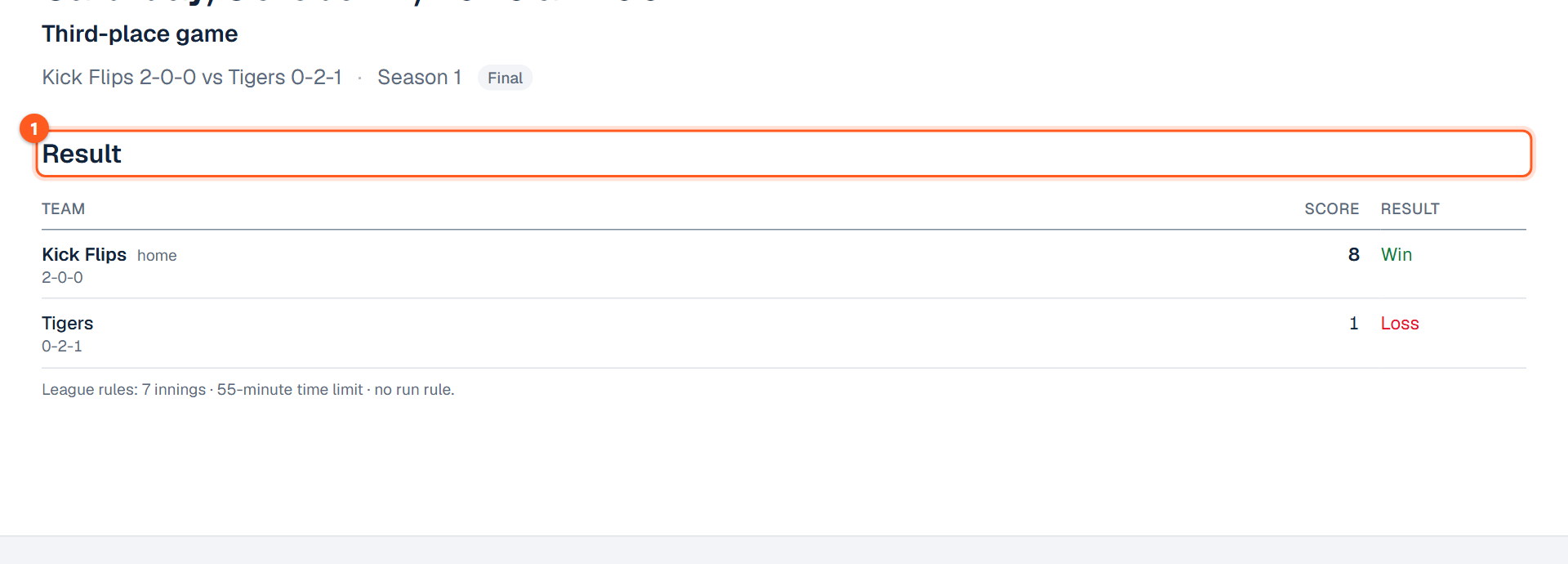
Games lists every game, newest first, in three lists: Upcoming, Awaiting results and Results. Each game has its own page with the score, the line score, tennis or volleyball sets, or each bowler's games, trivia rounds and the officials. A game's page boxes each part: the result, a bowling night's games, a box of frames for each game bowled frame by frame (Game 1, Game 2...), side brackets, trivia rounds, lineups and officials.

Upcoming games

Upcoming Games on the league overview lists the next dates only, as many as it takes for every team or player still to play to appear once: one date when everybody plays, and on to the next when a team has a bye. A line under it counts the games left on the full schedule.

Game order and lane order

On every games list, here and in Admin, games that start at the same time are listed in lane order, lowest lane first, and within a bowling match the team on the lower lane is listed on top.

Tennis and volleyball set scores

Tennis and volleyball set scores also show on Overview and Games once entered, with a tennis tiebreak printed small after the loser's games (6⁴).

Team pages

Teams lists the teams under their division, a box for each, when the season has divisions. Teams appears only when the league has teams.

Layout on a wide screen and on a phone

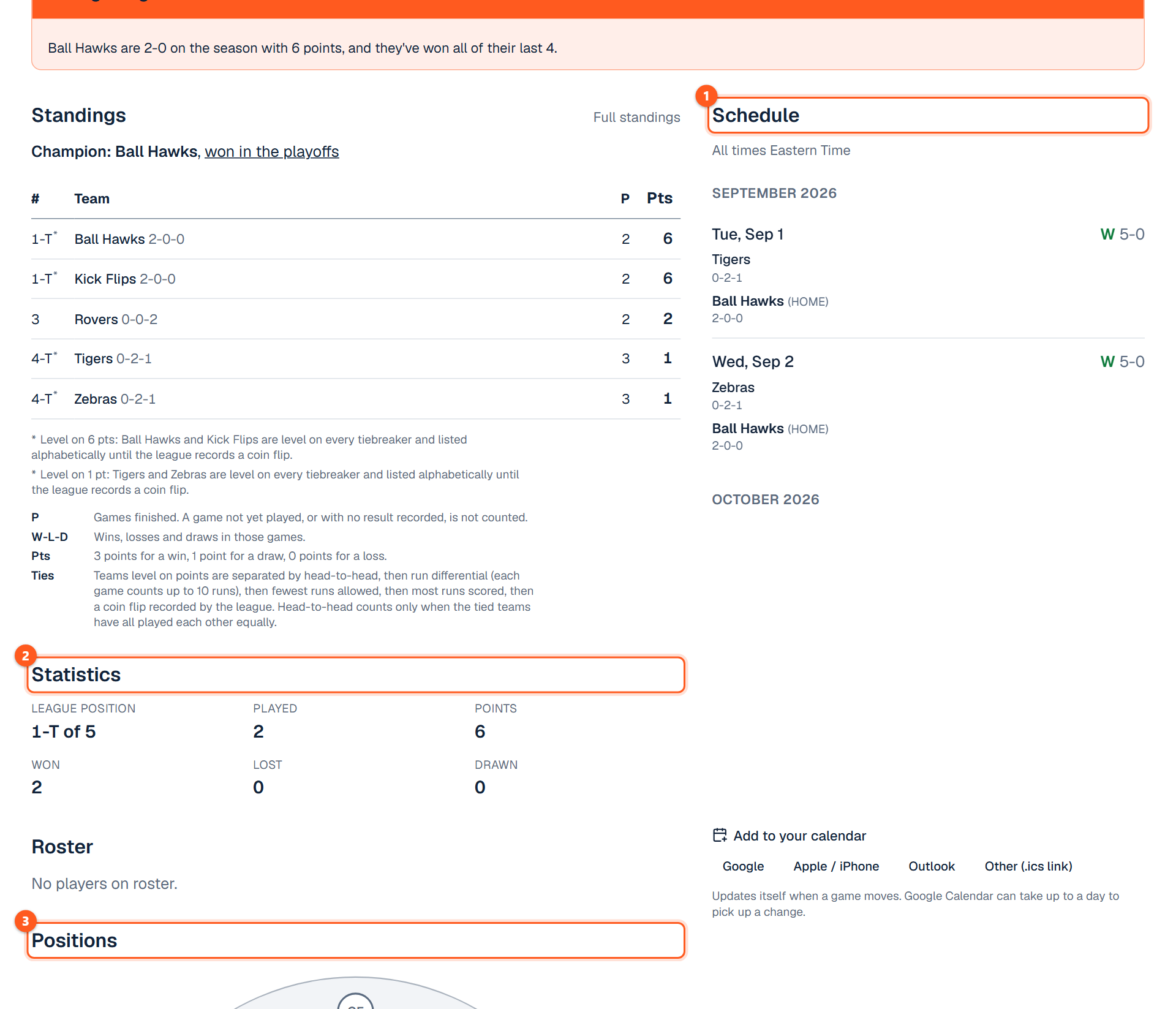
A team's page, on a wide screen, has its standings, statistics, roster and positions down the left and its schedule down the right; on a phone the schedule comes first.

Schedule and results (W/L bands)

A team's page shows its next game in a box above its season schedule. Each game in that schedule lists the teams one per line with each team's score at the end of its own line; once a game is decided the winner's line has a green band and a W, and the other an L, whichever team's page it is. A bowling night keeps its game-by-game table instead.

Statistics and positions

Statistics gives the team's place in its own division when the season has divisions (the table beside it), and in the league otherwise. Positions draws the field for sports that have one (baseball, softball, kickball, soccer, basketball, hockey, volleyball, football), filling each position the team has someone rostered at; positions with no place on the field (DH, UTIL, K...) are listed under it.

Renamed teams and former names

Renaming a team (Rename beside its name in the admin) moves its page to an address that matches the new name, and the old address forwards to the new one; standings and statistics follow the team, not its name, so a rename changes no numbers. A rename can carry a "Changed on" day: games before that day keep the old name, and left empty the rename corrects the name on every date.

Former names on the team's admin page lists the names a team used to have, each with the last day it was used, and is where a rename already made is given its date; games up to that day print the old name on the public and admin game lists, game pages and bowling history, while standings, rosters and the team's own heading show the current one.

Make this my team

A visitor can press Make this my team on a team's page; from then on that league's overview shows a line at the top with the team and its next game (when and where), linked to the game. It is remembered in that browser only: nothing is stored with us, no account is needed, another device knows nothing about it, and Not my team on the team's page forgets it.

Bowling on the public pages

Score charts (scratch and handicap)

Bowling leagues chart their scores by week, scratch as a solid line and with handicap as a dashed one: a bowler's average game at the top of each season on their page, each bowler's average game under the roster on the team's page, and each team's pins under the rosters on the Rosters tab and above the list on the Teams tab, where it opens on the totals with handicap.

Reading and using a chart

Every point wears its bowler's or team's shape, filled for scratch and hollow for with handicap, and a faint dotted line joins the weeks either side of one not bowled. A chart draws up to sixteen teams or bowlers: past the eighth a colour comes round again with a different shape.

The buttons above a chart (Both, Scratch, With handicap) show one kind of score at a time and double as the key. Point at a week for the numbers, in a Scratch column and a With hcp column; point at or tap a name to pick out one line.

Frame-by-frame scoresheets

A scoresheet is ten frame boxes: the frame's number, a small cell for each ball (X, 8 then /, 9 then -; three cells in the tenth) and the running total, with a ball that left a split circled. The bowler's name, scratch, handicap and total are on the line above, and it fits a phone without scrolling. A game with no handicap on a sheet where others have one says so. A bowler's name on any frame-by-frame scoresheet links to their page.

Bowler pages

A bowler's page gives each season three boxes: Season totals with the weekly chart, Night by night, and Frame by frame. Frame by frame shows the frames of every game entered that way, newest three nights open.

Leaders and "Not enough games yet"

Leaders appears for bowling leagues (averages and highs). A bowler who has not yet bowled the share of games set in Settings → Bowling → Leaders page is left off the ranking and the highs, and is listed in Not enough games yet at the bottom of the page, by average and without a place.

Ties in points leagues

In a bowling league scored by points, a night with a tied game (or tied total pins) has a line under its table saying the tie's points were split and how many each team got.

Side brackets

Bowling game pages show the night's side brackets, when the league runs them, with each match's scores and the winner.

Playoffs, Championship and Split season tabs

Playoffs appears when the season has a bracket, Championship when a trivia season ends in a championship night, and Split season when a bowling season is split into halves (each half's winner, the roll-off between them, and the champion). Each names the season's champion when it is decided.

Reading a bracket

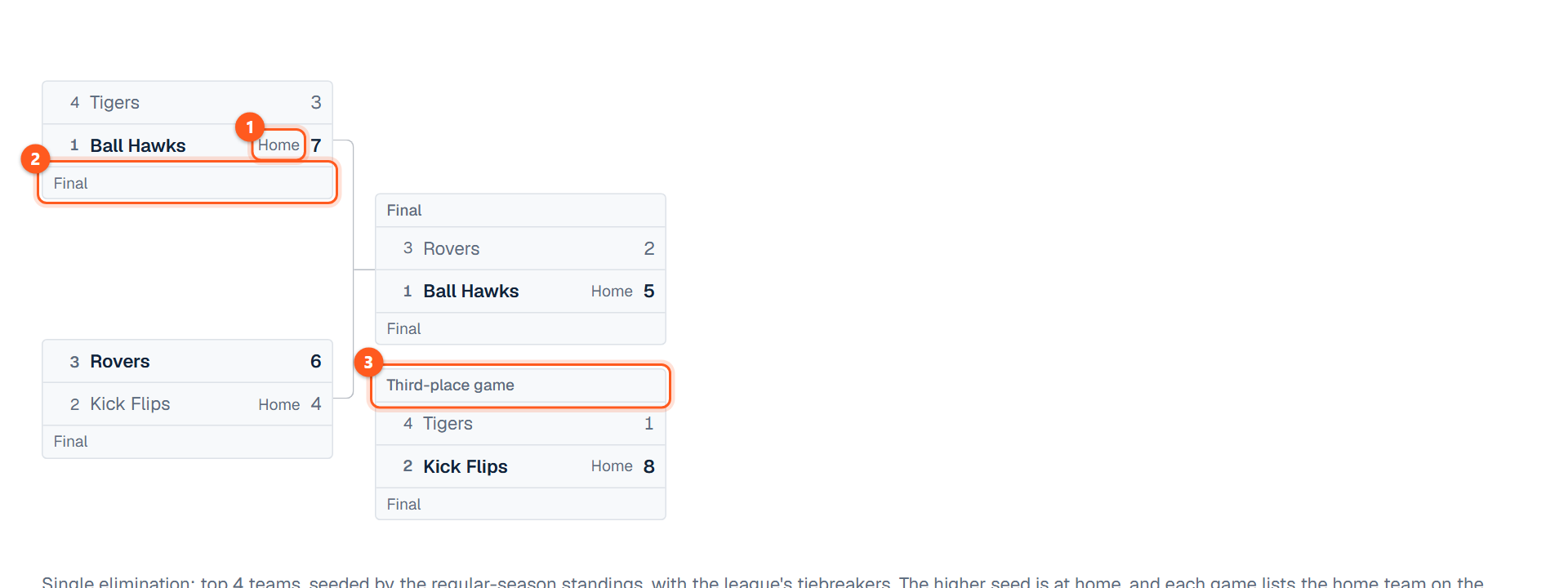
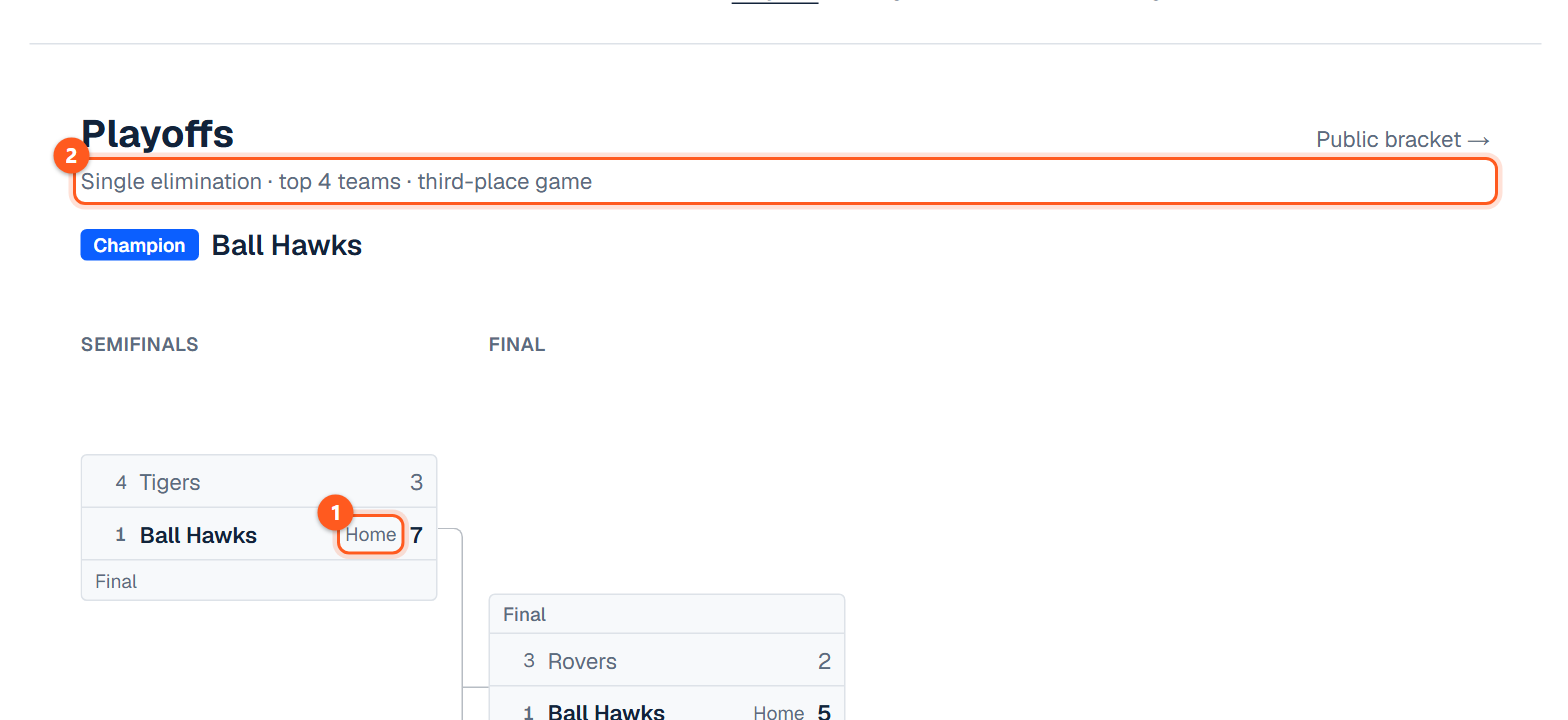
Every bracket game lists the away team on top and the home team on the bottom, marked Home; the Final sits level with the middle of its two semifinals, lines join each pair of games to the game they feed, and the third-place game is under the Final. A reseeded bracket has a line only into the Final, because its other rounds are paired by seed once the round before is over. On a phone the bracket scrolls sideways.

Split seasons

In a split season, Standings shows each half's own table, the half being bowled first, and a team's Statistics gives its place in that half.

Other tabs: Players, Rosters, Venues, Officials

Players and Rosters appear only when the league has them. Rosters has a box for each team. Venues and Officials list where the league plays and who works its games, with a box for each venue.

Rules tab

Rules appears on every league except one set to Other. It opens with This league's rules, read from the league's Settings: how the standings are scored and how ties in them are separated, for every sport; a bowling league's handicap, averages, absent and vacant scores, bye night and Leaders eligibility; a baseball, softball or kickball league's game length, time limit, run rule and forfeit score. Change a setting and the page changes with it; nothing is typed in.

Below that is how the sport is played, LeagueBucket's own plain-language summary, folded by section; a rule the league sets carries an "In this league" line with the league's own value. It is a summary, not an official rulebook, and says so and names the rulebook it follows. A sport played more than one way has a box for each: Football's main box is the classic eleven-a-side game and five-a-side flag football has its own box under it; Softball's main box is what slow pitch and fastpitch share, and each has its own box. Hockey's summary is ice hockey without checking.

The foot of the page lists the Sources, numbered, each with its edition and a link, and each box carries the number of its own; a summary written with no published rulebook says so there. Soccer, baseball, kickball, volleyball, tennis, football, flag football, softball and bowling were read against the published rulebook; basketball and hockey were not (those rulebooks are sold or sit in an app), cornhole only in part, and trivia has none.

Page layout and icons

Each section of the league overview, a team's page and a player's page sits in its own light blue box. So does each table on Standings (one per division, or per half of a split season), each group on Leaders, each team on Rosters, each venue on Venues and each list on Games.

Each tab's heading has an icon: a line chart on Standings, a calendar on Games, a trophy on Leaders, a person on Players, a group on Teams and Rosters, a map pin on Venues and a checked person on Officials. A game's own page has a calendar icon beside its date and time, and the sport's icon beside each bowling game's frames. Every boxed section on the league overview, the Leaders tab, a game's page, a team's page and a player's page has a small icon beside its heading as well (a flag on results, a calendar on schedules and upcoming games, a chart on standings and statistics, a group on rosters, a clipboard on lineups).

Accessibility

The standings chart of points by team has a link under it, Show these numbers as a table, which lists every team's running total after each game date; it is there for anyone who cannot read the lines, and it includes teams past the eighth, which the chart itself leaves out.

A game's page and a league's link preview also describe themselves to search engines and screen readers (the game as an event with its teams and place; the preview image by the league's name and sport); neither changes what a visitor sees. The icons beside headings are decoration and say nothing the heading does not.

Registering for a season

Register appears while the league is taking registrations online. A limit or a closing time ends registration on its own.

Filling in the form

A player gives their name, email, optional phone and the team they play on or want, confirms they're 18 or older, and agrees to the waiver if the league has one. No account is needed.

Paying

The player pays on Stripe's page. The charge is made by the league, on its own Stripe account; when the league passes processing on, the form shows the fee, the processing line and the total before anyone pays.

After you register

After paying they land on a You're registered page and get a confirmation email; Stripe sends the receipt.

A league's public Overview page
  1. 1. The Season has finished tag, with the champion beside it.
  2. 2. The league's tabs. Only the ones this league has are shown.
  3. 3. The champion line above the standings, linked to Playoffs.
The public Standings page with two tied groups and the key under the table
  1. 1. Tied teams share a place: 1-T.
  2. 2. The note under the table says why they are level.
  3. 3. The key explains the league's tiebreakers, in order.
The public Playoffs page: a four-team bracket with a third-place game
  1. 1. Each game lists the away team on top and the home team on the bottom, marked Home.
  2. 2. The Final sits level with the middle of its two semifinals, joined by lines.
  3. 3. The third-place game is under the Final.
A league's public Games page
  1. 1. Upcoming games first, then results, newest first.
  2. 2. Click a game's time to open its own page.
One game's public page
  1. 1. The score, with the line score, sets, bowlers' games or trivia rounds for sports that have them.
A team's public page
  1. 1. The team's schedule and results.
  2. 2. Its record and its place in the league or division.
  3. 3. The field, with each position the team has someone rostered at.

Following a league

Following by email

The Follow button at the top of every page of a league → /follow/<league>

Every page of a published league has a Follow button at the top right of its header, beside the menu on a phone. A sample league has none, because its games are made up, and neither does a league that is not yet public.

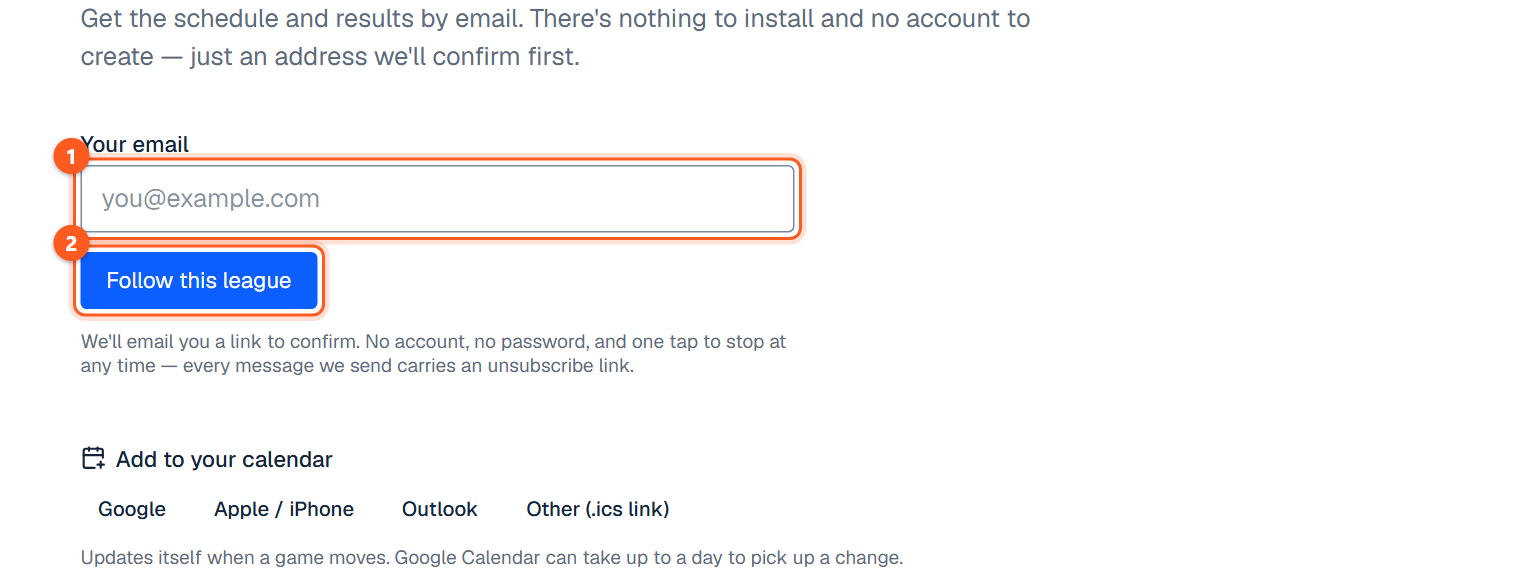
Enter an email address and confirm it from the email that arrives. No account and no password. Confirming sends one welcome email, which carries the unsubscribe link. Followers get the schedule and results by email, including a reminder about a day and a half before each game. Every email has a one-click unsubscribe link.

Email settings

Email settings for a league are at /preferences/<league>, where <league> is the last part of the league's own address (amber-valley-classic-trivia-league for the sample trivia league). Text-message settings exist, but texts aren't being sent yet.

The Follow page for a league
  1. 1. Type your email address. No account or password.
  2. 2. Then confirm from the email that arrives.

Your leagues

/me

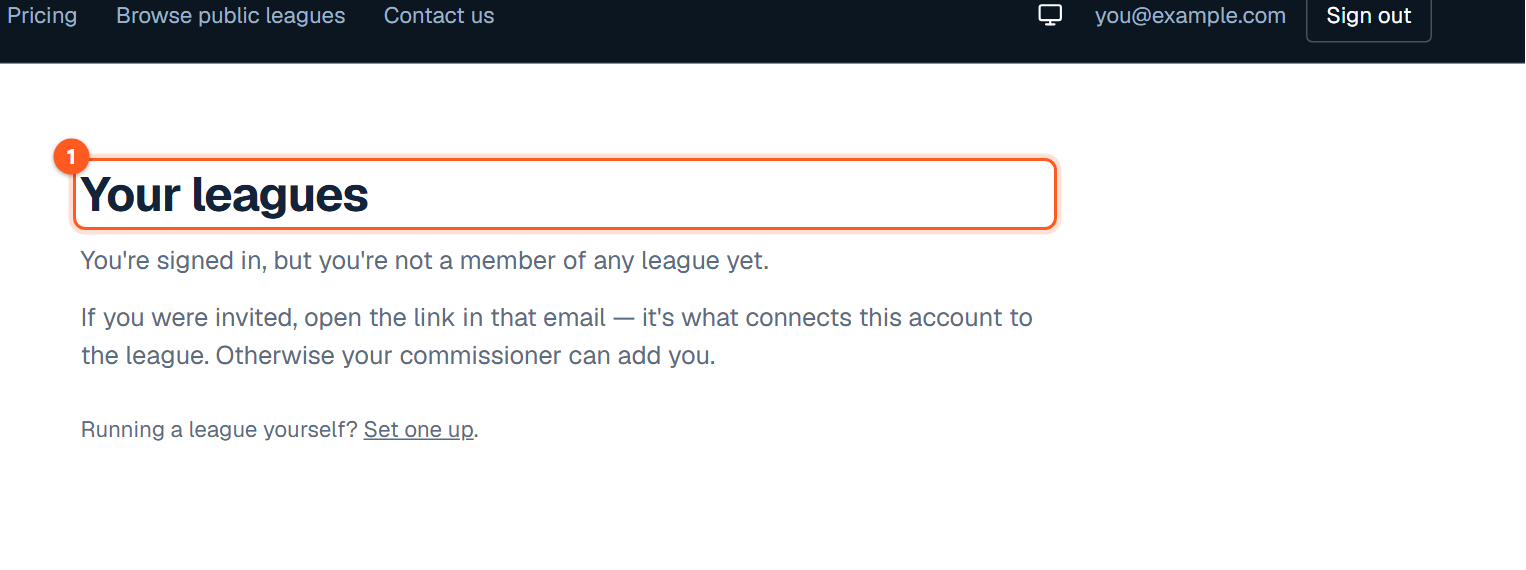
Signed in, /me lists the leagues you belong to and the ones you run. An invitation email's link is what connects an account to a league.

The Your leagues page, signed in
  1. 1. The leagues you belong to and the ones you run.

Part 2: Running a league (admins)

Everything under /admin.

Admin basics

/admin

Owners and co-admins

The owner is whoever created the league; co-admins can do everything except remove admins and delete the league.

Switching between leagues

An account can run several leagues; the switcher at the top chooses which one the sidebar is for.

Signing up and signing in

/admin/signup · /admin/login

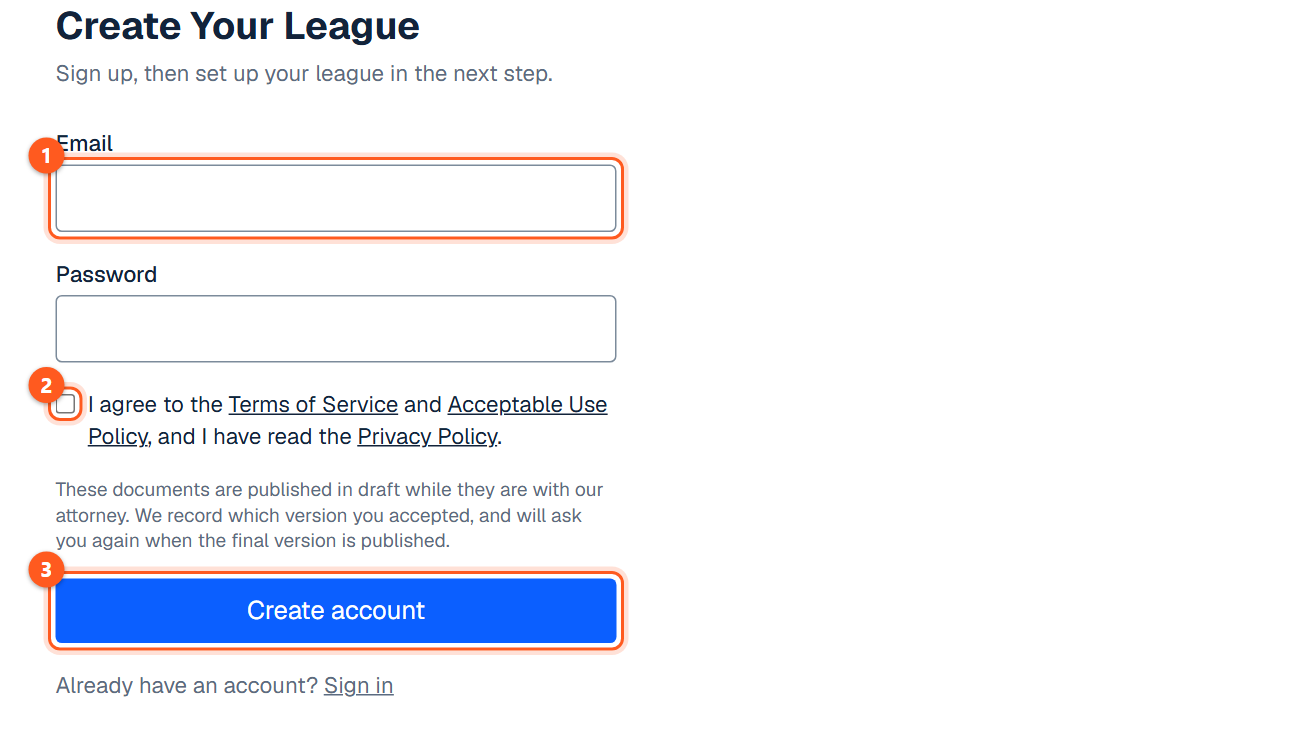
Creating an account

Sign up with an email and password and confirm the email.

Accepting the terms

The first visit asks you to accept the terms (One thing before you continue); nothing else in the admin opens until you do.

Resetting a password

Forgotten passwords are reset from /admin/reset; the link works once and for an hour.

The sign-up page
  1. 1. Your email address and a password.
  2. 2. Tick to accept the terms.
  3. 3. Create the account. A confirmation email follows.
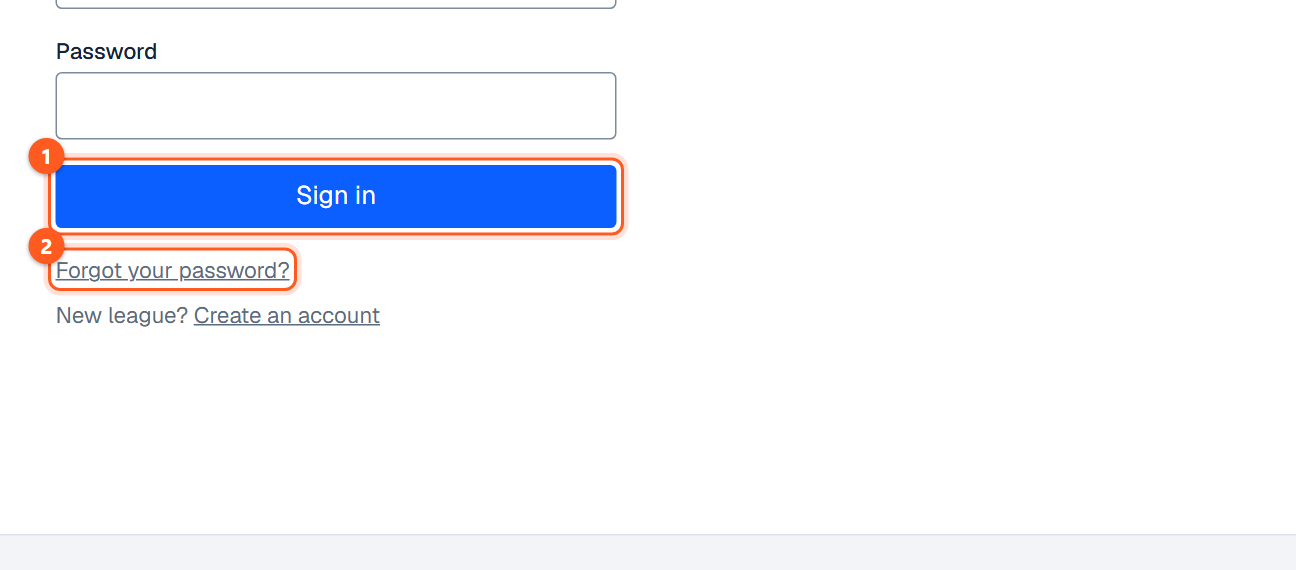
The sign-in page
  1. 1. Sign in with your email and password.
  2. 2. Reset a forgotten password by email.

Creating a league

Admin → + New league

Starting a new league

Name the league and choose its sport. You become its owner and it starts with a first season.

Starting from a sport's page

Create a free league on a sport's page (leaguebucket.com/for/bowling and the rest) carries that sport through signup and the confirmation email, so the first form opens with it already chosen. Someone who already runs a league lands on the create form instead, with the same sport chosen. The choice can still be changed there.

Visibility for a new league

A new league's pages are public from the start; Settings → Public visibility can make it Unlisted or turn its pages Off.

The + New league link at the top of admin
  1. 1. Start another league from here.

Guided setup

Sidebar → Guided setup

Five steps: the league, its teams, its players, the schedule, and sharing it. Lists can be pasted straight from a spreadsheet. You can leave at any step and come back.

The schedule step lists the season it is about to create before the button is pressed: each week with its date and who plays whom, the team with a bye in an odd league, and the lanes when a bowling league gives a lane range. A season of six weeks or more shows its first four with a Show all link. The list can be rearranged before anything is created: drag a team onto another team to swap the two (or tap one, then the other, which is how it works on a phone), drag the grip beside a game onto another grip to swap whole games, and drag a week's heading onto another to swap the weeks; dates stay with the week's place. Dropping a team on that week's bye plays the bye team instead. Lines under the list say what a change did to the season (who now meets twice, who no longer meets, who has more or fewer games); a team in two games in one week must be fixed before Create works. Put the schedule back as generated undoes everything. A trivia league's nights cannot be rearranged. Nothing is written until Create is pressed, and any game can be moved or edited afterwards. Build a schedule on a season is the same screen.

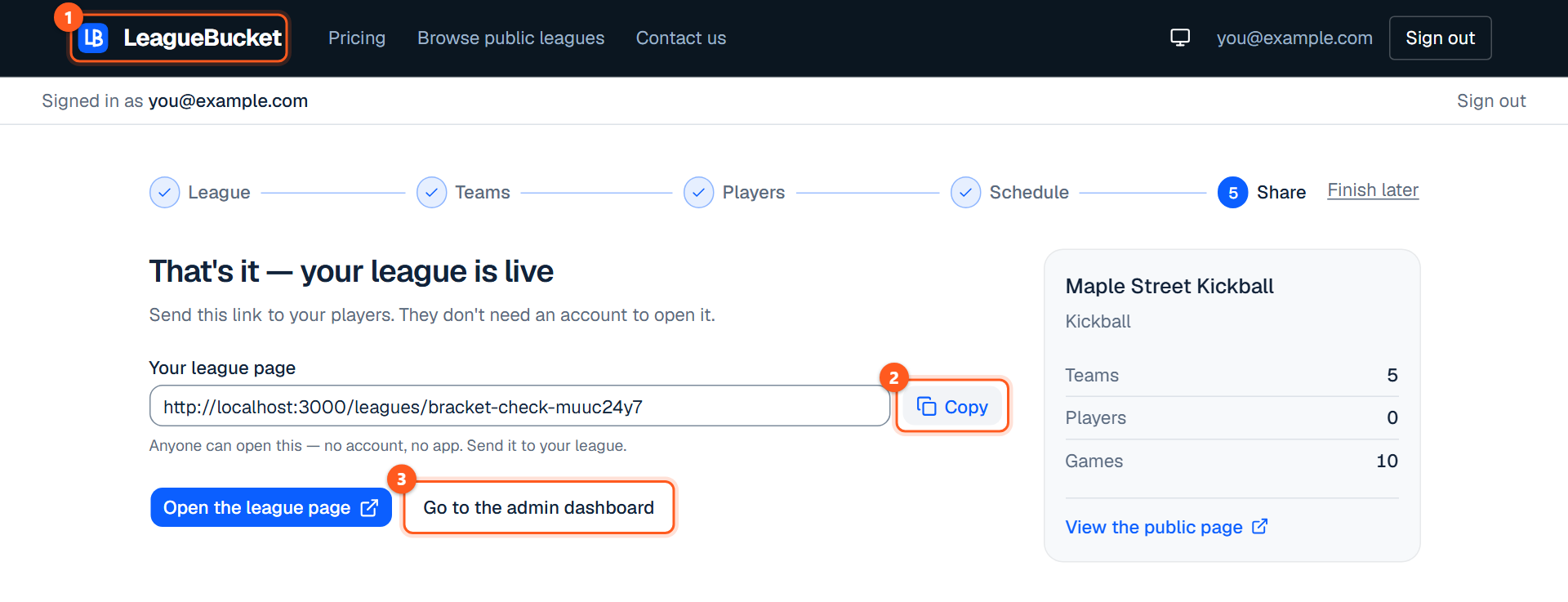
The last step of guided setup, with the league's public link
  1. 1. The four steps. Click one to go back to it.
  2. 2. Copy the league's public link to send to players.
  3. 3. Leave setup for the full admin screens.

Seasons

Sidebar → Manage seasons, or a season under Seasons

What carries over between seasons

Teams and players belong to the league and carry over from season to season; rosters, divisions and games belong to a season.

Starting a new season

New season asks what to bring from an earlier one (divisions, each team's players) and then offers to build the schedule. Copying a season is part of Commissioner.

Changing season dates

A season's dates can be extended at any time. Shortening them is refused if it would leave a game outside the season, and you're offered the unplayed games to remove.

The season tabs

Each season has tabs: Overview, Subdivisions (optional groupings such as Division A and Division B), Teams (open one to add or remove players), Games, Roster (everyone rostered this season, read-only), Playoffs, Registration (online registration and fees, below), Schedule a game and Build a schedule (a round robin you can edit afterwards).

Moving players between teams (As of, Since, Left on)

On a team under Teams, adding a player who is on another team moves them on the "As of" day, today unless changed, so a move that happened weeks ago can be recorded on its real date. Each roster row has Since and a Left on date beside End stint, and Earlier this season lets both days of a finished spot be corrected.

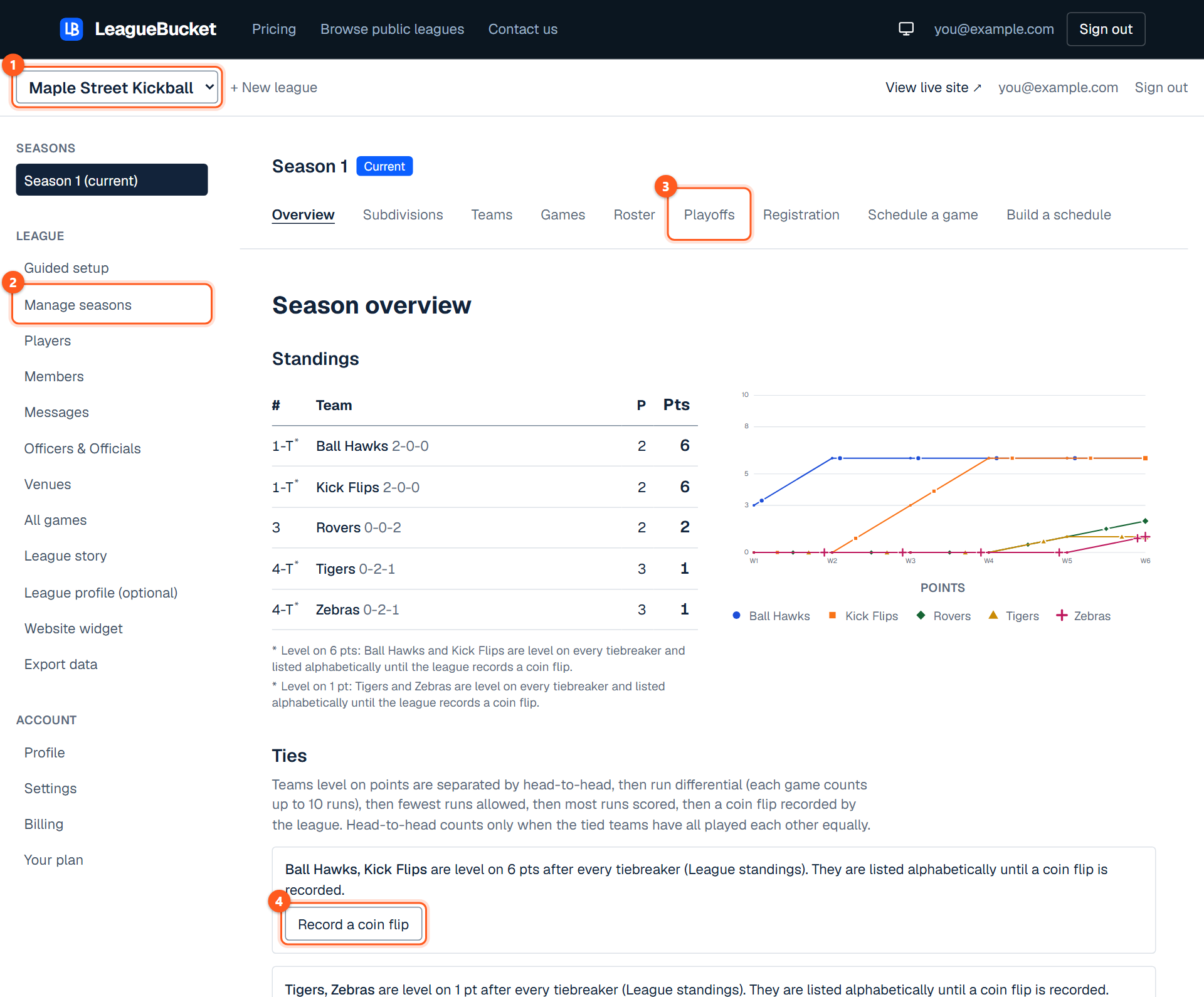
The season overview in admin, with the sidebar and the season's tabs
  1. 1. Switch between your leagues.
  2. 2. The sidebar: everything that belongs to the league, not to one season.
  3. 3. The season's tabs: its teams, games, roster and playoffs.
  4. 4. Teams level on every tiebreaker are listed here until you record a coin flip.
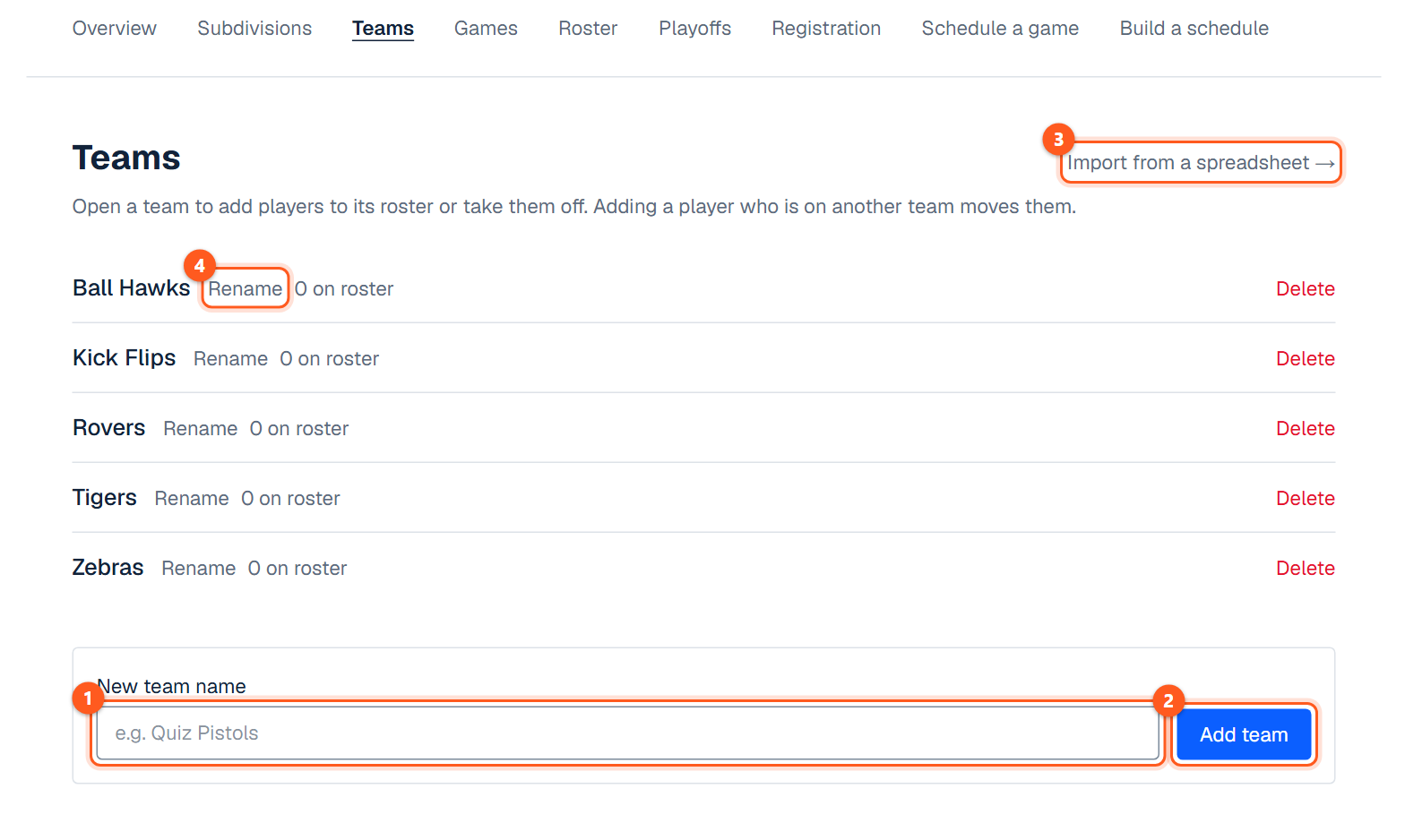
The Teams tab of a season
  1. 1. Type a team's name.
  2. 2. Add it to this season.
  3. 3. Or bring every team in at once from a spreadsheet.
  4. 4. Rename or delete a team on its own row.
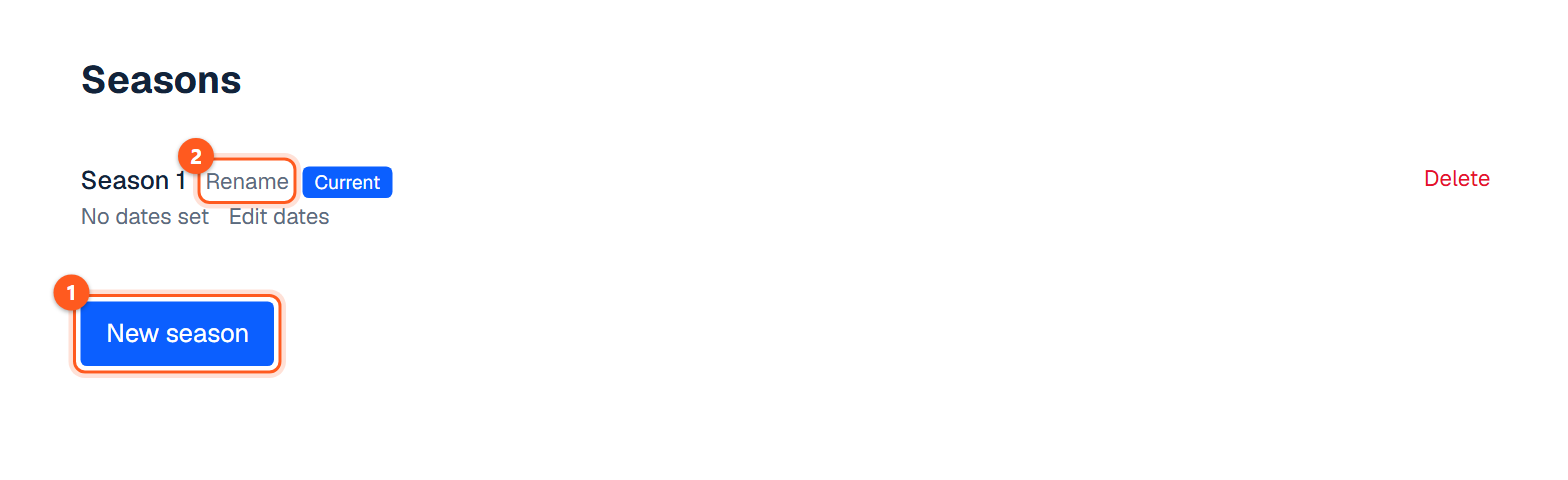
The Manage seasons screen
  1. 1. Start a new season.
  2. 2. Rename a season, change its dates, or delete it.
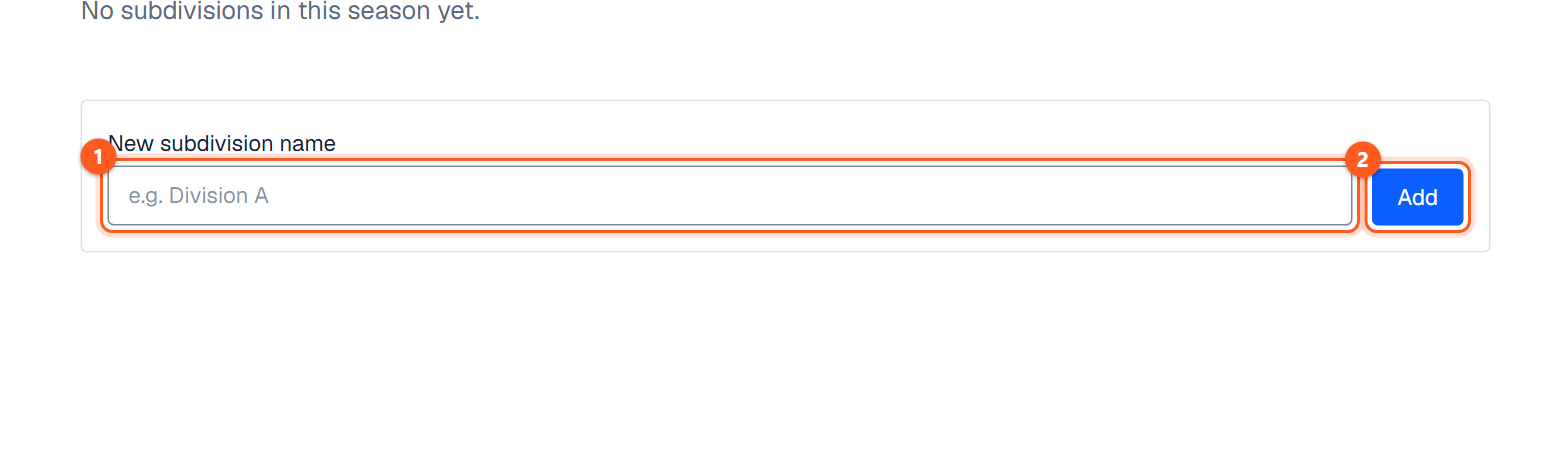
The Subdivisions tab of a season
  1. 1. Name a division or conference.
  2. 2. Add it. Teams are then placed in it on the Teams tab.
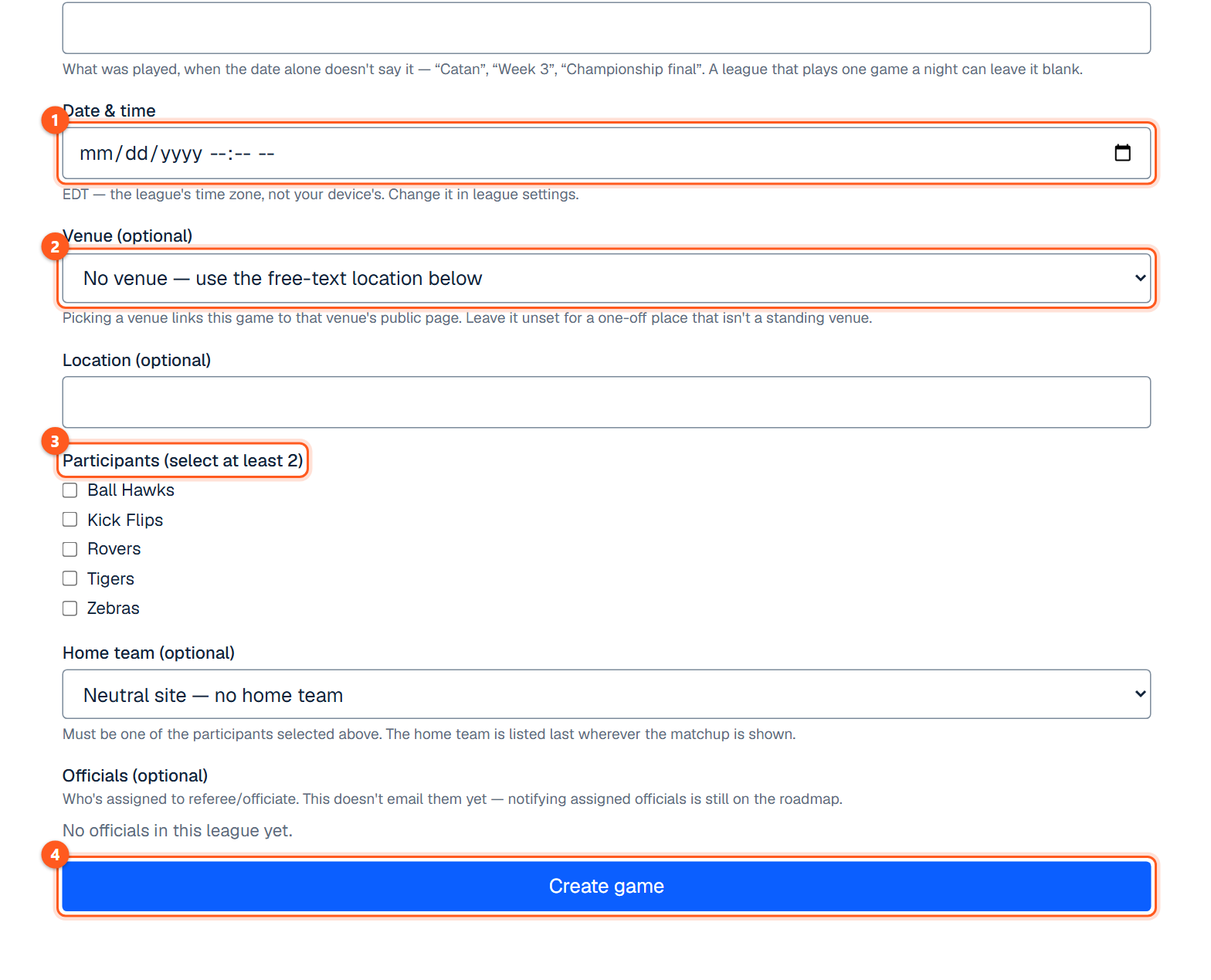
The Schedule a game form
  1. 1. When the game is played, in the league's time zone.
  2. 2. Where, from the league's venues.
  3. 3. Tick the teams playing.
  4. 4. Add the game to the schedule.
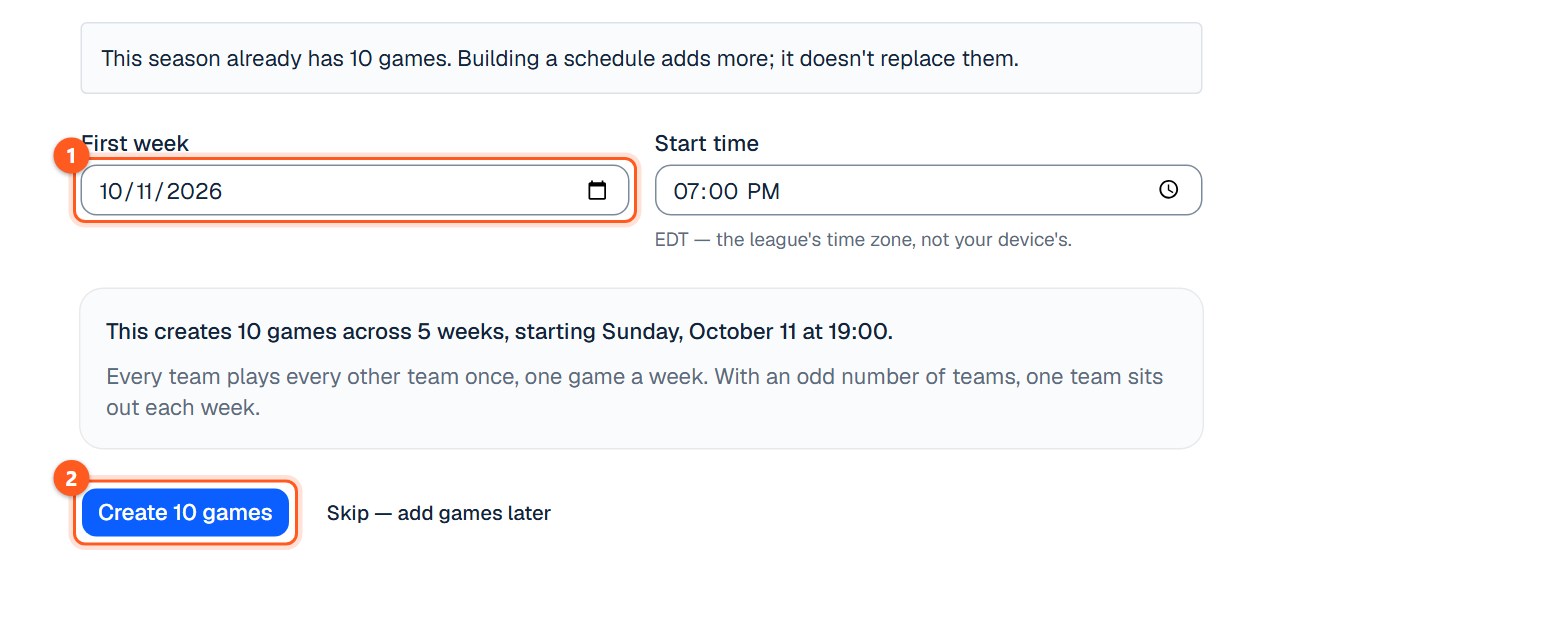
The Build a schedule screen
  1. 1. The first week of play and the usual start time.
  2. 2. Create the whole round robin in one go.

Players and importing

Sidebar → Players

The Players list

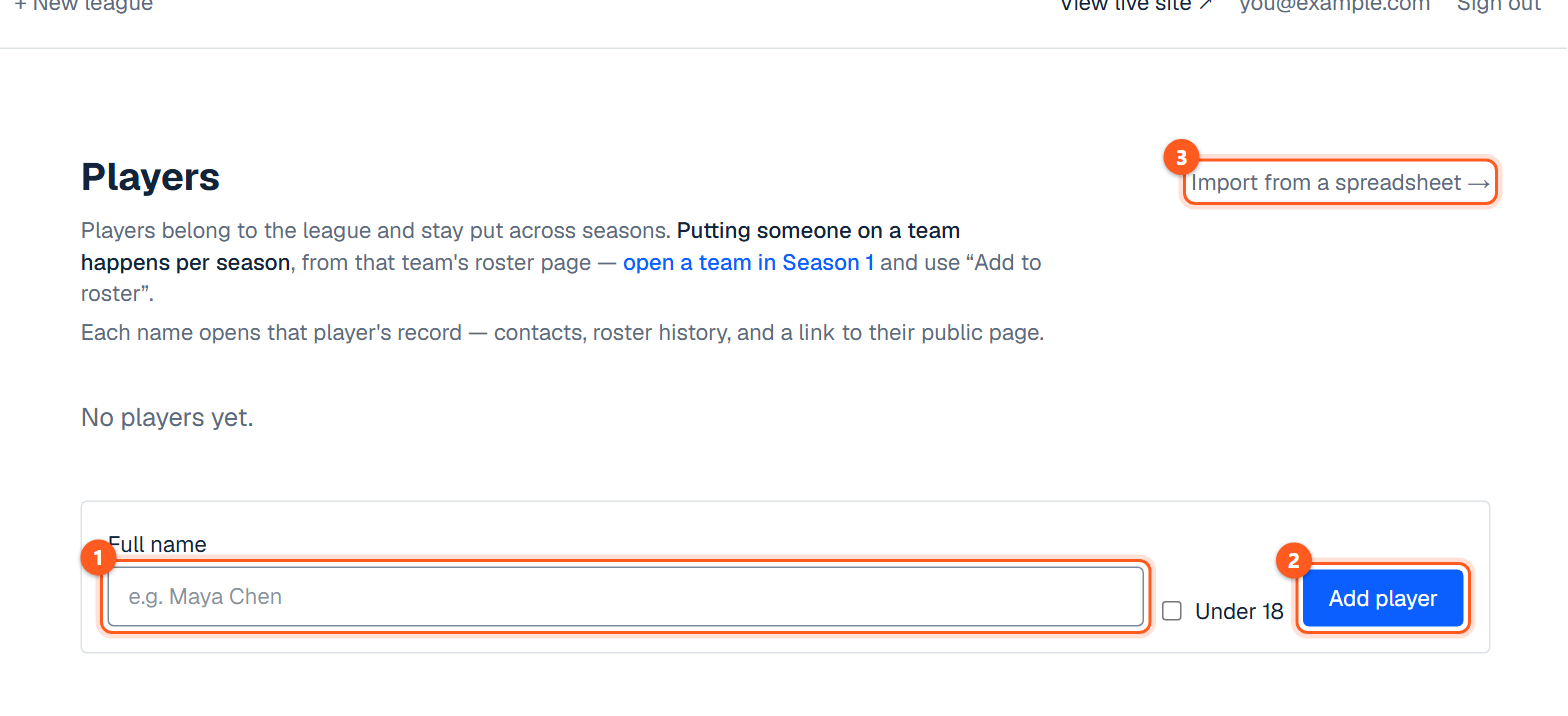
The league's players, kept across seasons. Putting someone on a team happens per season, from the team's roster page.

Importing from a spreadsheet

Import (linked from Players, a season's Teams and Roster) brings teams, players, venues or a whole roster in from a spreadsheet template.

The Players screen in admin
  1. 1. Type the player's name.
  2. 2. Add them to the league.
  3. 3. Or import the whole list from a spreadsheet.
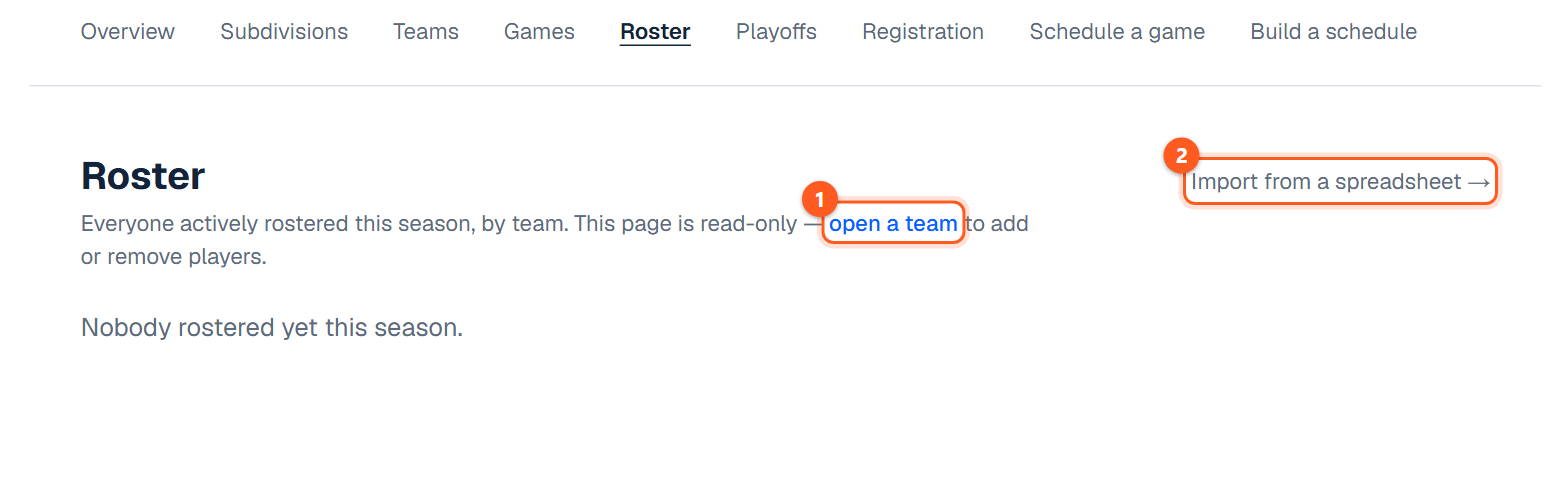
The Roster tab of a season
  1. 1. Open a team to put players on its roster.
  2. 2. Or import rosters from a spreadsheet.

Entering results

Sidebar → All games → a game → Results

Game status and missing results

Every sport enters a score or result per side, and a status (Scheduled, In progress, Final, Cancelled, Postponed). A game past its night with no result shows as awaiting a result.

The missing-results email

The league's admins get one email the next morning listing games still missing results. That email goes out on every plan, the free one included, and names each game once. Its Unsubscribe link stops it for that admin and that league only; billing notices and invitations still arrive, and the page it opens can turn the emails back on.

A whole night on one page

On either games list, a date with more than one game has Enter this night on one page beside it. It opens every game of that date together, earliest first and in lane order, so a night is entered without opening each game in turn. Each game still has Open this game, for what this page does not take: the home team, innings, set-by-set scores, lineups and officials.

Most sports get a score box for each side and two buttons. Save scores keeps the games open, so a running score can be posted. Save and mark final closes every game that has a score for both sides, and in soccer, basketball, football, hockey and cornhole it records the winner from the scores (a level score is a draw). A game with a score missing is left open and named under the buttons. Nothing is saved if any score is not a number, or if a playoff game would end level.

A bowling night shows each match's cards, the same ones as on the game's own screen, one match under another; each team's card has its own Save. Mark the night final, at the foot, closes every game whose teams all have a score. A trivia night is listed with a link to its own screen, where rounds and places are entered. Cancelled and postponed games, and games with more than two sides, are listed but not scored here.

Bowling

The bowling grid

Each bowler's games in a grid, as totals or frame by frame, with absent and vacant seats scored by the league's rule. Team nights are scored game by game and on total pins.

Bowling order

Up and down arrows set the bowling order per game. A night with nothing saved yet opens in the order the team finished its last saved night in (regulars and vacant seats; a substitute from last time does not carry, and a carried vacant seat is removed with its X before saving if somebody is bowling in it tonight), so a team that changes its order sets it once and later nights follow; a team's first night is in name order.

Vacant seats

A team short of bowlers gets "+ Vacant seat" on the night's card, once for each empty spot, not a player named Vacant; a vacant seat saved by mistake is taken off under its ⋯ with "Remove this seat", then Save.

Handicap corrections

A handicap, once given to a night, is not changed by a later correction to an earlier night; the one exception is a bowler's first nights with no entering average, whose handicap is made from those nights' own scores and so follows a corrected score there the next time the card is saved.

Bye nights

A team scheduled alone has a bye (in a bowling league a game may be scheduled with one team): it wins each game by bowling at least its team average coming into the night less the league's bye allowance (Settings, Bye night; 40 pins unless changed), handicap included on both sides, and the total pins by reaching the same mark over the night; there is no upper limit. The standings carry a Bye line under the teams, not ranked, with the points teams did not win against it, so each night's points still add up.

A night is a bye only when no opponent has scores on it: a team that bowled an opponent who was later deleted is not on one. The target is worked out when the night's card is saved, and the public table carries a line saying it was a bye and no one bowled.

Trivia

Add each round with its category, difficulty and each team's correct answers, or enter an overall score. Tied places share a place.

Baseball, softball and kickball

Innings and lineups

Runs by inning with hits and errors, how the game ended (run rule, forfeit and so on), and each team's lineup.

The run rule

Saving innings that first meet the league's run rule ends the game: it is marked final with Run rule as how it ended, and a notice above Result says who led by how much. Keep playing on that notice takes the ending off and puts the game back in progress; later saves then leave it alone, and the notice offers End the game by the run rule. An ending you chose yourself (time limit, walk-off, suspended) is never replaced. A run-rule game is tagged Run rule in the schedule lists, the way a forfeit is.

Tennis and volleyball

Set scores

Optionally, the games (tennis) or points (volleyball) each side won in each set (+ Add a set for best of five). Saving sets writes the score as sets won; a set with only one side entered, or level, doesn't count. Leave it blank to type the score yourself.

Tiebreaks

A tennis match tiebreak goes in as its points. Tennis has a Tiebreak row: for a 7-6 set, type the loser's tiebreak points (4 for 7-6(4)); it refuses one on a set that didn't end a game apart.

Cancelled and postponed games

A cancelled game counts as done when the season is judged finished; a postponed one doesn't.

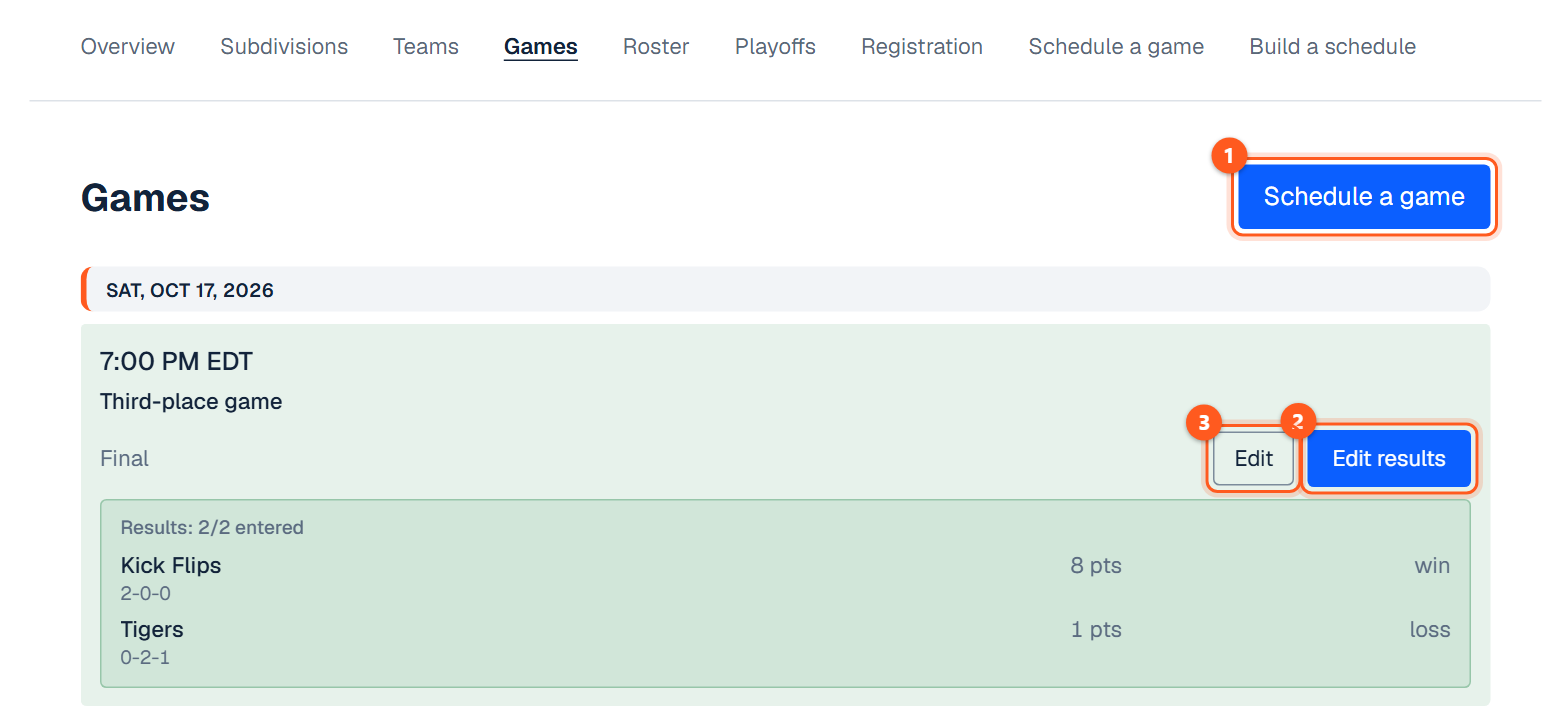
The Games tab of a season, one row per game
  1. 1. Add a game.
  2. 2. Open a game's results screen to enter or change its score.
  3. 3. Change a game's date, time, venue or teams.
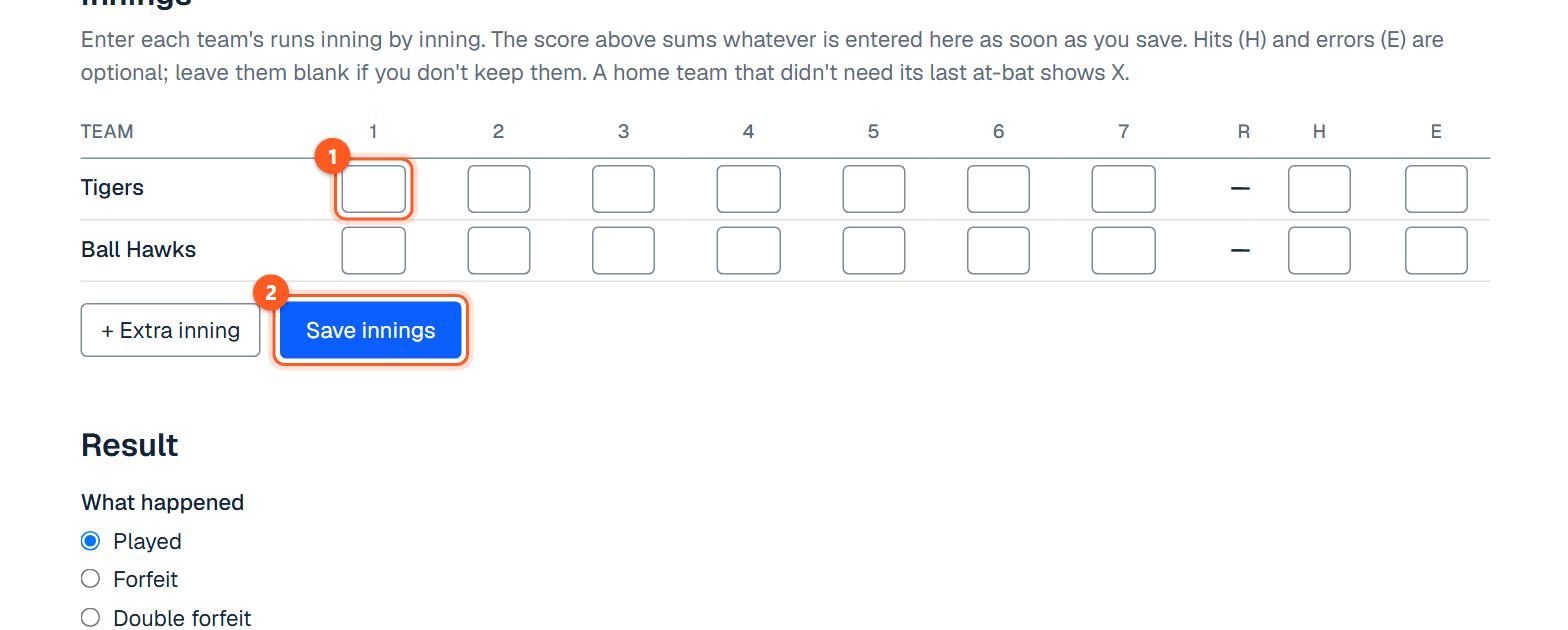
The Innings section of a game's results screen
  1. 1. Enter each team's runs, inning by inning.
  2. 2. Save the innings. The score is added up for you.
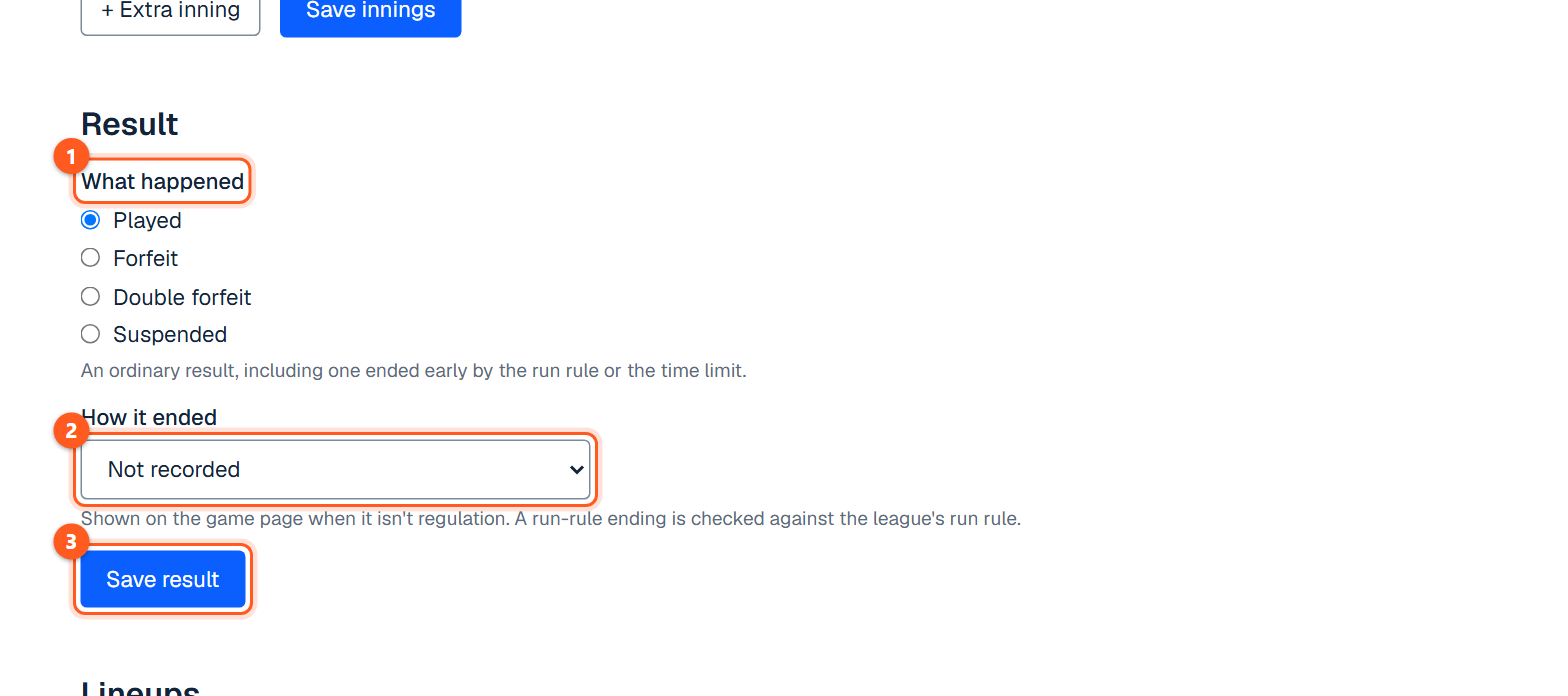
The Result section of a game's results screen
  1. 1. Played, a forfeit, a double forfeit or suspended.
  2. 2. If the game ended early, say how: run rule, time limit and so on.
  3. 3. Save the result.
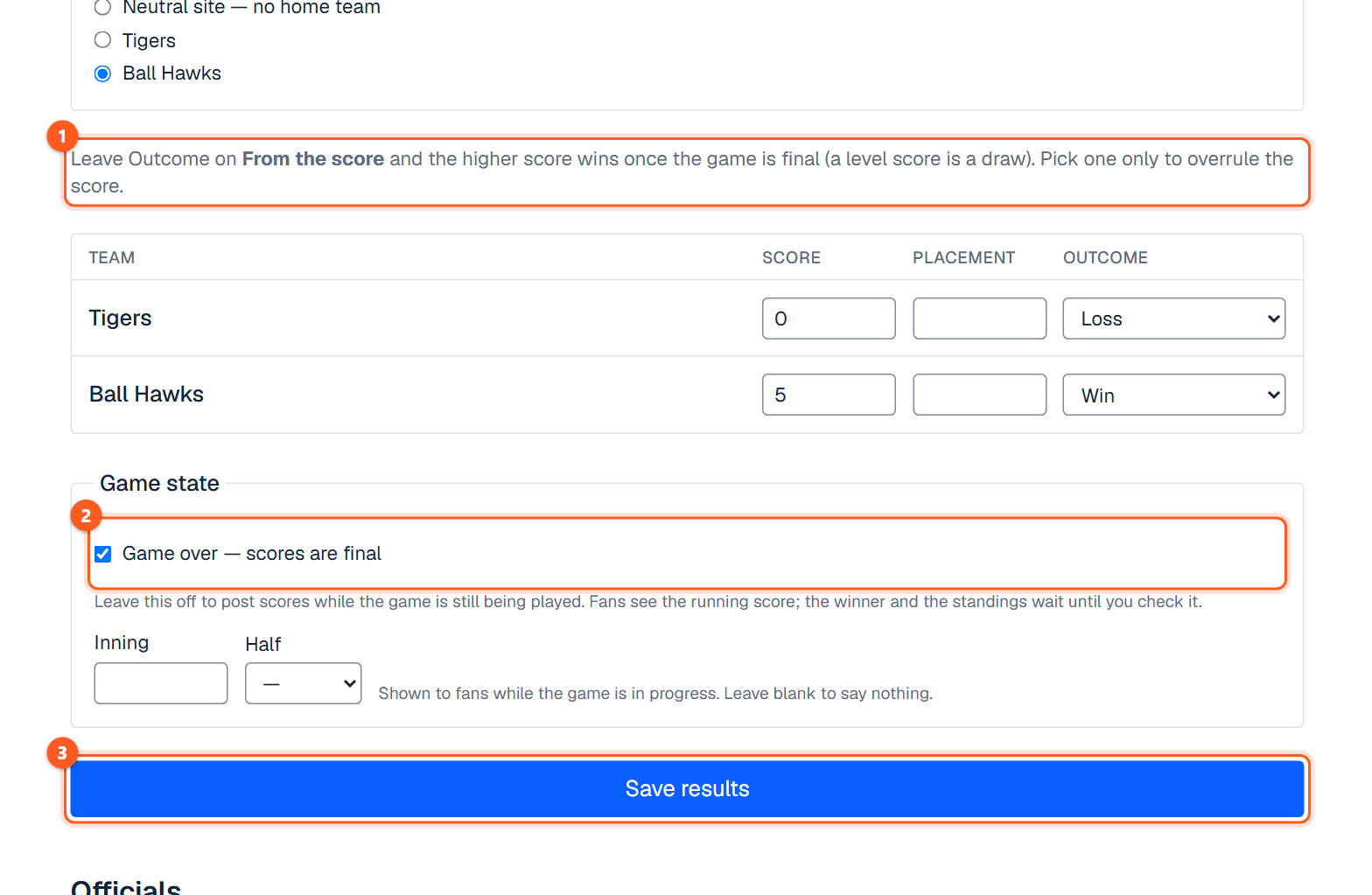
The scores and the Game state section at the bottom of a game's results screen
  1. 1. Each team's score and outcome. Leave Outcome on From the score unless you need to overrule it.
  2. 2. Tick this when the scores are final. Only a final game counts in the standings.
  3. 3. Save. The standings update straight away.

Entering a game, step by step

Entering a bowling night by totals

Sidebar → All games → a game → Results

For whoever copies the scores off the house display: each team has a card, with a box for every bowler's score in every game.

The short version
  1. Open the night's game.
  2. On the first team's card, type each bowler's score under G1, G2 and G3.
  3. Tap Save and the team's name under the card.
  4. Do the same on the other team's card.
  5. At the foot of the page, tick Game over — scores are final and tap Save results.
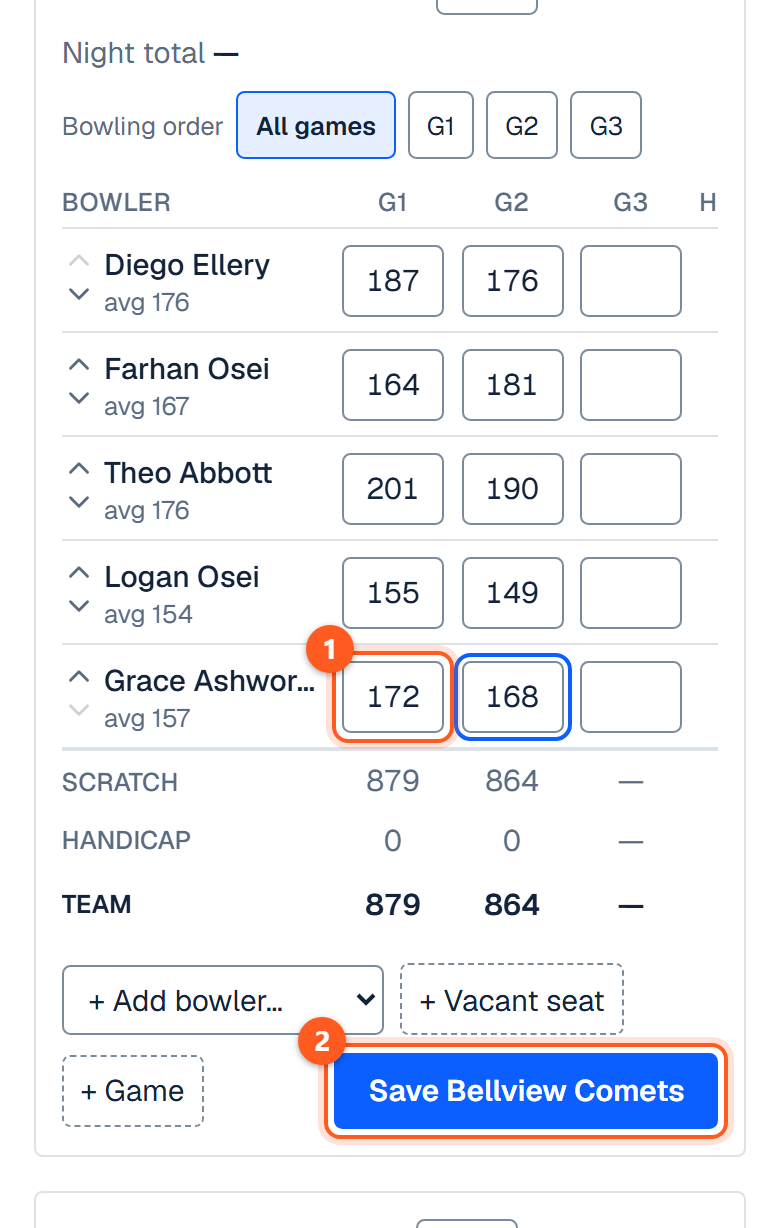
A team's card with scores typed in and the Save button under it
  1. 1. A score in every box.
  2. 2. Then save the team.
Type a score

Tap a box and type the game's score, 0 to 300. The Team row under the bowlers adds up as you type.
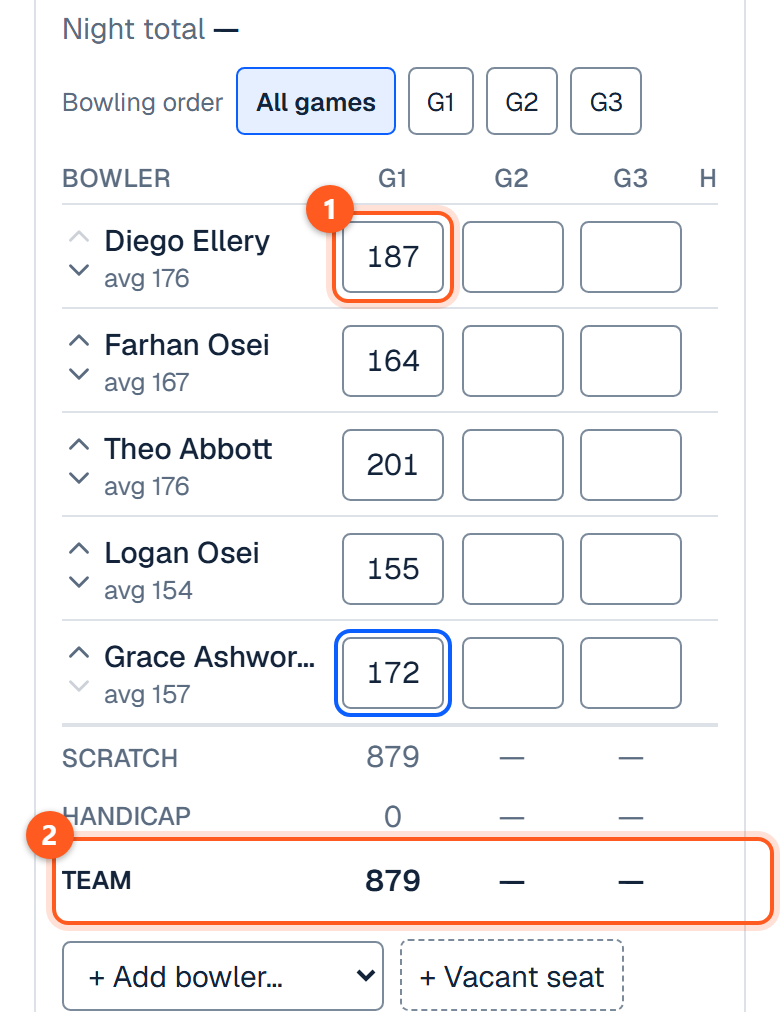
A team's card with a score typed for each bowler in game 1 and the team's total under them
  1. 1. Type the game's score.
  2. 2. The team's total adds up.
Set the lane

Type the team's lane number in the Lane box beside its name.

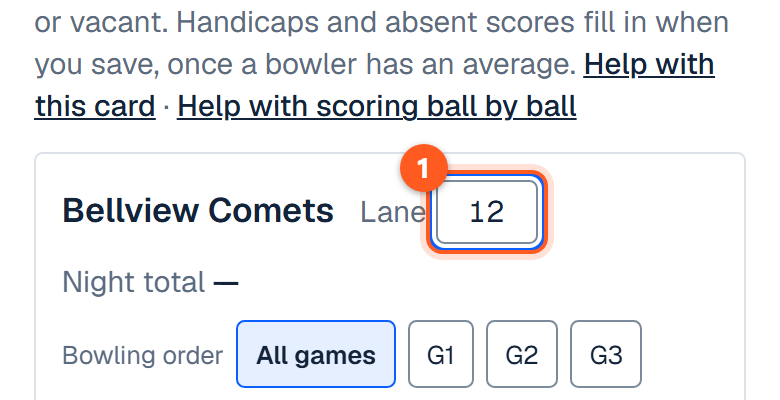
The top of a team's card with 12 typed in the Lane box
  1. 1. The team's lane.
Change the bowling order

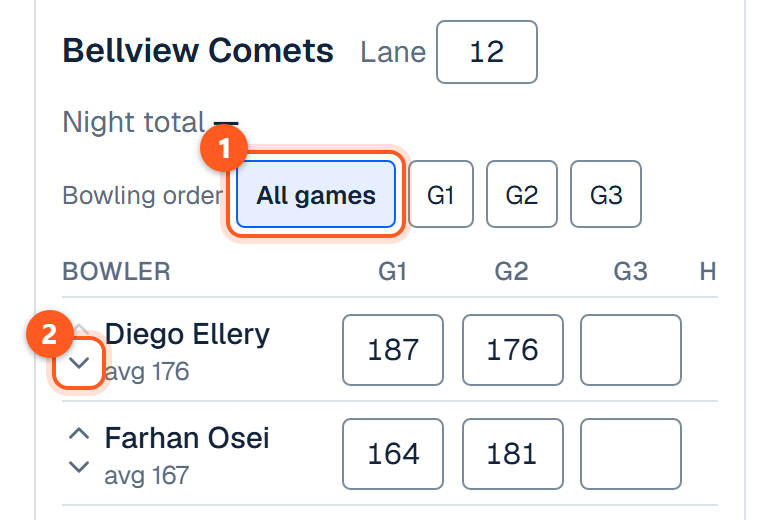
Tap the up or down arrow beside a bowler's name. With All games lit the move is for the whole night; tap G1, G2 or G3 first to move them in that game only.

The Bowling order buttons above the table and the arrows beside the first bowler's name
  1. 1. All night, or one game.
  2. 2. Move the bowler down.
Put in a substitute

The substitute takes the bowler's seat and any scores already in it.

  1. Tap ⋯ at the end of the bowler's row.
  2. Pick the substitute from the Substitute for list.
  3. Or type a new bowler's name and tap Add as sub.
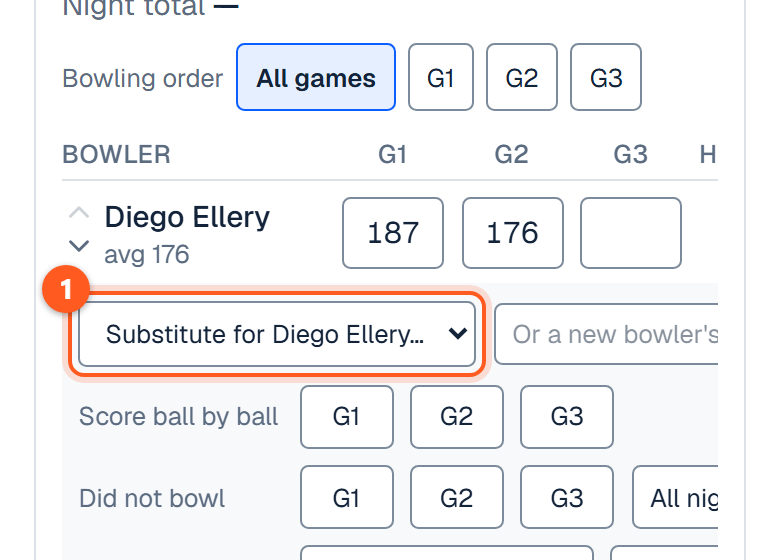
A bowler's row opened out, with the Substitute for list, a box for a new name and Add as sub
  1. 1. Pick the substitute, or type a new name beside it.
Mark a bowler absent

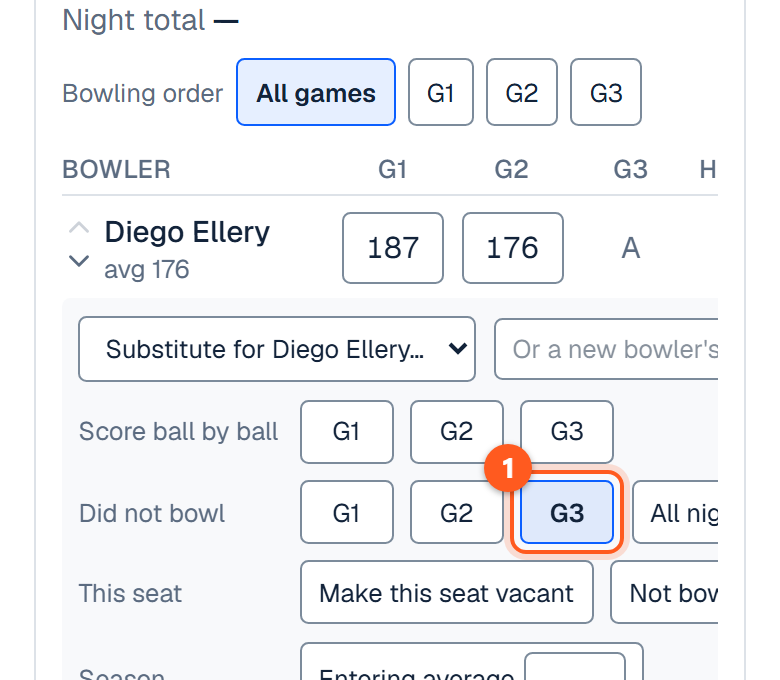
Tap ⋯ on the bowler's row, then the game beside Did not bowl, or All night. Tap the same button again to take it back.

The opened row with game 3 lit beside Did not bowl, and an A in that bowler's third box
  1. 1. Tap the game they missed.
Score one game ball by ball

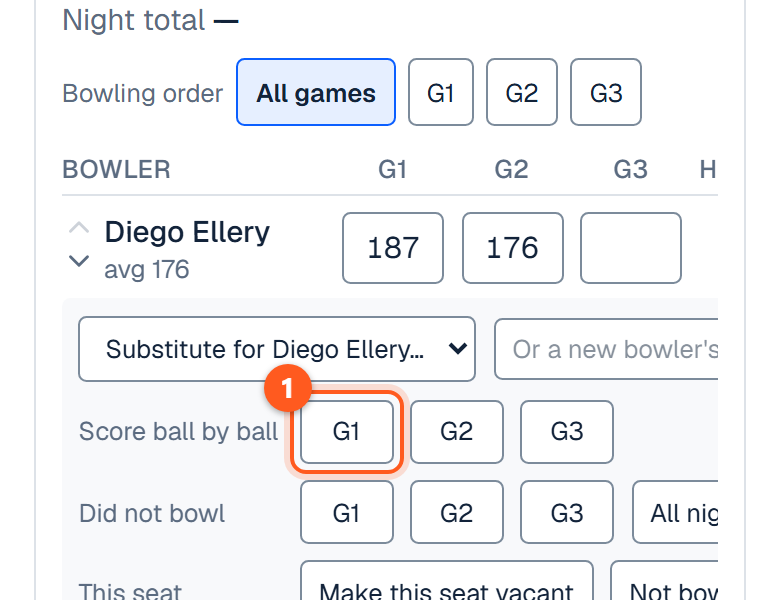
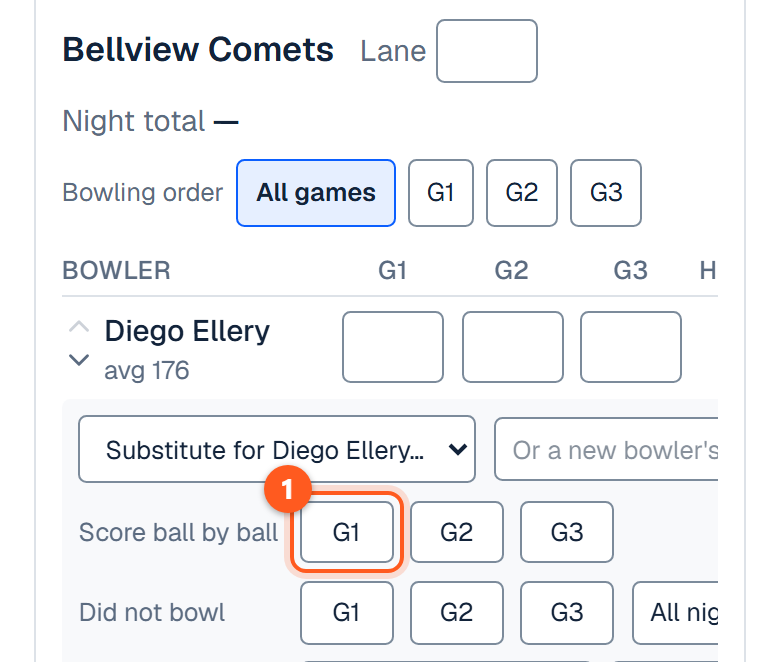
Tap ⋯ on the bowler's row, then the game beside Score ball by ball. The keypad has its own guide, Entering a bowling game frame by frame.

The opened row with a button for each game beside Score ball by ball
  1. 1. Tap the game.
Set a bowler's entering average

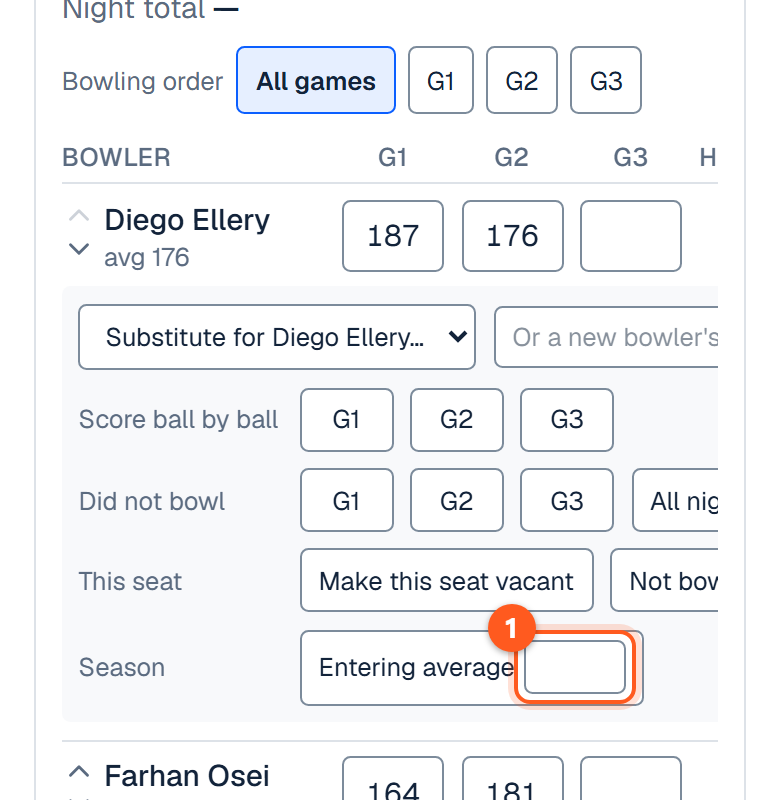
Tap ⋯ on the bowler's row and type it in Entering average. Only a bowler on the team's roster has the box.

The opened row with the Entering average box beside Season
  1. 1. Type the average.
Make a bowler's seat vacant

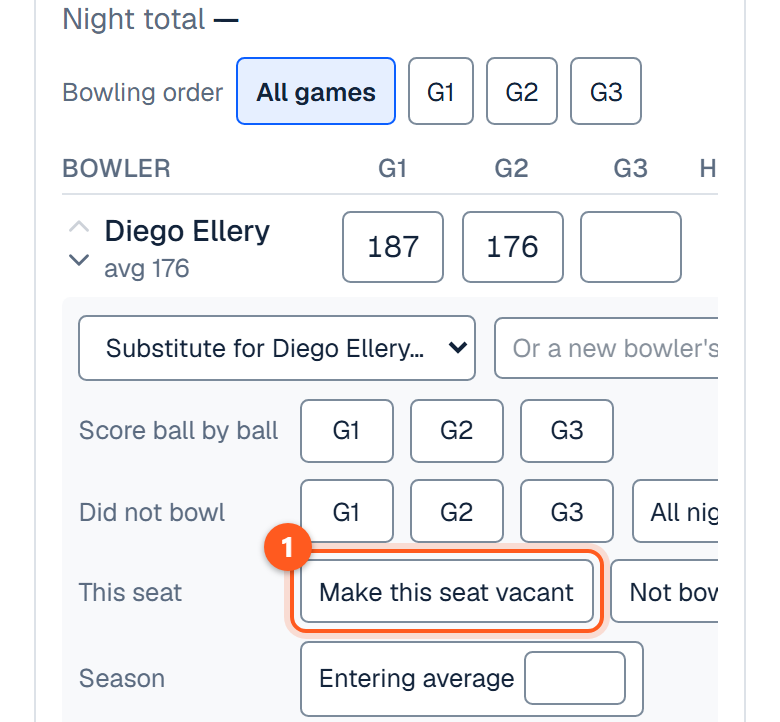
Tap ⋯ on the bowler's row, then Make this seat vacant. The seat stays on the card with nobody in it.

The opened row with Make this seat vacant beside This seat
  1. 1. The seat stays, empty.
Take a bowler off tonight's card

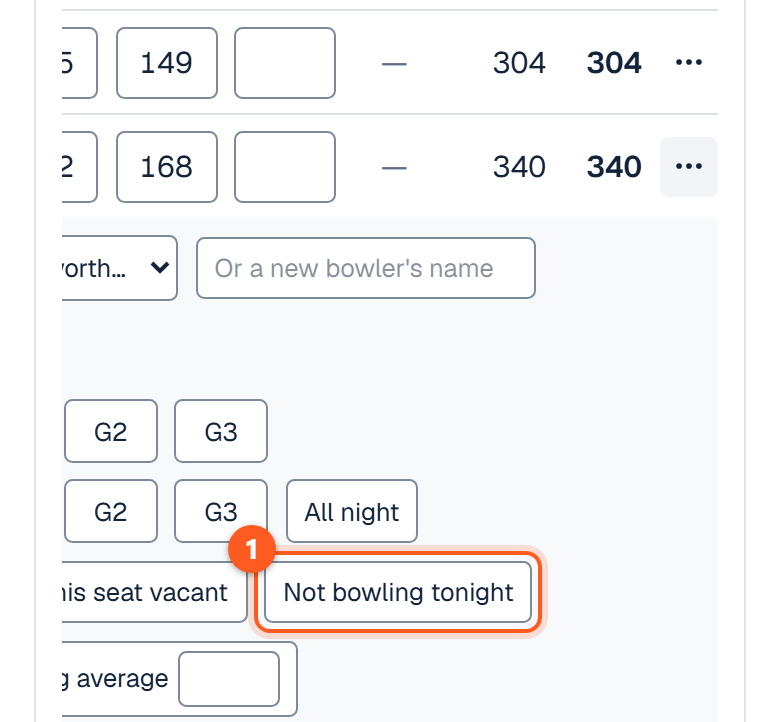
Tap ⋯ on the bowler's row, then Not bowling tonight. The button is there until the team's card is first saved.

The last bowler's row opened out, with Not bowling tonight beside This seat
  1. 1. Off the card for tonight.
Bring a rostered bowler back

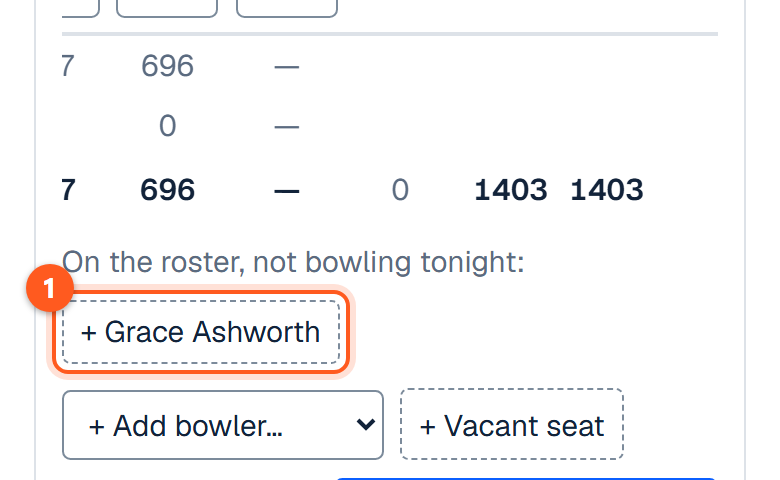
Under the card, beside On the roster, not bowling tonight, tap + and the bowler's name.

Under the card, a button with a plus and the name of the bowler taken off
  1. 1. Tap the name to put them back.
Add a vacant seat

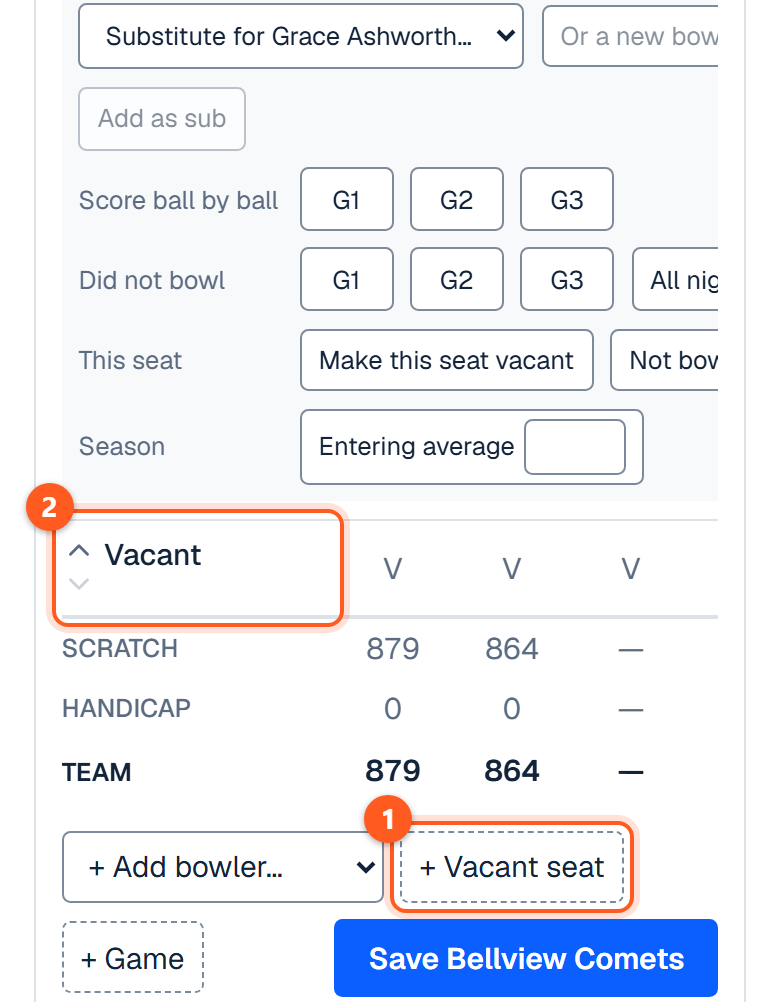
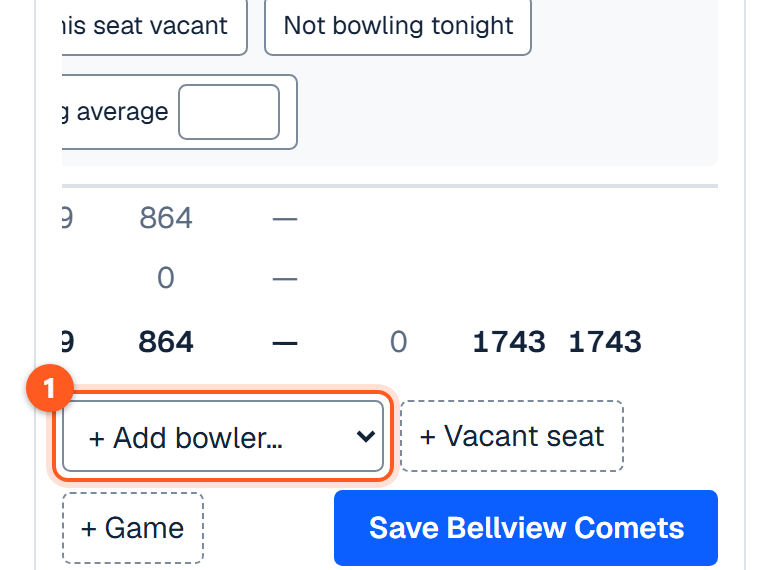
When a team is a bowler short, tap + Vacant seat under its card, once for each empty spot.

A Vacant row at the foot of the bowlers and the + Vacant seat button under the card
  1. 1. Tap once for each empty spot.
  2. 2. The seat joins the card.
Remove or fill a vacant seat

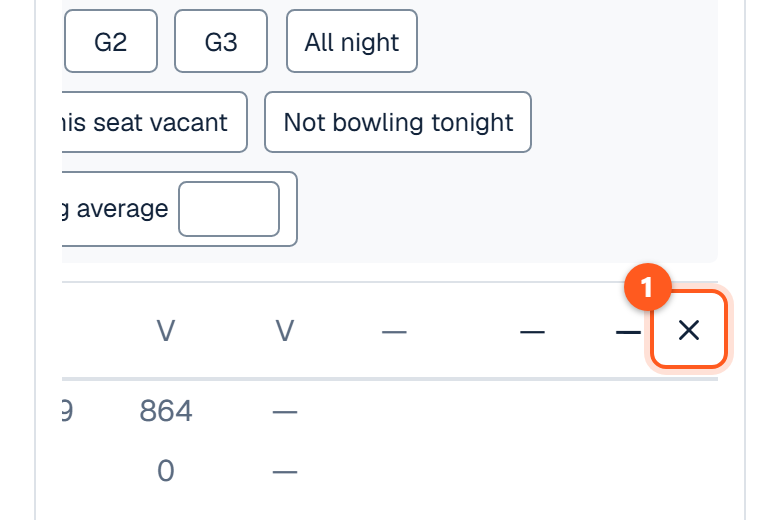
Tap the X at the end of a new vacant seat's row to take it off. Once the card has been saved the row has ⋯, with Fill with a substitute and Remove this seat.

The X at the end of the Vacant row
  1. 1. Take the seat off.
Add a bowler who is not on the card

Pick anyone in the league from + Add bowler under the card.

The + Add bowler list under the card
  1. 1. Anyone in the league.
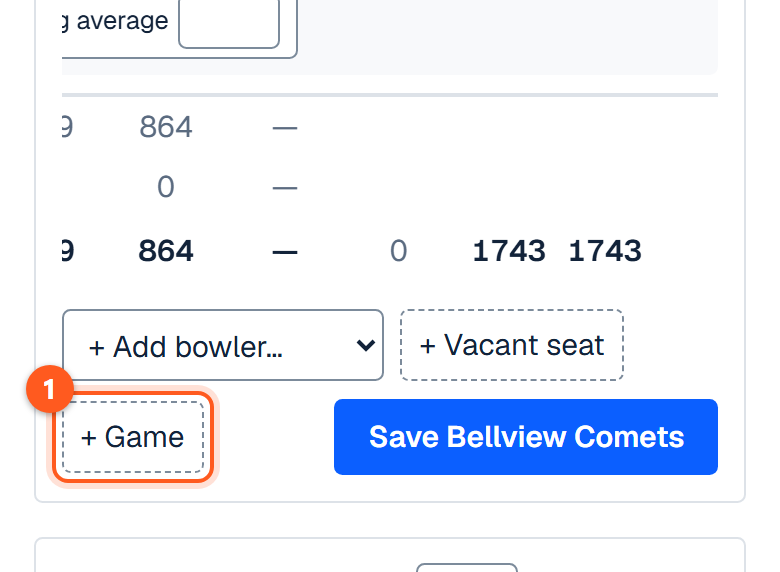
Add a fourth game

Tap + Game under the card for a column for one more game.

The + Game button under the card
  1. 1. One more game column.
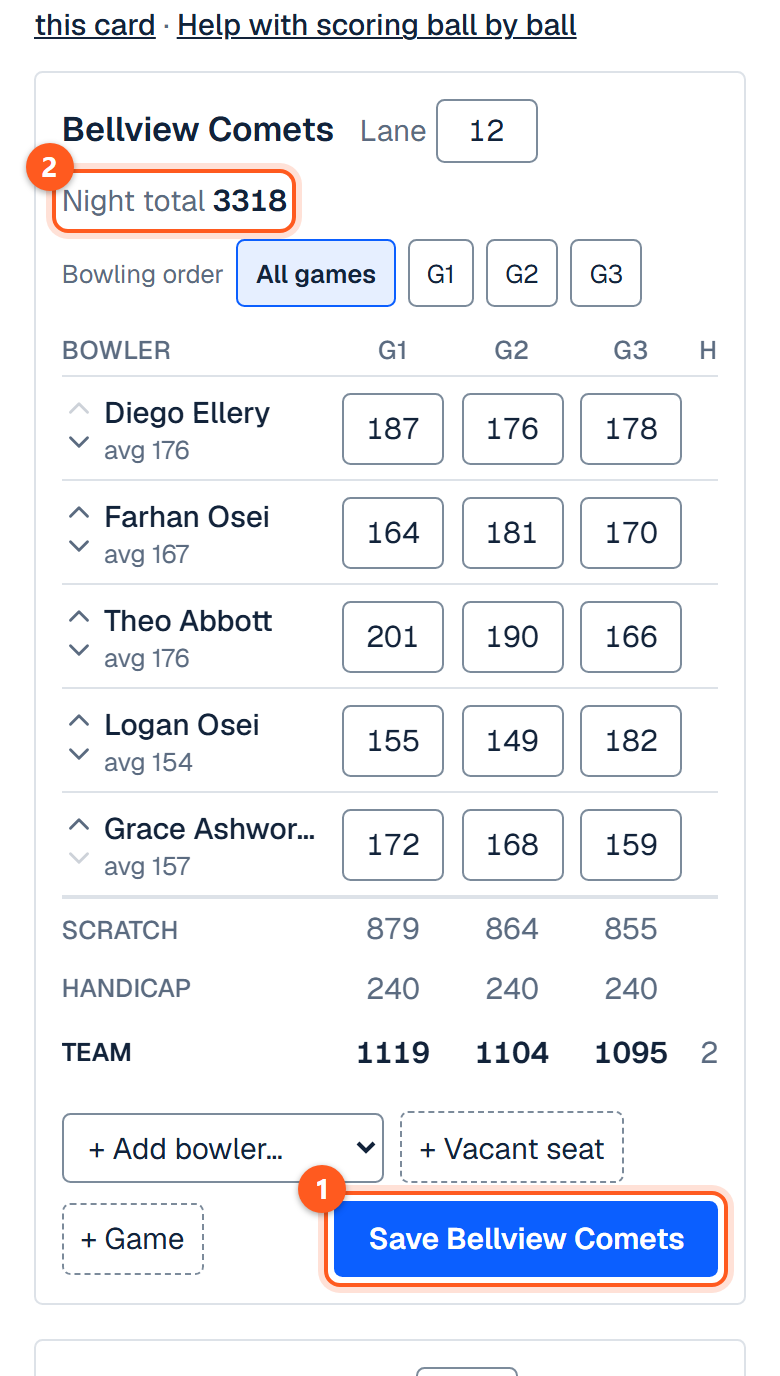
Save a team's card

Tap Save and the team's name. Each team is saved on its own, and the handicaps and the Night total fill in when you do.

The saved card: the Night total filled in beside the team's name
  1. 1. Tap Save and the team's name.
  2. 2. The night total fills in.
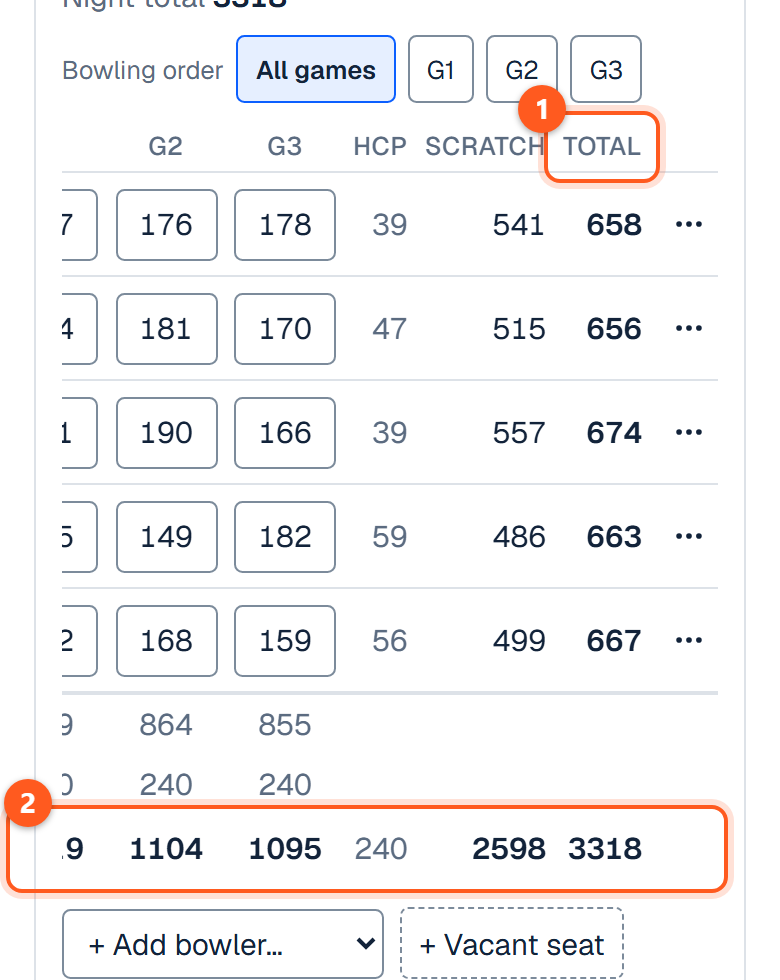
Read the totals

Under each name is the bowler's average. Across are their handicap, scratch and total for the night; the rows at the foot are the team's for each game.

The saved card: averages under the names, handicap, scratch and total across, and the team's rows at the foot
  1. 1. Slide left for handicap, scratch and total.
  2. 2. The team, game by game.
Post scores while the night is still going

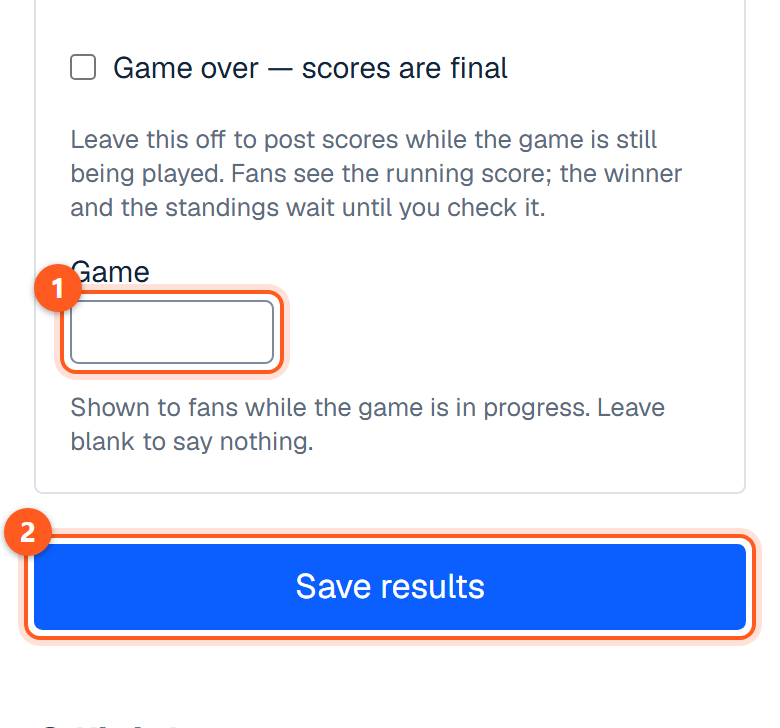
Leave Game over unticked and tap Save results: fans see the running score, and the standings wait. The Game box says which game is being bowled; leave it blank to say nothing.

The Game state box with Game over not ticked, the Game box and the Save results button
  1. 1. Which game is being bowled, if you like.
  2. 2. Save with Game over not ticked.
Finish the night

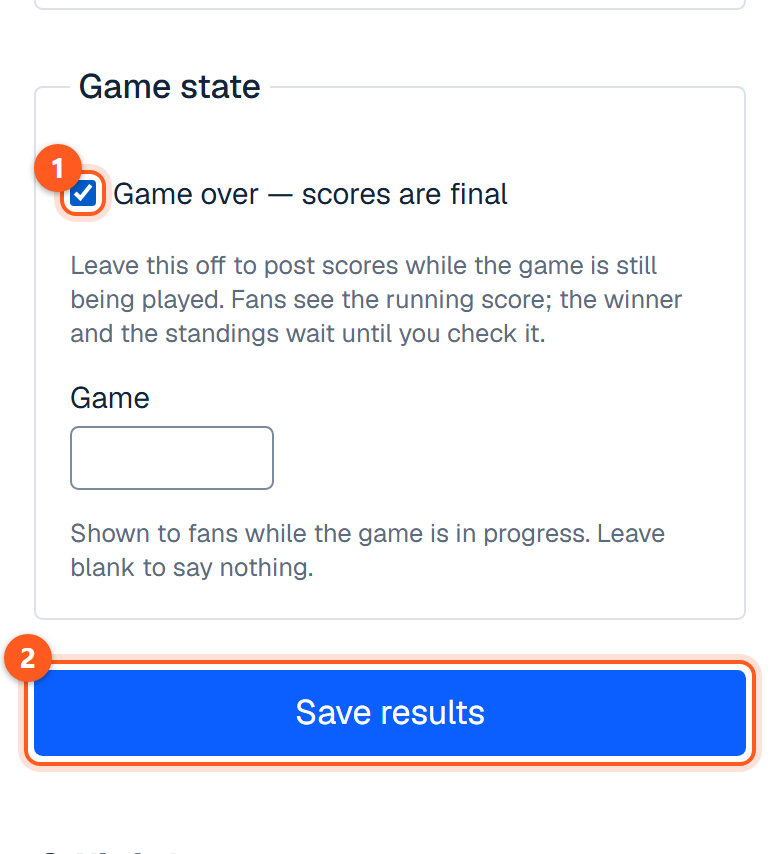
When both cards are saved, tick Game over — scores are final at the foot of the page and tap Save results.

The Game state box at the foot of the page with Game over ticked and the Save results button
  1. 1. Tick when the scores are final.
  2. 2. Then save.
What it will not let you save

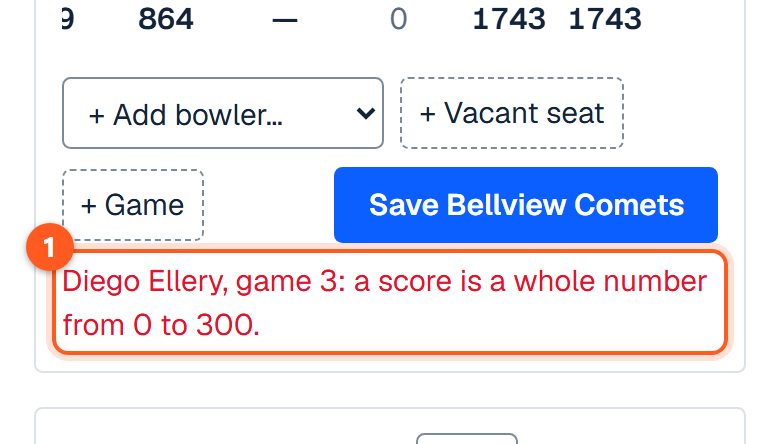
A score over 300, which it names: "a score is a whole number from 0 to 300." A lane has to be a number from 1 to 200.

The message under the card after 301 was typed for a game
  1. 1. It names the bowler and the game.

Entering a bowling game frame by frame

Sidebar → All games → a game → Results

For whoever keeps score at the lanes: one bowler's game, entered ball by ball on a keypad, with the frames and the running score worked out for you.

The short version
  1. Open the night's game and find the bowler's team.
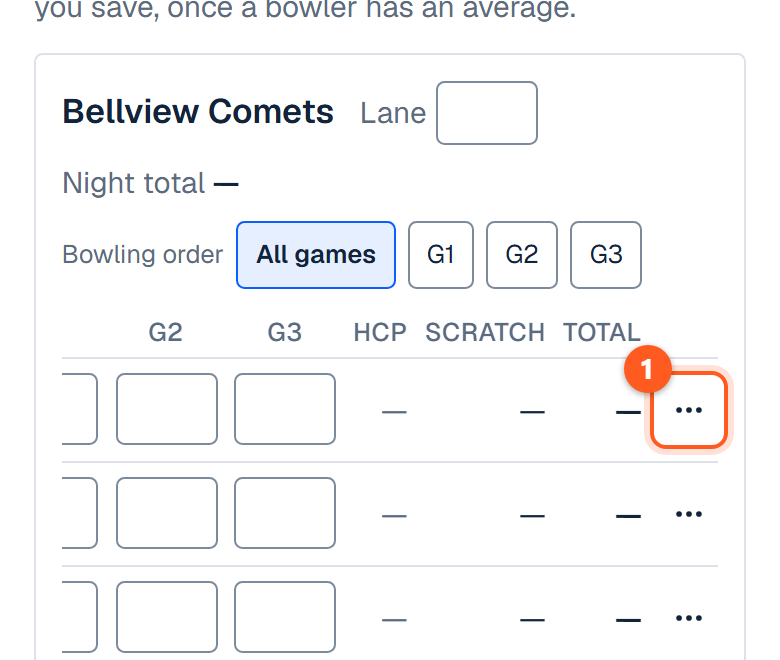
  2. Tap ⋯ at the end of the bowler's row (on a phone, slide the table left to see it).
  3. Beside Score ball by ball, tap G1 (G2 or G3 for the later games).
  4. Tap each ball as it is bowled: a number, X for a strike, / for a spare, - for a miss.
  5. Tap Save at the top.
A team's card on the results screen, with the three dots at the end of the first bowler's row
  1. 1. Slide the table left, then tap ⋯.
Open a bowler's game

Tap ⋯ at the end of the bowler's row, then the game's button beside Score ball by ball. On a phone, slide the table to the left to bring ⋯ into view.

The row opened out, with a button for each game beside Score ball by ball
  1. 1. Tap the game to score.
Enter a ball

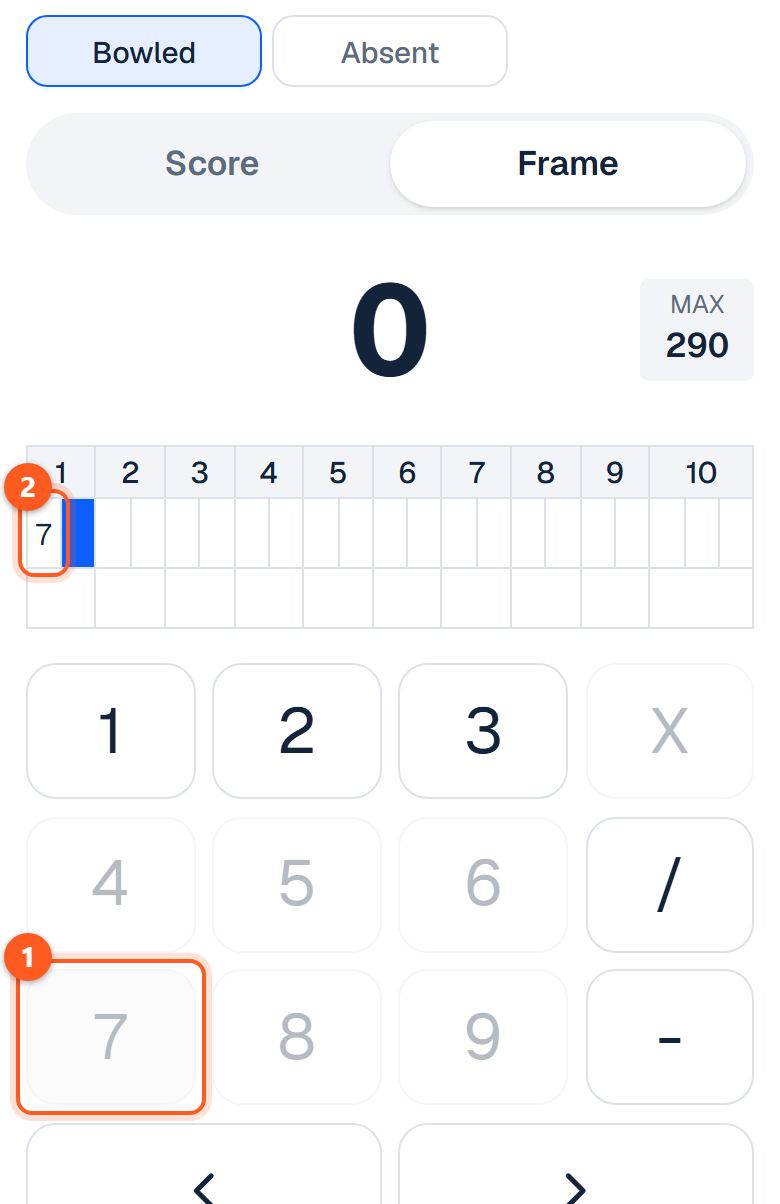
Tap the number of pins knocked down. The ball goes in the lit box and the next box lights up; keys for more pins than are standing are greyed out.

The keypad sheet after a 7: the 7 is in the first frame's first box
  1. 1. Tap the pins knocked down.
  2. 2. It goes in the lit box.
Mark a spare

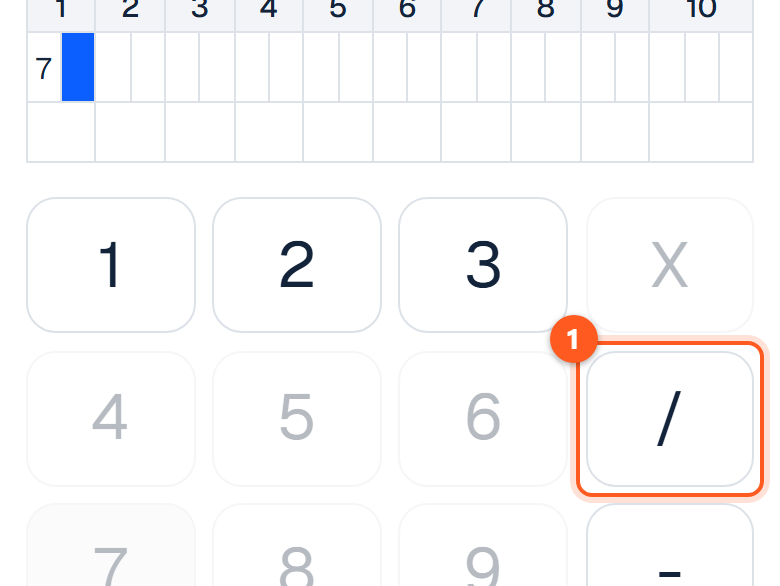
After a frame's first ball the key under X turns into /. Tap it and the rest of the pins are filled in.

The keypad with a slash key under the X key, after the first ball of a frame
  1. 1. Tap / for a spare.
Mark a strike

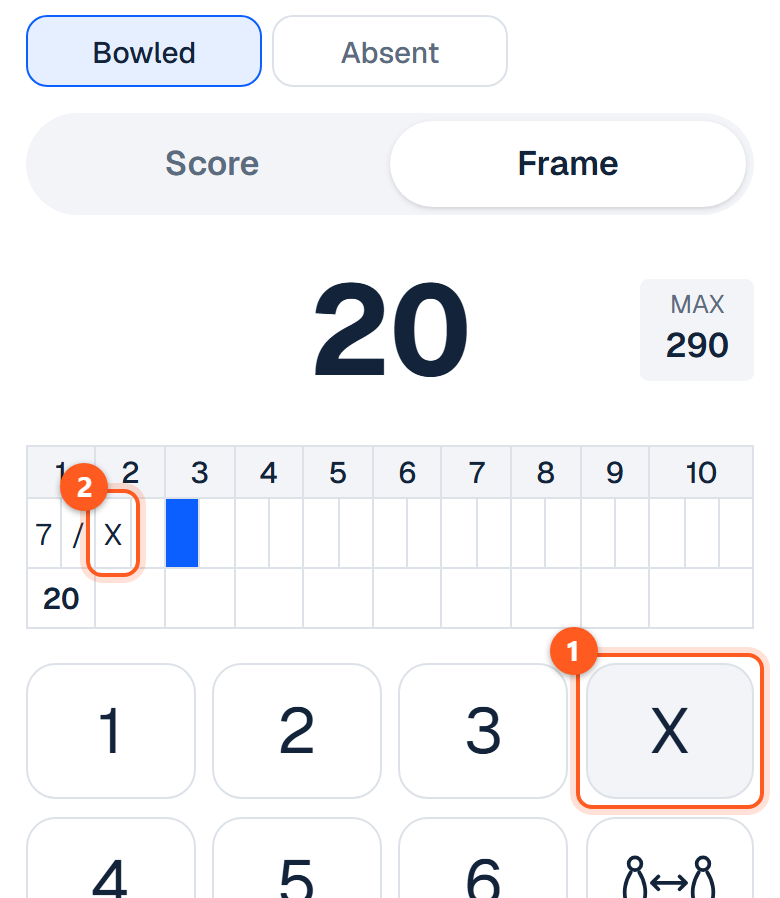
Tap X. The frame is finished and the next one lights up.

The sheet with an X in the second frame
  1. 1. Tap X.
  2. 2. The frame is done.
Mark a miss

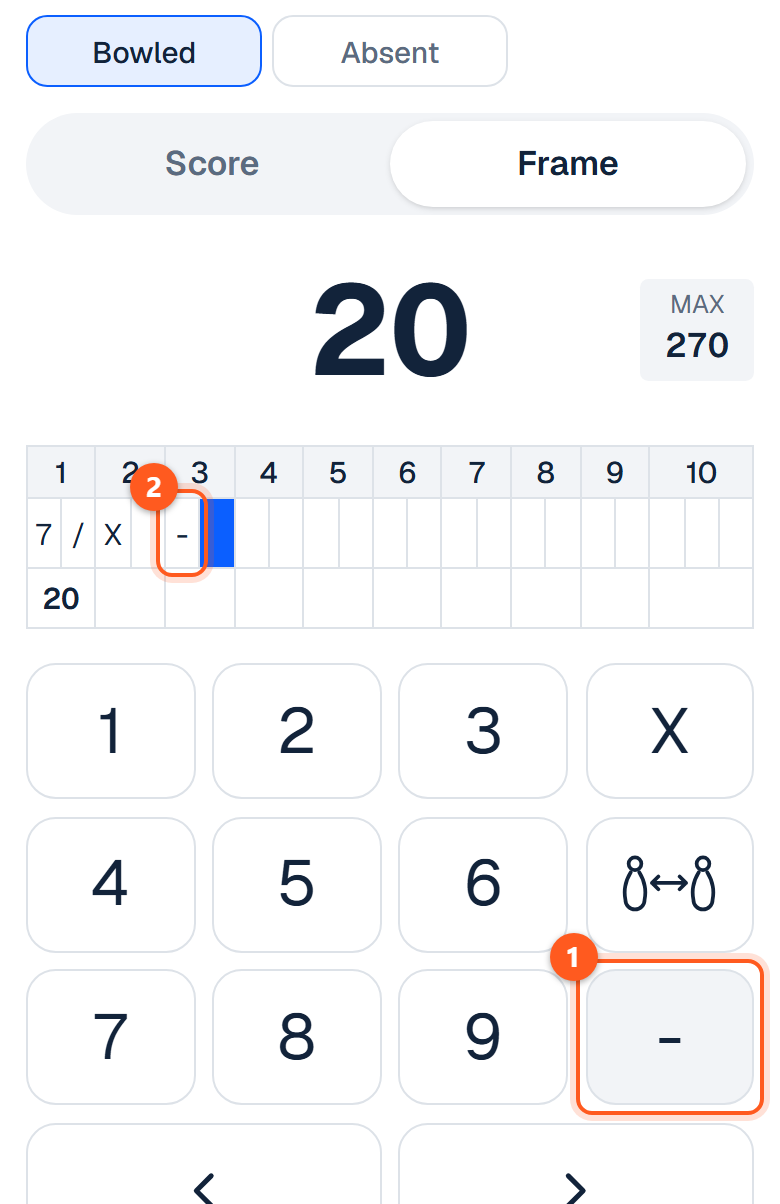
Tap - for a ball that knocked nothing down, a gutter ball included.

The sheet with a dash in the third frame's first box
  1. 1. Tap - for no pins.
  2. 2. A dash goes in the box.
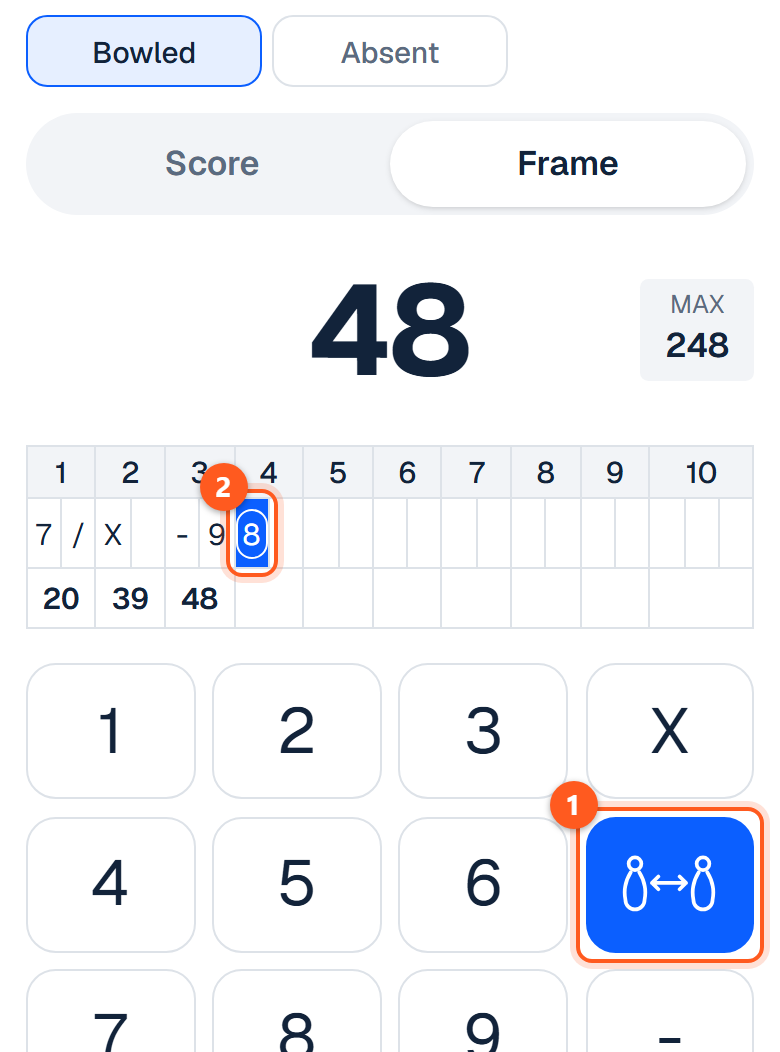
Mark a split

Tap the two-pins key under X, then the number of pins. The ball is circled on the sheet.

The sheet with a circled 8 in the fourth frame and the two-pins key lit
  1. 1. Tap the two-pins key, then the pins.
  2. 2. The ball is circled.
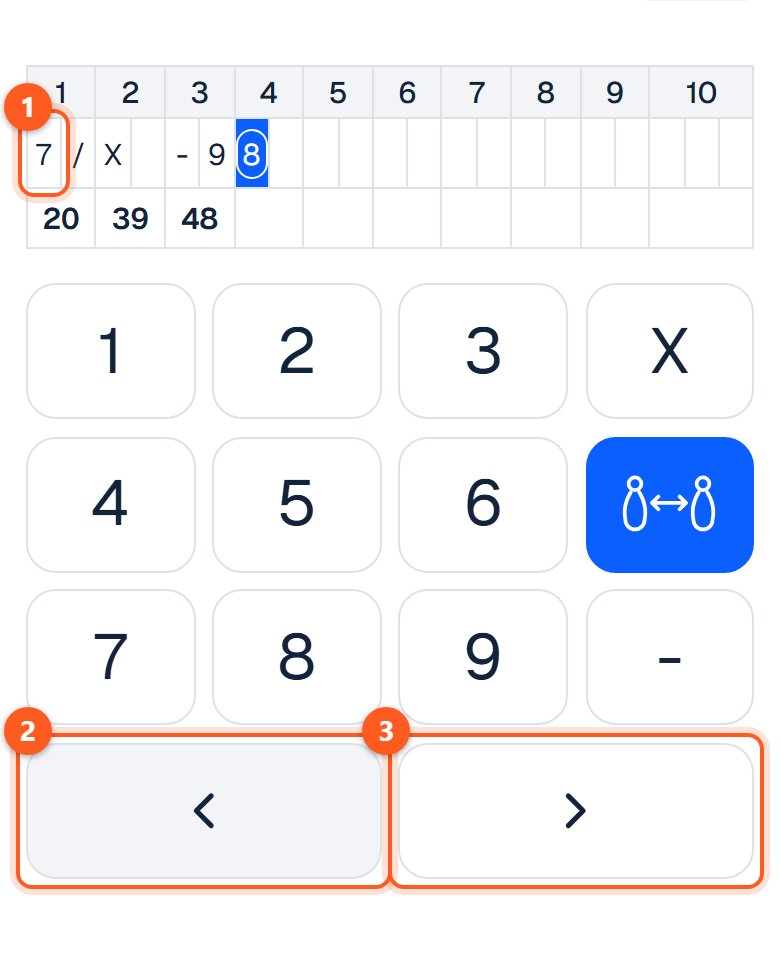
Change a ball

Tap the ball's box on the sheet, or step to it with the arrow keys, then tap the right key. Changing a ball to or from a strike or a spare clears the balls after it, so enter those again.

The frames on the sheet and the two arrow keys under the keypad
  1. 1. Tap a ball's box to pick it.
  2. 2. Or step back a ball.
  3. 3. Or forward.
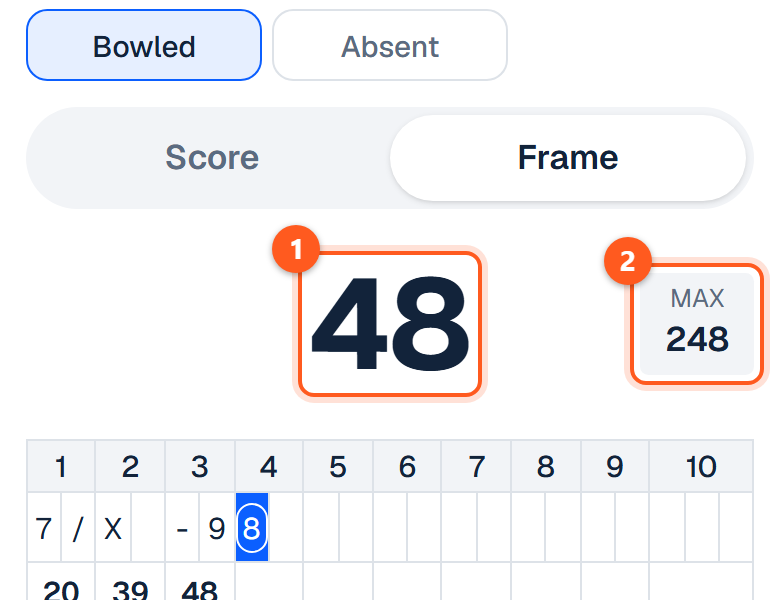
Read the score and MAX

The big number is the score so far. MAX is the best score the bowler can still finish with.

The score so far in large figures with MAX beside it
  1. 1. The score so far.
  2. 2. The best score still possible.
Bowl the tenth frame

The tenth has three boxes. The third opens after a strike or a spare; without one the game ends on the second ball.

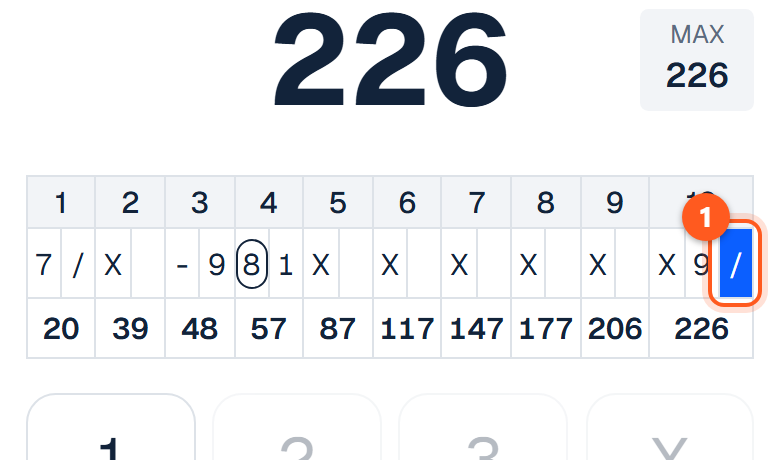
A finished game with a strike, a 9 and a spare in the tenth frame's three boxes
  1. 1. The third box, after a strike or a spare.
Save the game

Tap Save at the top. A game can be saved part-way through and finished later.

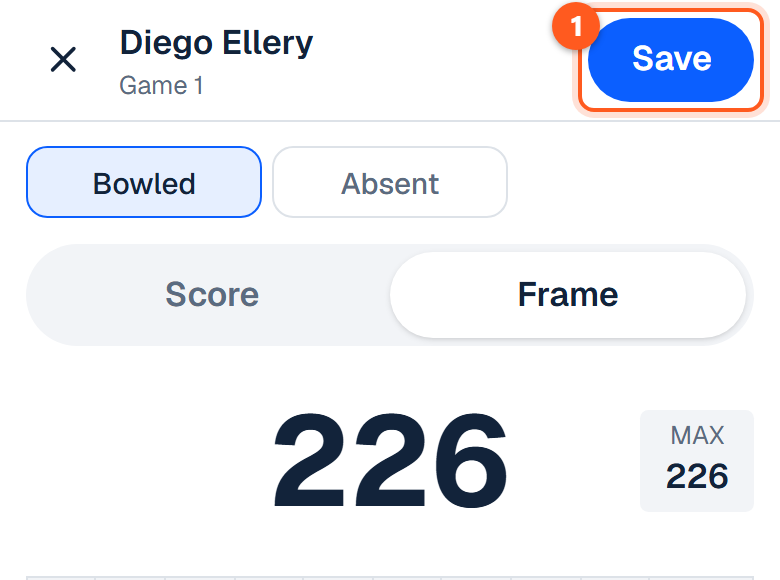
The Save button at the top right of the sheet, over a finished game
  1. 1. Tap Save.
Open a saved game again

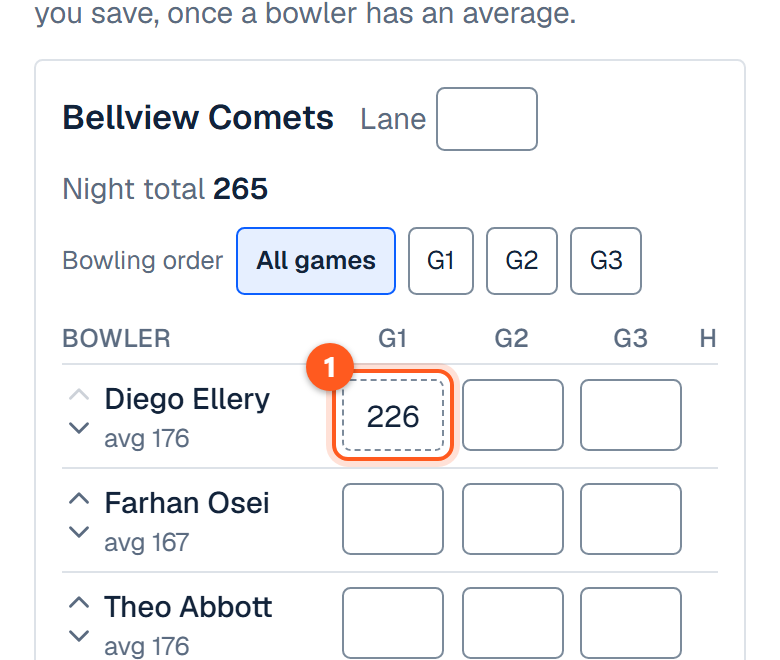
On the team's card a game entered ball by ball is a dashed box with its score. Tap the box.

The team's card with the saved game shown as a dashed box holding its score
  1. 1. Tap the dashed box.
Type the total instead

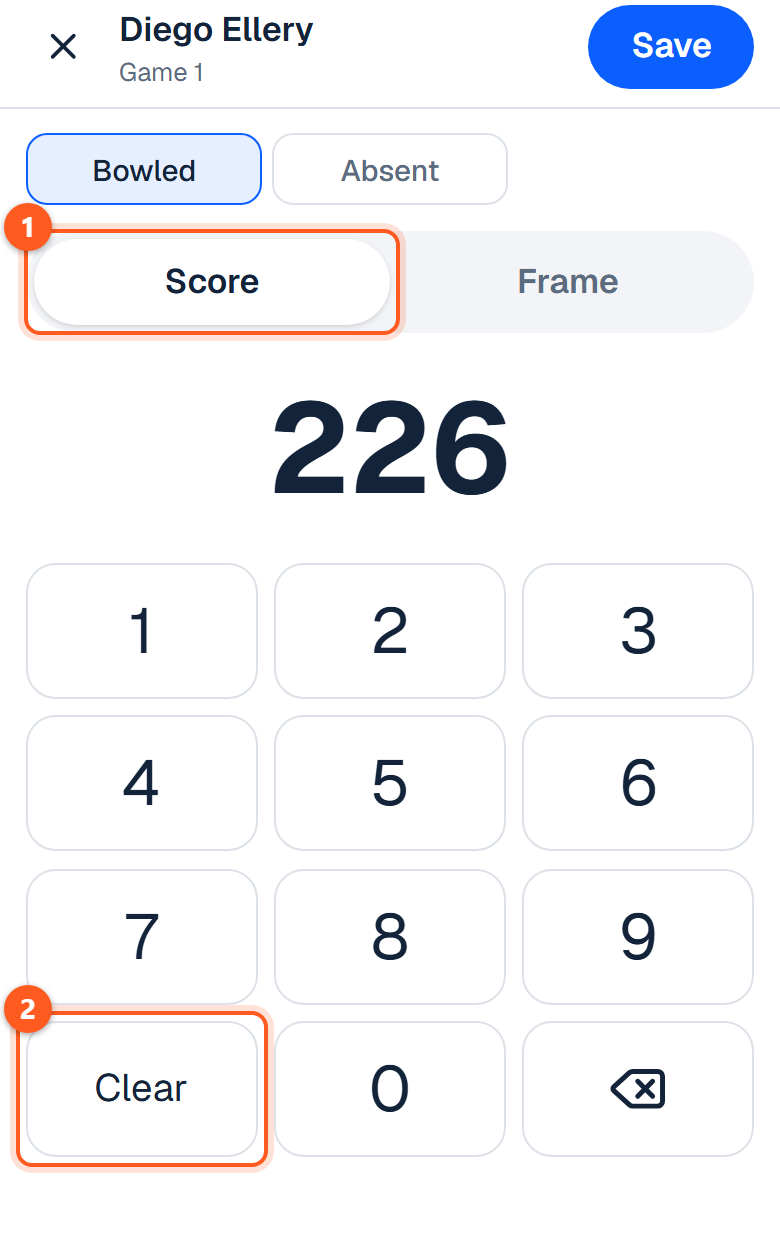
Tap Score at the top of the sheet and type the game's total. Saving a total replaces the frames entered for that game.

The sheet on its Score tab with a number keypad
  1. 1. Tap Score.
  2. 2. Clear, then type the total.
Mark the bowler absent for a game

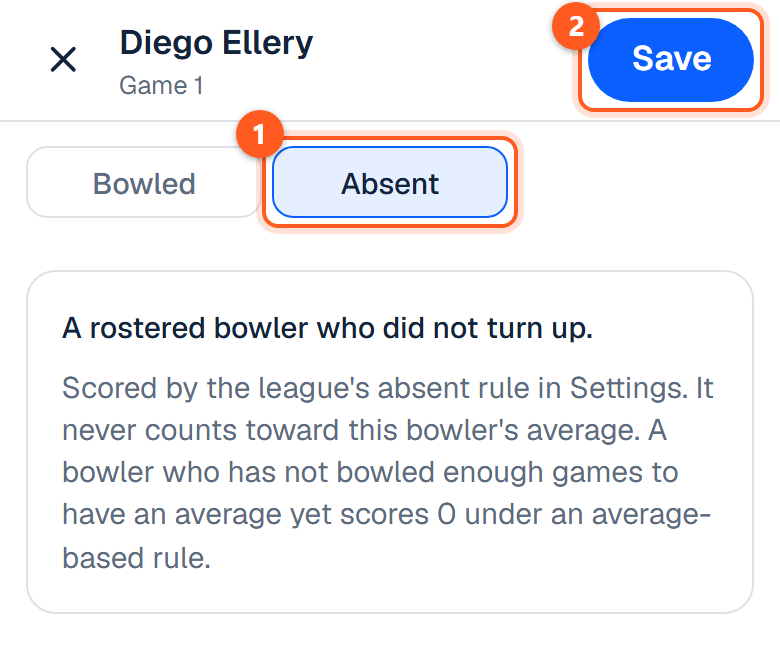
Tap Absent, then Save. The game is scored by the league's absent rule in Settings.

The sheet with Absent chosen at the top
  1. 1. Tap Absent.
  2. 2. Then Save.
Delete a saved game

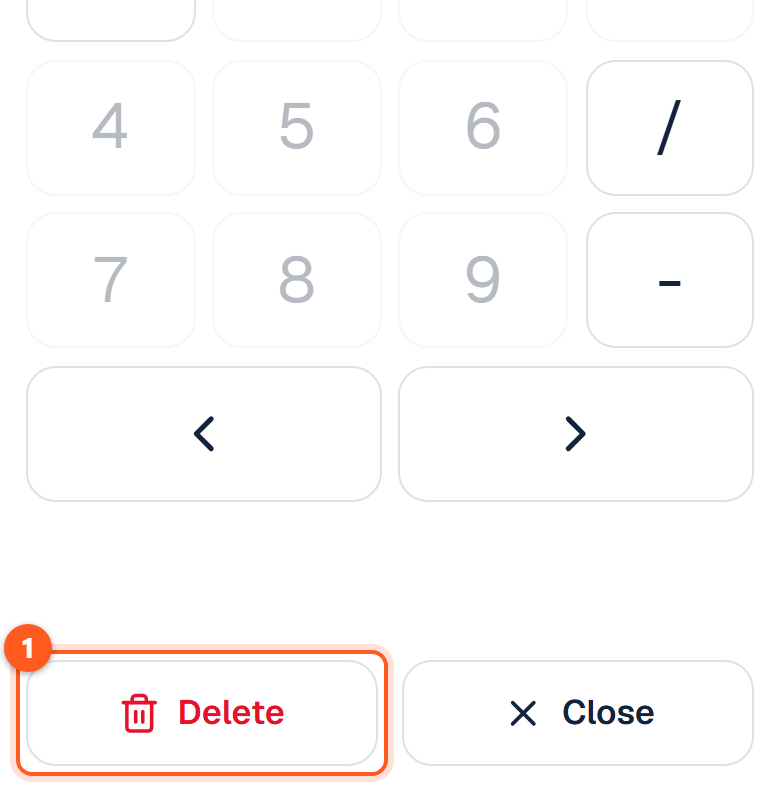
Open the game and tap Delete at the foot. The key is greyed out until the game has been saved once.

The Delete key at the foot of a saved game's sheet
  1. 1. Tap Delete.
Leave without saving

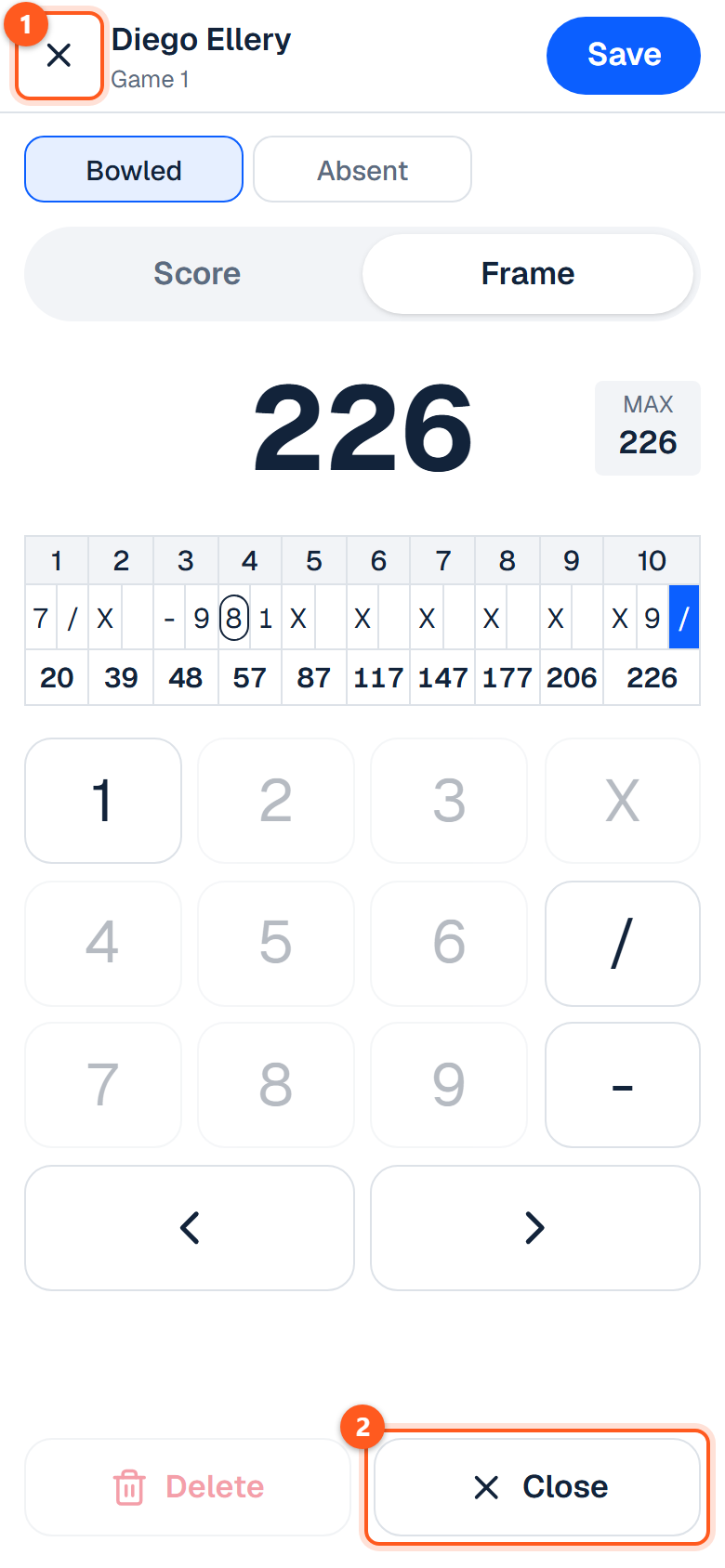
Tap Close at the foot, or the X at the top left. Anything tapped since the last Save is dropped.

The Close key at the foot of the sheet and the X at its top left
  1. 1. The X.
  2. 2. Or Close.
What it will not let you save

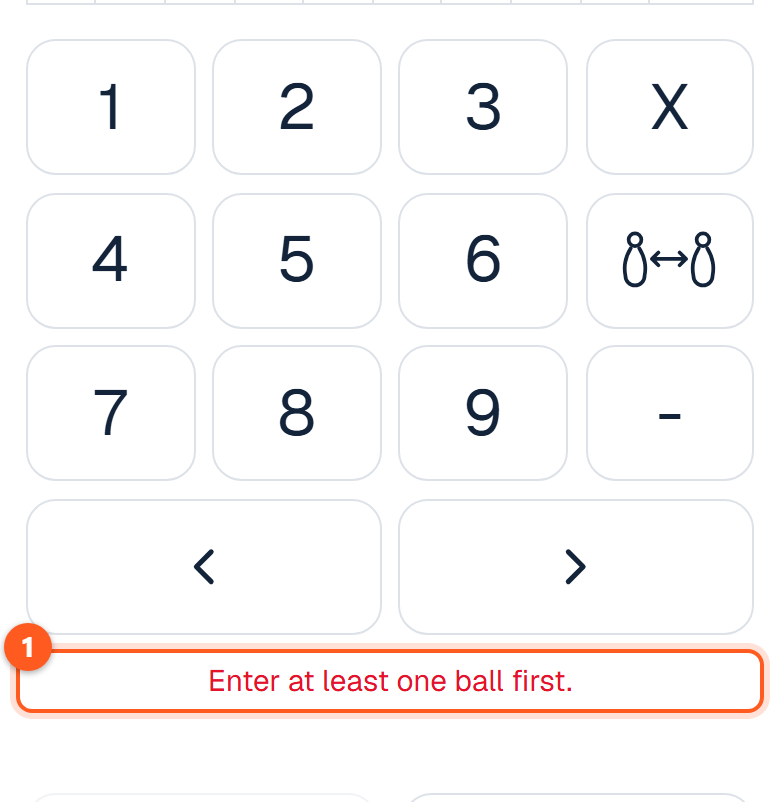
A game with no ball in it. Save then says "Enter at least one ball first."

The empty keypad sheet with the message Enter at least one ball first
  1. 1. Nothing has been entered yet.

Bowling side brackets

A bowling game → Results → Side brackets for this night

Eight bowlers from anywhere on the night, drawn at random by the app, single elimination across the night's first three games (quarter-finals, semi-finals, final), scratch or handicap. Nothing extra is bowled; each match reads the scores you enter. Only bowled games count, and a tie waits for you to record who won the roll-off. Several brackets per night are fine. Making one needs Commissioner; entry fees and payouts stay with the league.

Playoffs and end-of-season formats

A season → Playoffs

Single-elimination brackets

Head-to-head sports get a single-elimination bracket.

Choosing who qualifies

Choose who qualifies (every team, the top N, or the top N per division), check or reorder the seeds, set a date per round, and optionally a venue, a third-place game and reseeding.

Seeding and ties

If two or more seeds finished level on every tiebreaker, their order is alphabetical, and the seeds step warns you above Create the bracket: record a coin flip on the season page, or move them with the arrows. With the top teams overall, it also warns when level teams are split by the cut (4th and 5th level when four qualify), because who got in is alphabetical too; a coin flip settles that as well. Both are warnings only, and the bracket can still be created.

Creating and playing the bracket

Round 1's games are created at once; entering a result moves the winner on and creates the next game. A playoff game can't end level, and playoff games don't count in the regular standings.

Trivia championship nights

Trivia leagues get a championship night instead: the top teams qualify in standings order, everybody starts at 0 or each seed gets a head start, and one final night is created. Enter it like any night and mark it final; the highest total wins the season, and a tie at the top waits for you to record the tiebreak winner.

Bowling position rounds

Bowling leagues set a position round here instead. Pick the night (it offers the first one nothing has been entered for) and the standings set who bowls whom: 1st v 2nd, 3rd v 4th, and so on, within each division if the season has them. With an odd number of teams the last one has no game that night. Each game keeps its lanes and time, the top pair takes the lowest lanes, and the games are titled "Position round · 1st v 2nd" on the schedule. It counts in the standings like any night. It can only be set once everything before the night is final, and re-paired until a score is entered. Any plan.

Bowling split seasons

Setting the split

Bowling leagues can also split the season here, on any plan: pick the last night of the first half and each half gets its own standings from then on. A position round in a split season is paired by its own half's standings.

Deciding the champion and the roll-off

When both halves are over, the top team in each has won it (a half level at the top waits for a coin flip you record on the season page). A team that won both is champion; otherwise Create the roll-off (date, time, venue; needs Commissioner) makes one playoff game between the two winners. Enter it on the usual results screen: the higher total, with handicap where the league bowls it, wins the title, and a level roll-off waits for you to record who won the roll-off frames. The roll-off counts in neither half.

Deleting and redoing a format

A bracket or a championship night can be deleted and made again until a result is entered. Making one needs Commissioner.

A split can be moved or removed until the roll-off exists, and the roll-off can be deleted until it has a score.

The admin Playoffs tab once a bracket has been played through
  1. 1. The better seed is at home and is listed on the bottom.
  2. 2. The third-place game, when the league plays one.

Registration and fees

A season → Registration

Players register for the season and pay its fee online, without an account; the league gets a Register tab while it's open.

What you need first (League Pro and Stripe)

Opening registration needs League Pro and a payout account Stripe has finished verifying (Billing → Payouts); until then the page says which is missing, and you can still fill the form in ahead of time.

Connecting your payout account

Connecting the payout account (the owner, on Billing → Payouts) goes through Stripe's own sign-up, about 10 minutes. The league's name, what it charges for and, if the league is published, its public page are filled in. Stripe has you create a Stripe password and two-step sign-in; keep both, because Open your Stripe dashboard and any later change of details sign in with them. Pick a daily or weekly payout schedule (Manual leaves the money in Stripe until you move it) and Radar Lite for fraud protection: it's free, and the paid tiers charge per payment, which Players pay the processing doesn't cover.

Stripe usually verifies within minutes; if it wants more (often the full Social Security number), the panel says what and Update details with Stripe takes you back. If the owner ever disconnects LeagueBucket inside Stripe, online registration stops and the panel says so; connecting again sets up a new account.

Setting up the form (fee, limit, closing time, waiver)

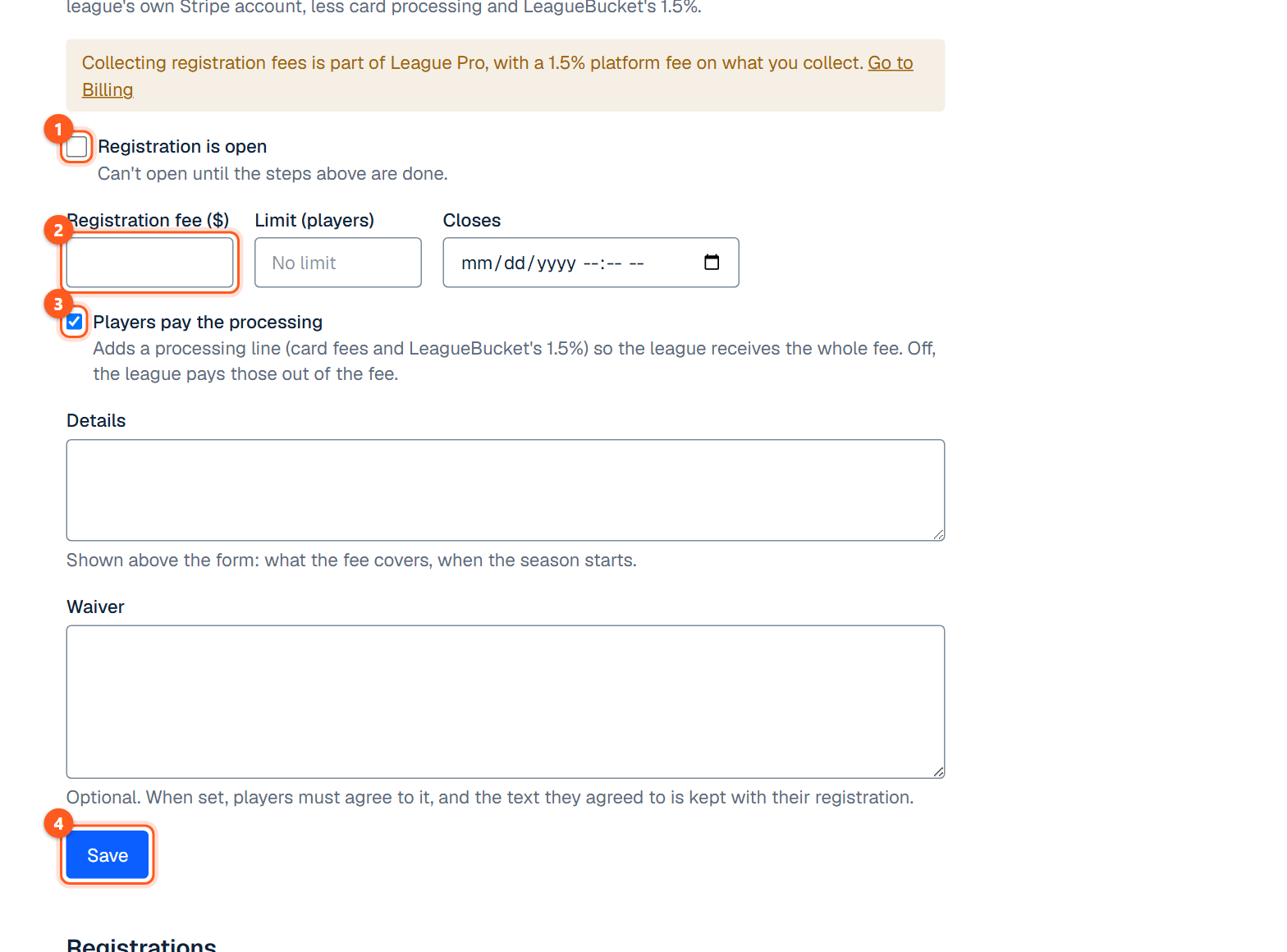
Set the fee ($1 to $2,000), an optional limit on paid players, an optional closing time (league time), details shown above the form, and an optional waiver. A player who starts paying holds a place for 31 minutes; an abandoned payment gives it back.

Who pays processing fees

Players pay the processing is on by default: the player pays the fee plus a processing line covering card fees and LeagueBucket's 1.5%, so the league receives the whole fee. Turn it off and the league pays those out of the fee.

Disputes, refunds and tax

Each charge is the league's own, made on its Stripe account, so disputes and refunds come out of the league's Stripe balance. Card payments only (including Apple Pay and Google Pay). LeagueBucket does not collect sales tax on registration fees.

Managing registrations

Registrations lists everyone who started: Paid, Paying now, Not completed or Refunded, with contact details, the team they asked for and the total collected. Add as player puts a paid registrant in the league's players (a player of the same name is linked instead), ready to put on a team. Refund (owner only) returns whatever hasn't been refunded yet, LeagueBucket's share included; Stripe keeps its processing fee. A refund made in Stripe's dashboard shows here too, and a partial one keeps the player registered.

The Registration tab of a season
  1. 1. Open or close registration for this season.
  2. 2. The fee, and an optional limit and closing time.
  3. 3. Pass the card processing cost on to players, or absorb it.
  4. 4. Save. The public Register tab appears while registration is open.

Members and co-admins

Sidebar → Members

Inviting people and roles

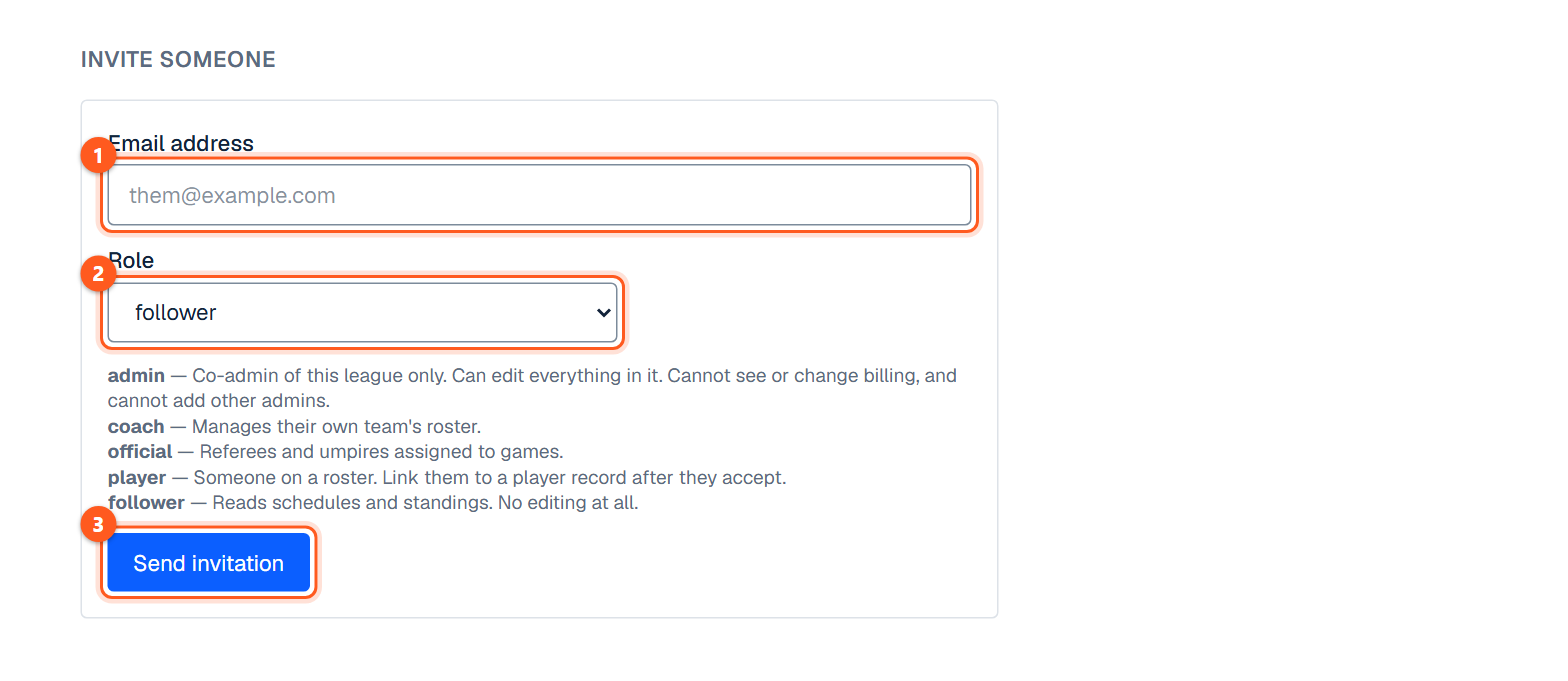
Who belongs to the league and who has been invited. Invite by email with a role; making someone an admin is a separate, deliberate step.

Removing admins

Only the owner can remove an admin; a co-admin who tries is told so.

The Members screen with the invitation form
  1. 1. The person's email address.
  2. 2. What they will be able to do: admin, coach, official, player or follower.
  3. 3. Send it. It stays under Outstanding invitations until they accept.

Messages

Sidebar → Messages

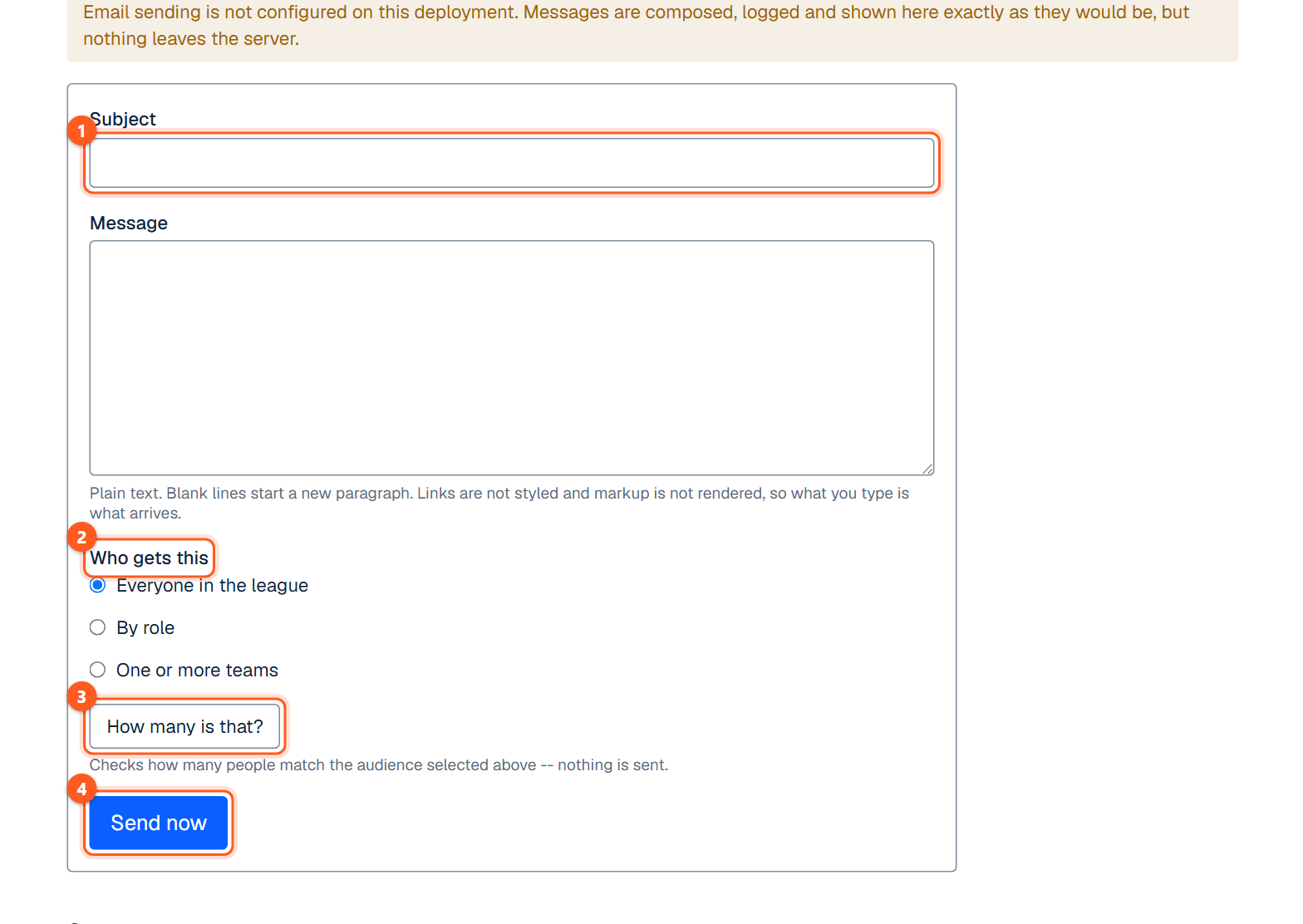
One announcement to the people you choose (everyone in the league, by role, one or more teams or divisions, or officials), with a record of who received it. Check the audience before sending: it counts who matches and sends nothing. Free leagues have a monthly allowance of messages.

The Messages screen with a new message being written
  1. 1. The subject and the message, in plain text.
  2. 2. Choose everyone, one or more roles, or one or more teams.
  3. 3. Count the people before sending.
  4. 4. Send. It appears under Sent.

Officers, officials and venues

Sidebar → Officers & Officials · Venues

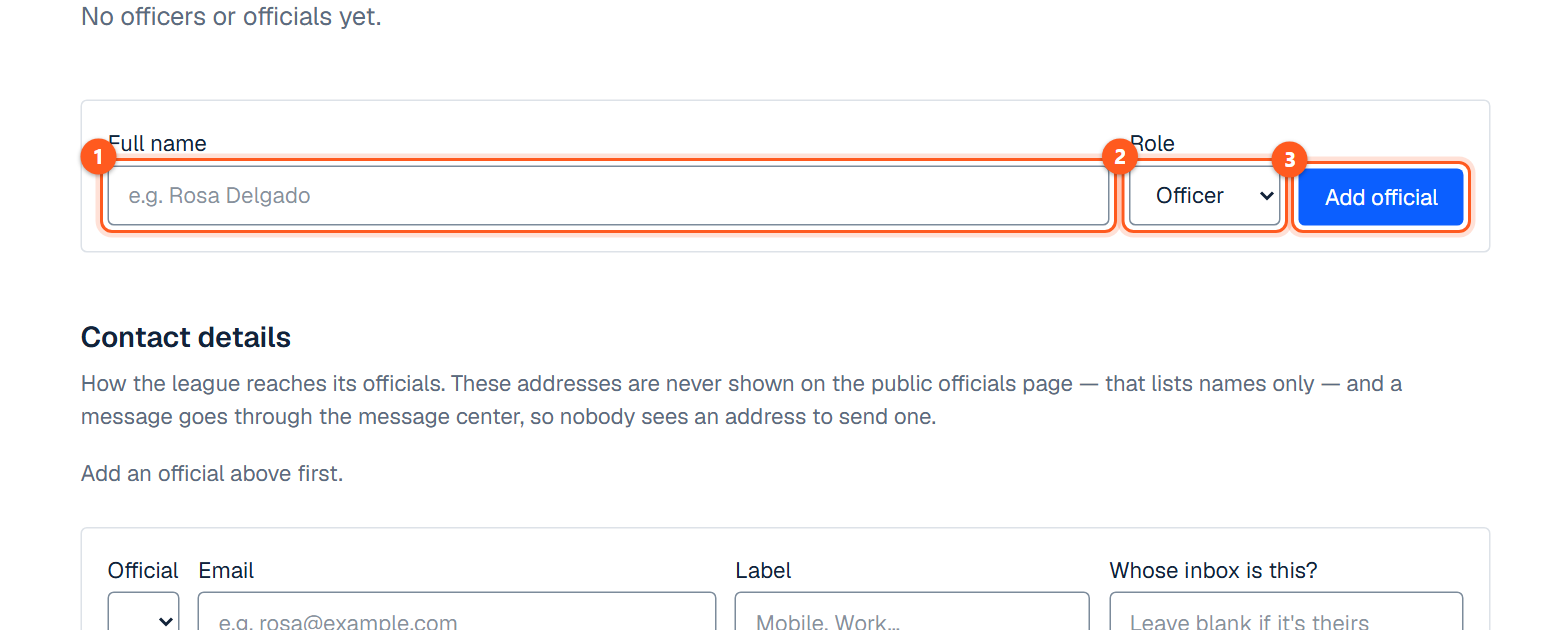
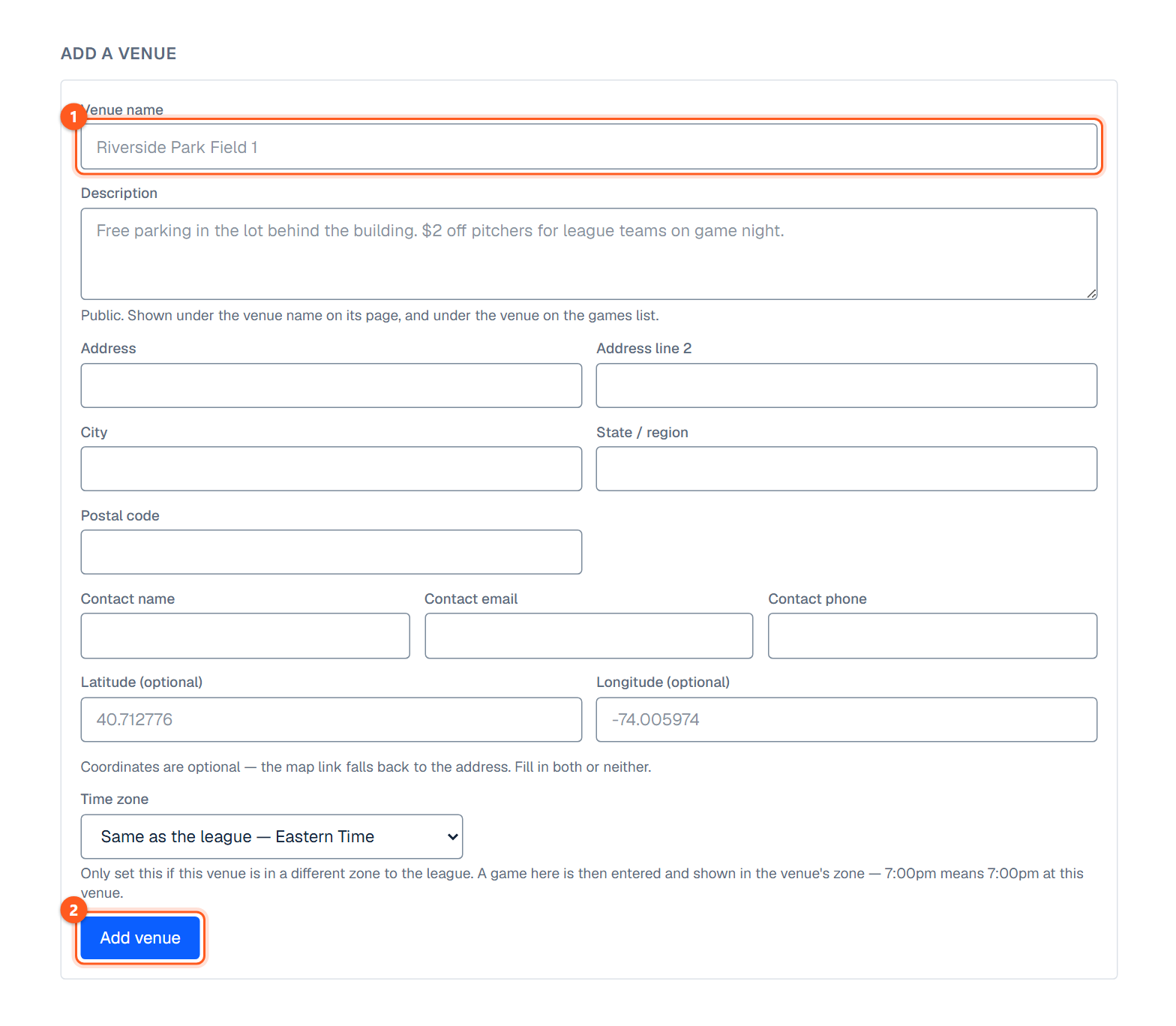
Officers are the league's own people; officials are the referees and umpires who can be put on games. Venues hold the address, contact and map link for each place the league plays, and each gets a public page.

The Officers and Officials screen
  1. 1. The person's name.
  2. 2. Officer, referee, umpire and so on.
  3. 3. Add them to the league.
The Venues screen with the Add a venue form
  1. 1. The venue's name and address.
  2. 2. Add it. It can then be picked when scheduling a game.

League story and sponsors

Sidebar → League story · League profile (optional)

League story

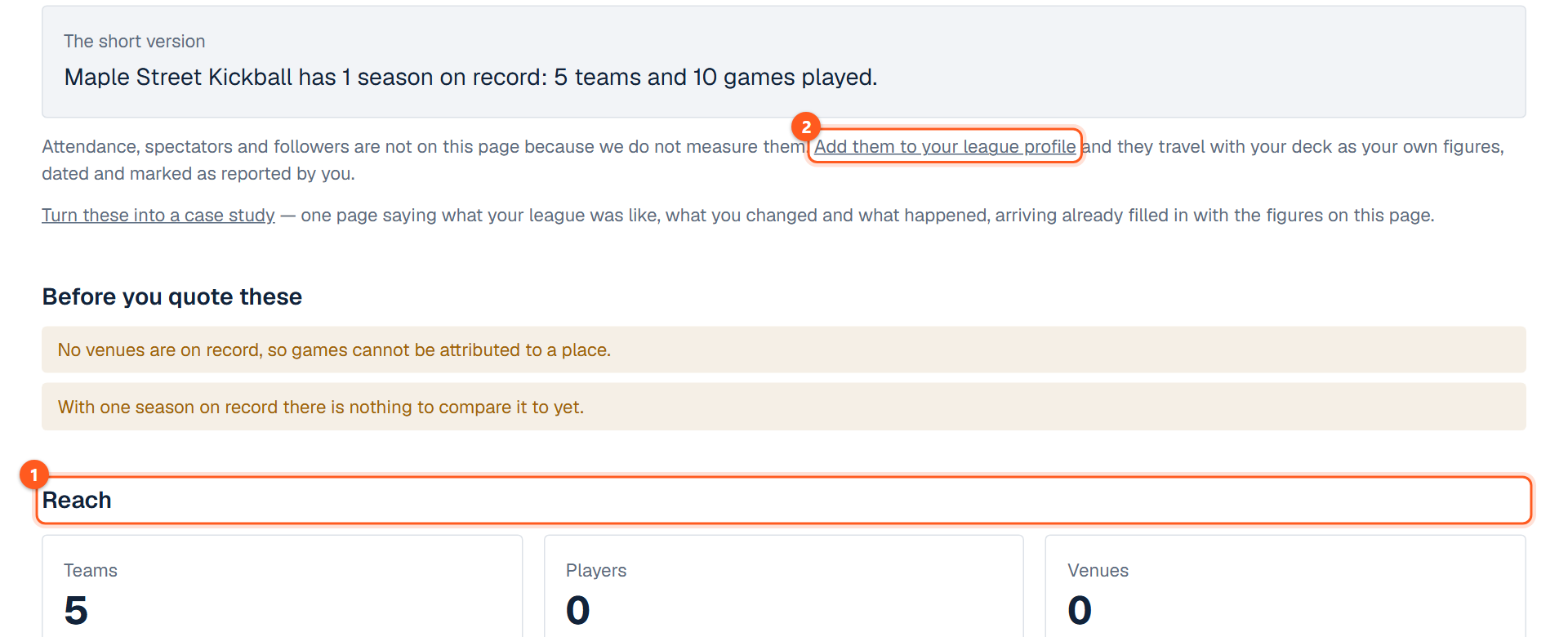
League story counts what happened in your league from its own records (seasons, teams, players, games), for a sponsor pitch; case studies built from it are private until you approve them.

League profile

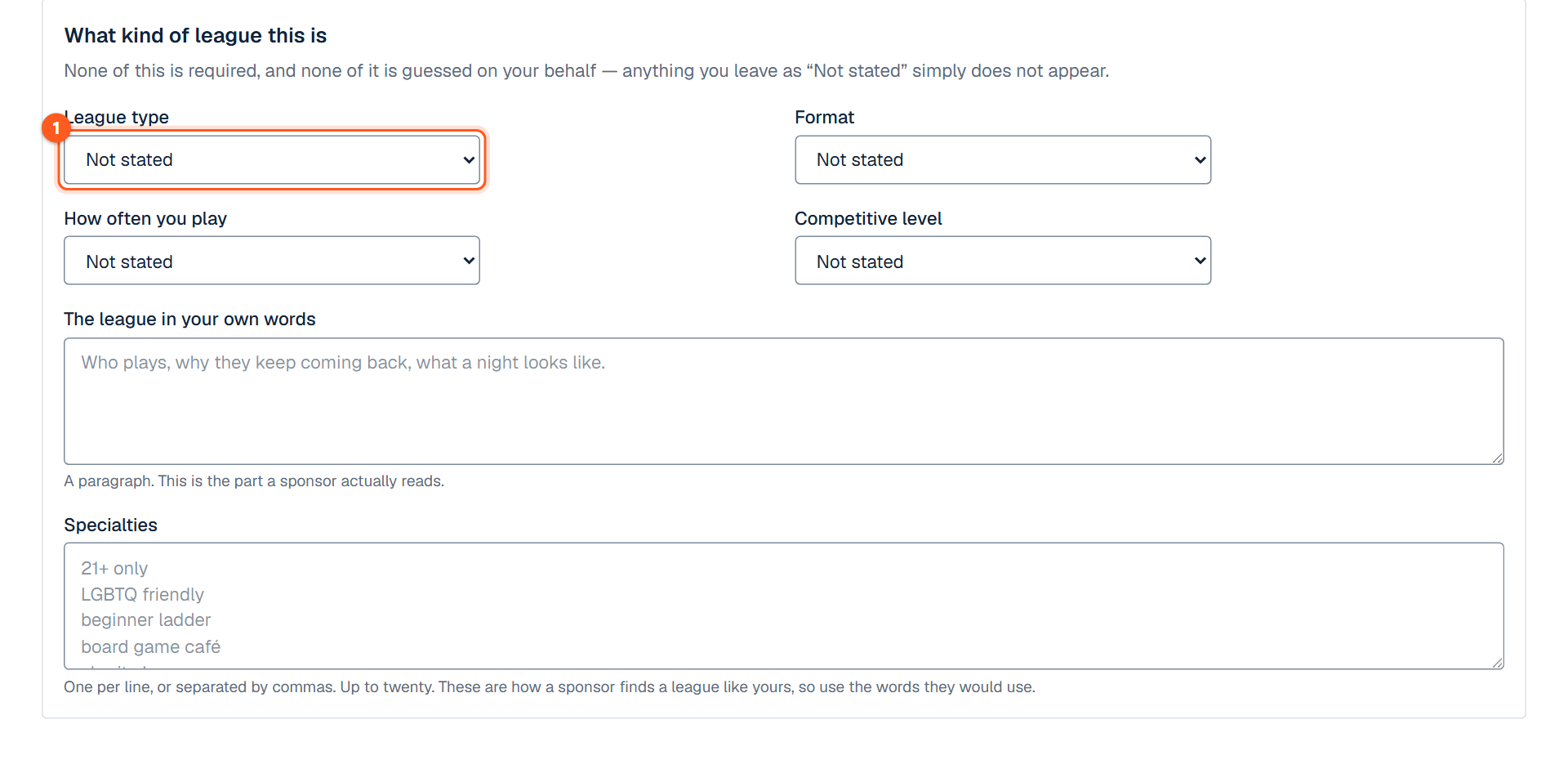
The profile holds what can't be counted (what kind of league it is, who turns up); every field is optional.

Sponsor kit

Sponsor kit (League Pro) is linked from League story.

Building the pitch

Type the business you are asking and pick a package (season, venue, team or game night; the prices and what the sponsor gets are suggestions you can change, none of it is automatic, and the items in italics, such as the trophy or the banner, happen outside LeagueBucket). You get a one-page sheet with the league's numbers and the ask, to print or save as a PDF, and a drafted note to copy or open in your email app. Nothing is sent or published from the kit itself. LeagueBucket can show the sponsor's name on the league's pages (below), but not their logo yet.

Where the money goes (fees)

Step 3 of the kit shows where the money goes if the sponsor pays through LeagueBucket: what the sponsor pays, LeagueBucket's 5%, and then two ways to pay. By card: Stripe's card fee (an estimate, 2.9% plus 30 cents on a US card) and what the league keeps. By bank account: Stripe's bank fee (0.8%, never more than $5) and what the league keeps. On $1,200 the league keeps about $1,105 by card and $1,135 by bank. The bank figures are left out when the league's Stripe account takes cards only. It updates as the price is typed and only the commissioner sees it; nothing about fees is on the sheet or in the note. The League Pro plan is billed separately and never comes out of sponsor money.

Taking payment through LeagueBucket

Step 6, Take the payment through LeagueBucket, is optional. Create a payment link makes a page for that business, package and price and gives the address to paste into the note. It needs what registration fees need: League Pro, a published league and a payout account Stripe has verified; otherwise the step says which is missing. The sponsor opens the link, sees the league, the package and what they were promised, and pays on Stripe's page with no account, by card or, when the league's Stripe account can take one, from a US bank account (the sponsor signs in to their bank on Stripe's page). The charge is made by the league on its own Stripe account and paid out to the league's bank. A cheque or cash costs nothing and needs no link.

Bank payments and payment statuses

A card payment is confirmed at once. A bank payment is not: the sponsor's page says Payment started, not yet confirmed, the list reads Bank payment started, not yet confirmed, and Stripe confirms it within about four business days, when both read Paid. If the bank sends the payment back, the link goes back to Waiting for payment with the date it failed, and the sponsor's page says it did not go through and offers to pay again. Spend nothing on a sponsor until the line reads Paid.

Payment links you have made lists each one as Waiting for payment, Bank payment started, Paid, Withdrawn or Refunded. A payout account made before bank payments were added takes cards only until its first payment link is made; making one asks Stripe to add bank payments to the account.

Withdrawals and refunds

Withdraw cancels a link nobody has paid, and its page then says so. A refund is made from the league's Stripe dashboard and shows on the list once Stripe reports it.

Showing your sponsor on your pages

Show your sponsor on your league pages, at the bottom of the kit screen, is for once a sponsor has said yes: type their name, and their website if they have one, and save. "Sponsored by" and the name then appear under the league's name on every public page and in the website widget, linked to the website if one was given. One sponsor, name only, no logo. Save the name empty to take it off. It shows only while the league is on League Pro.

The League story screen: your league in numbers
  1. 1. Figures worked out from the league's own records.
  2. 2. Add the figures only you know.
The League profile form
  1. 1. Describe the league: its type, format and level.

Website widget (admin setup)

Sidebar → Website widget

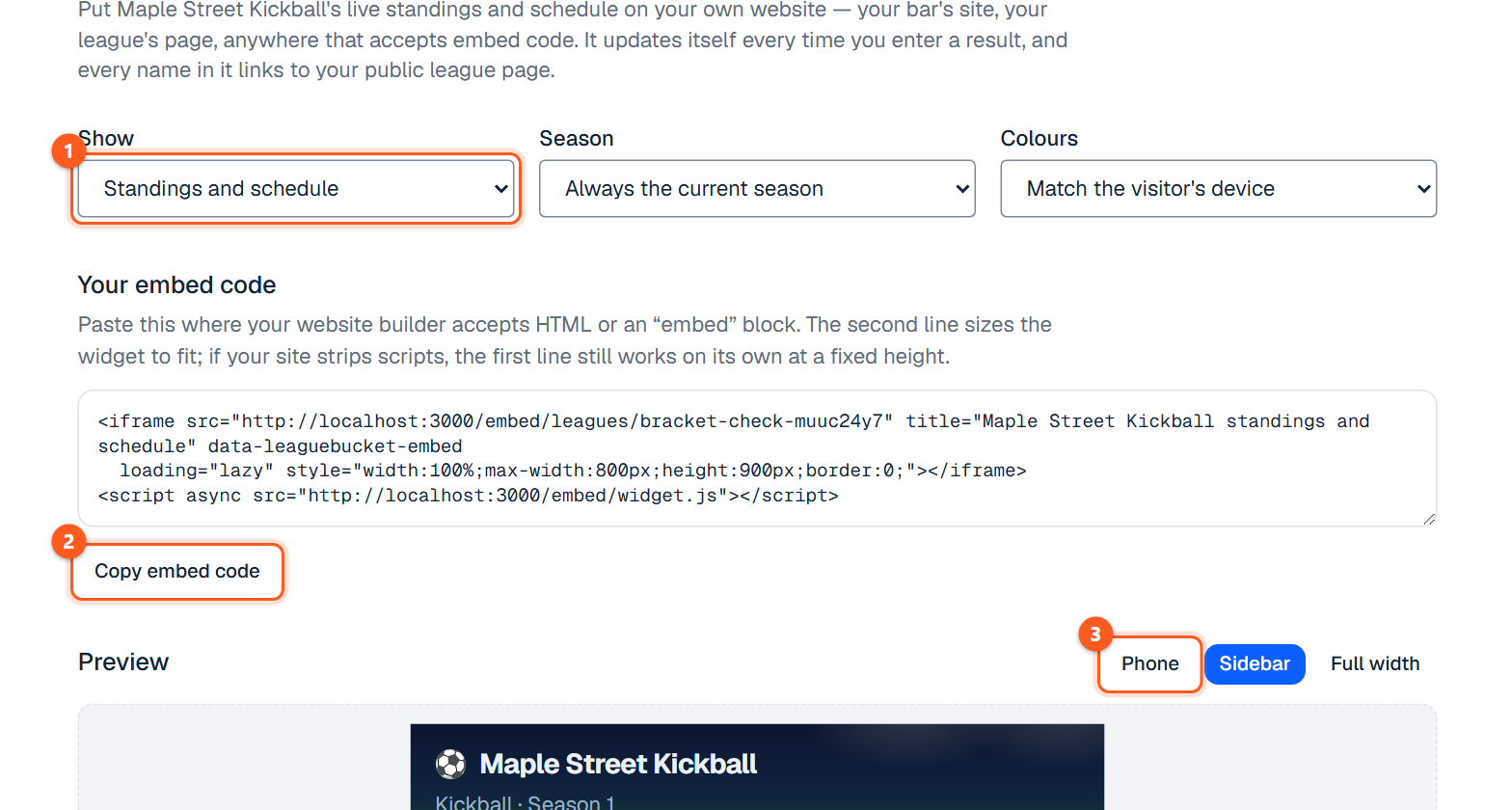
Choose standings, schedule or both, the season and light or dark, preview it at three widths and copy the snippet onto any website. It updates itself. Below Commissioner it shows a short upgrade note instead of the table.

The Website widget screen with the embed code and a preview
  1. 1. Choose what the widget shows, which season, and its colours.
  2. 2. Copy the code and paste it into your own website.
  3. 3. See how it looks at a phone's, a sidebar's and a full page's width.

Export data

Sidebar → Export data

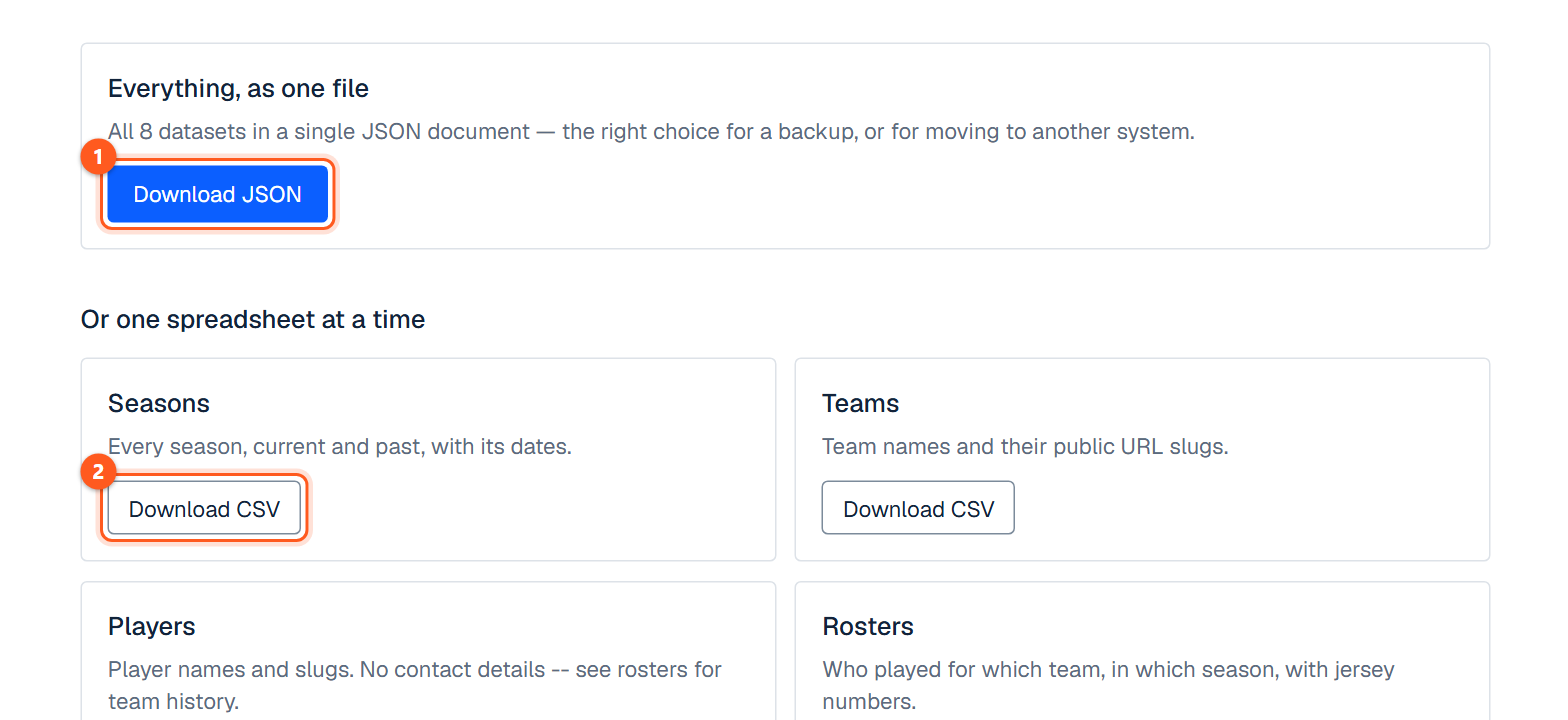
Everything the league has, as CSV or JSON, on every plan including Free.

The Export your data screen
  1. 1. Everything the league holds, as one file.
  2. 2. Or one spreadsheet at a time.

Settings

Sidebar → Settings

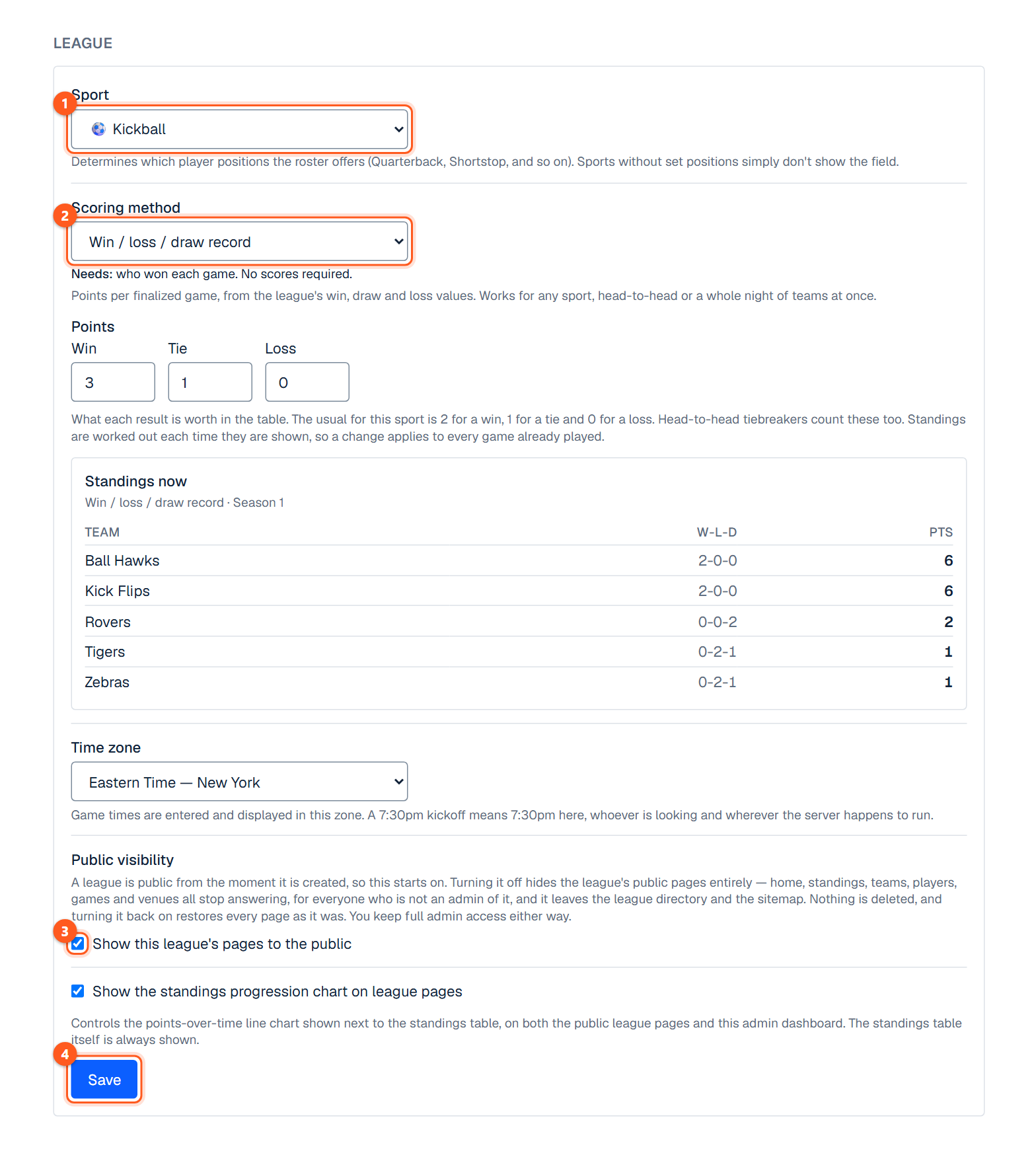
League settings

Name, timezone, public visibility, the standings method, win, draw and loss points, the progression chart, and bowling's rules.

Public visibility (Public, Unlisted, Off)

Public visibility has three choices. Public: anyone can open the pages, and the league is in the directory, on its sport's page and in search engines. Unlisted: anyone with the link can open every page, follow, add the calendar and see the widget, and fees and sponsor payment links work, but the league is left out of the directory, its sport's page, the sitemap and search engines; the header shows an Unlisted tag to admins. Off: only the league's admins can open its pages, and calendar links, the widget, short links and payment links stop and game reminders are not sent. Nothing is deleted by any of them. A new league starts as Public.

Standings and points

The standings method (choosing a non-default method is part of Commissioner), win, draw and loss points, and the progression chart. A bowling league sets its standings points here too.

Bowling rules and handicap

Bowling's handicap, absent and vacant rules. Choosing Handicap league opens its Base and Percent right under it, above the Scratch option. A bowler's average and handicap are worked out again after each night's series and are the same for every game of a night; they never change between games on the same night.

Innings rules

Innings rules (baseball, softball, kickball): regulation innings, run rule, forfeit score and more.

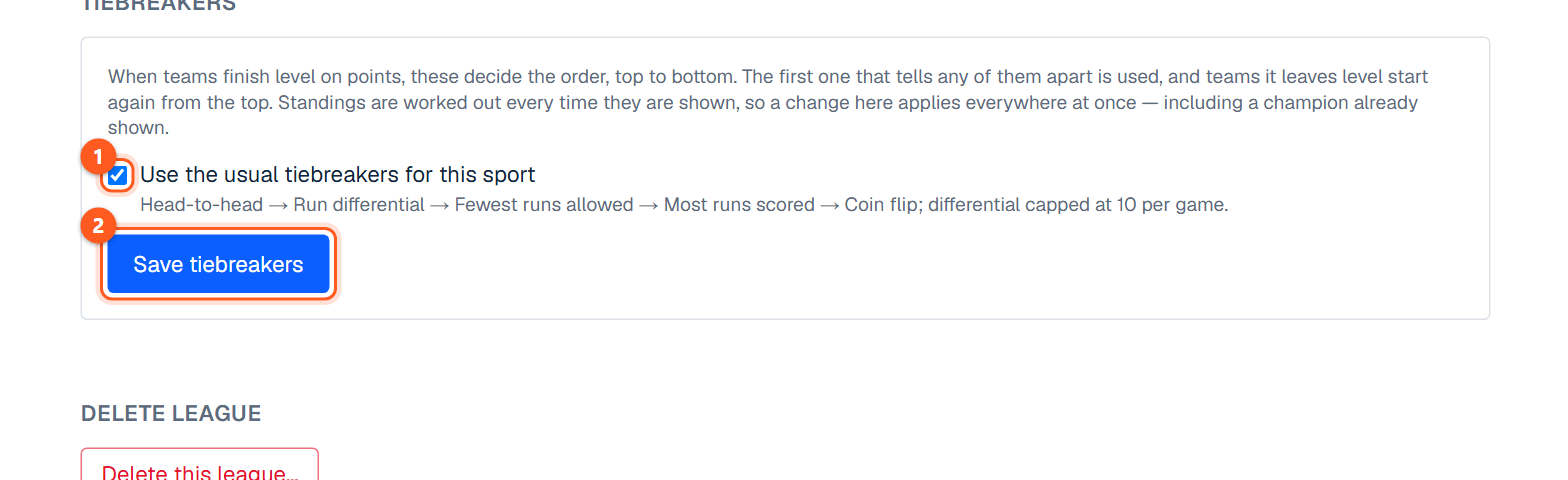
Tiebreakers

The order the table separates level teams, ending in a coin flip you record.

Saving settings

The page is laid out as cards. Sport and scoring, Bowling rules, Time zone, Public visibility and Standings chart share one button, Save league settings. Innings rules and Tiebreakers each have their own Save.

Deleting a league

Delete league: owner only.

The top of the Settings screen
  1. 1. The league's sport.
  2. 2. How the standings are scored.
  3. 3. Untick to hide the league from the public.
  4. 4. Each section has its own Save button.
The Tiebreakers section of Settings
  1. 1. Leave ticked to use the sport's usual order, or untick to set your own.
  2. 2. Save the order. The key under the public standings changes to match.

Profile, plan and billing

Sidebar → Profile · Billing · Your plan

Your profile

Profile is your own account.

The Free plan

Free covers a real league and doesn't expire.

Paid plans and the waitlist

Paid tiers are priced on the pricing page. A plan that is not on sale reads "Not on sale yet" there and has an "Email me when it opens" field, which takes an address for one email on the day that plan goes on sale. A plan that is on sale reads "On sale" and has a "Create a league, then upgrade" button to sign-up; the purchase itself is made from the league's Billing page.

Billing and changing plans

Billing and Your plan appear once billing is switched on. Billing has a Monthly / Yearly switch above the plans (yearly is ten months' price for twelve). A plan that is not on sale reads "Not on sale yet" and has no button, and the server refuses a purchase however it is asked; once on sale, Upgrade buys the plan for the period shown. An owner who already pays changes plan, or monthly to yearly, under Manage billing, where Stripe works out the difference.

When a plan lapses

When a plan lapses, leagues the plan no longer covers become read-only, never hidden.

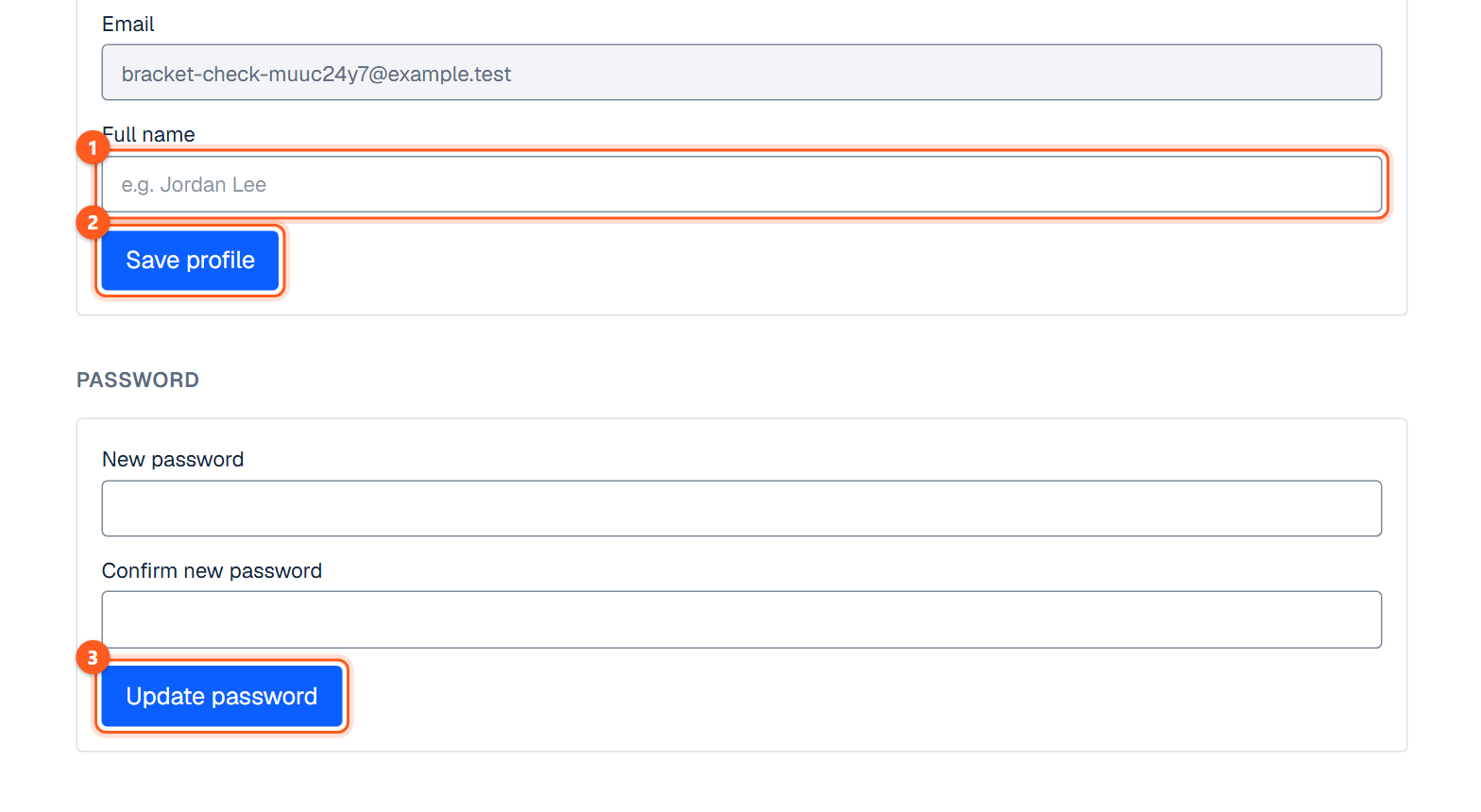
The Profile screen
  1. 1. Your name, as members see it.
  2. 2. Save it.
  3. 3. Change your password.
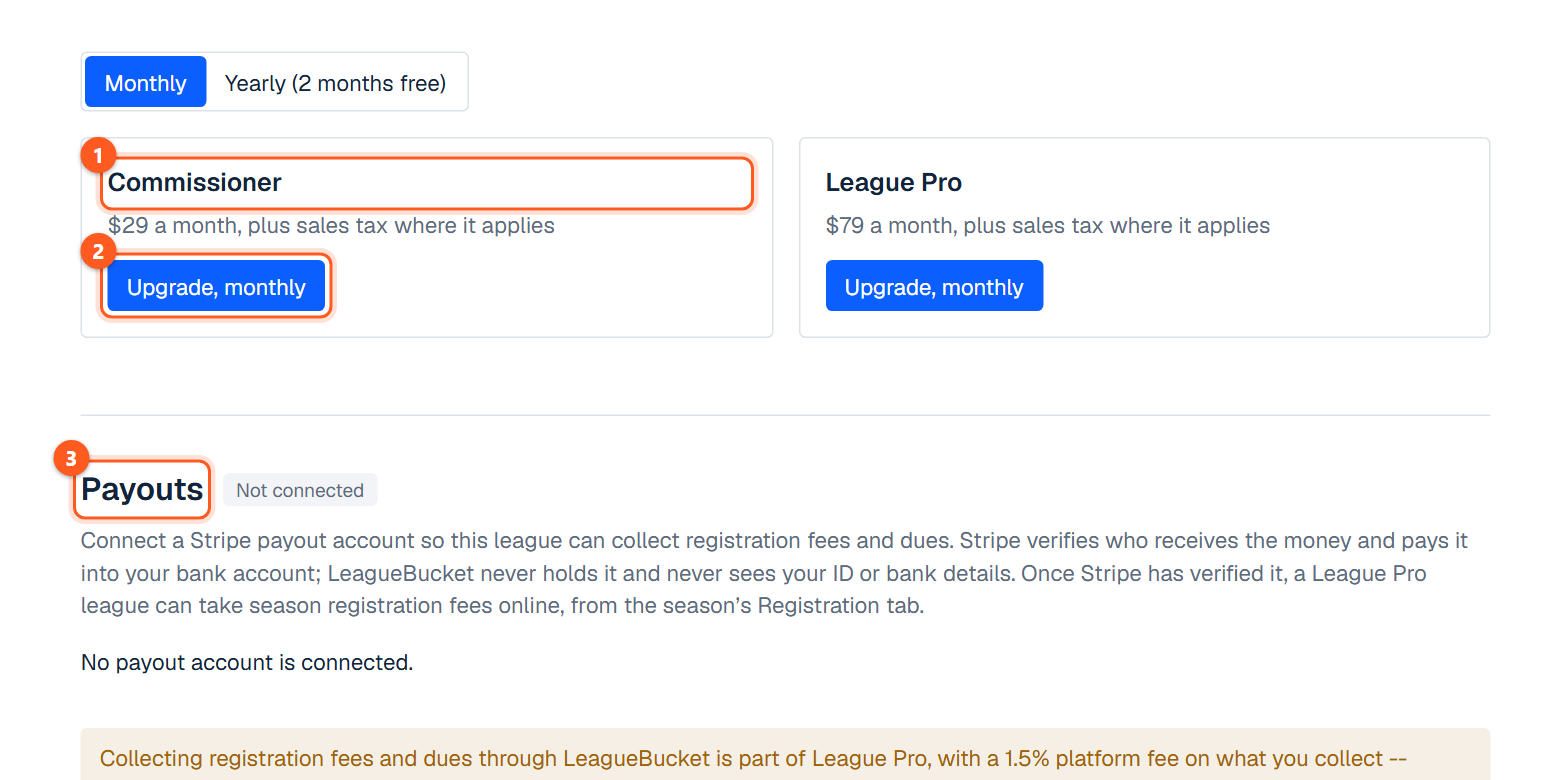
A league's Billing screen
  1. 1. The paid plans and what each adds.
  2. 2. Upgrade this league. Payment is taken on Stripe's page.
  3. 3. Connect Stripe here to take registration fees.
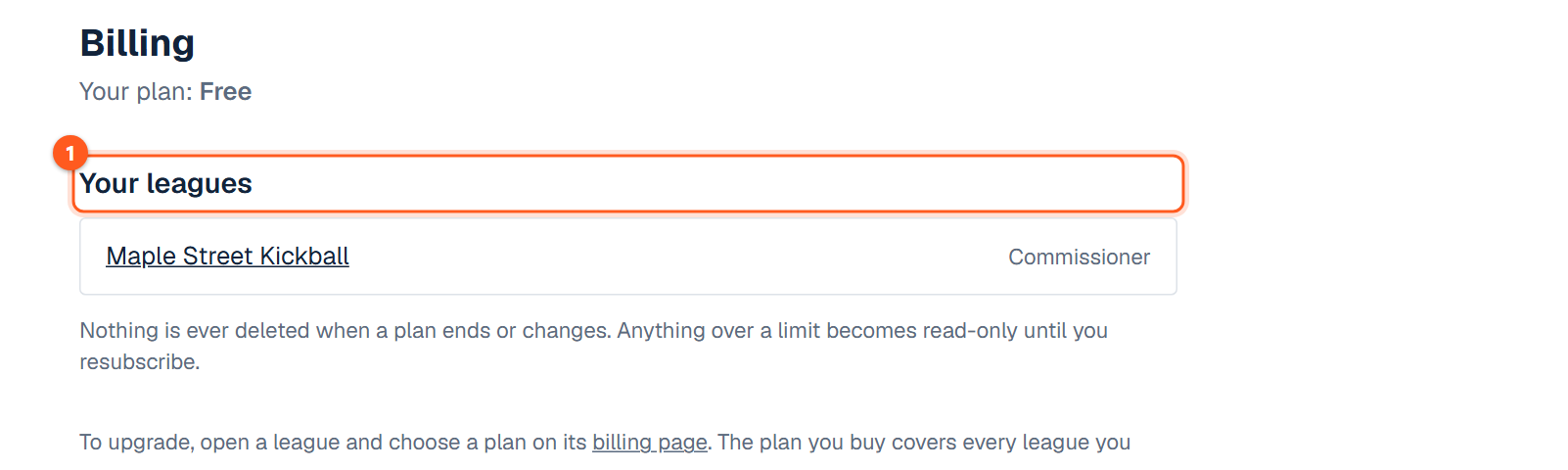
The Your plan screen listing your leagues
  1. 1. Each league you own and the plan it is on.